
What VIDIO is
VIDIO is a browser-based AI video editor built for people who run channels. It started out known for rotoscoping and background removal. Today it covers almost the whole job of a YouTuber: cutting raw footage, pulling Shorts and stream highlights, captioning, cleaning up audio and video, packaging titles and thumbnails, scheduling uploads and tracking results.
The company behind it is MOSAIK Studio, Inc., based in Creve Coeur, Missouri. Its about page says it was founded in 2023 by Dr. Minseung Kim, a machine learning researcher, and lists 500,000+ users and 900,000+ uploaded videos. VIDIO is also a member of NVIDIA’s Inception program for startups.
We list it under short-form clip makers because turning long recordings into Shorts is one of its main uses. But it is closer to a full creator suite. It also has strong caption tools and works as a general AI editor.
Who it is for
VIDIO fits you if:
- You record long videos, podcasts or streams and want Shorts and highlights without rewatching everything.
- You want a rough cut done by AI, then finish it in Premiere Pro, Final Cut Pro or DaVinci Resolve.
- You need captions, noise removal or background replacement and would rather not juggle three apps.
- You blur faces or license plates in vlogs, event or street footage.
- You care about YouTube packaging and want a second opinion on titles, thumbnails and hooks.
Skip it if:
- You want a tool focused on TikTok or Instagram publishing. VIDIO’s scheduler is pitched at YouTube.
- You need heavy, frequent background replacement on a small budget. Those tools are credit-hungry.
- You want an AI video generator that makes footage from a prompt. VIDIO edits footage you already have.
- You want a mobile app. VIDIO runs in the browser only.
How it works
VIDIO splits into three areas, all sharing one credit balance.
Create
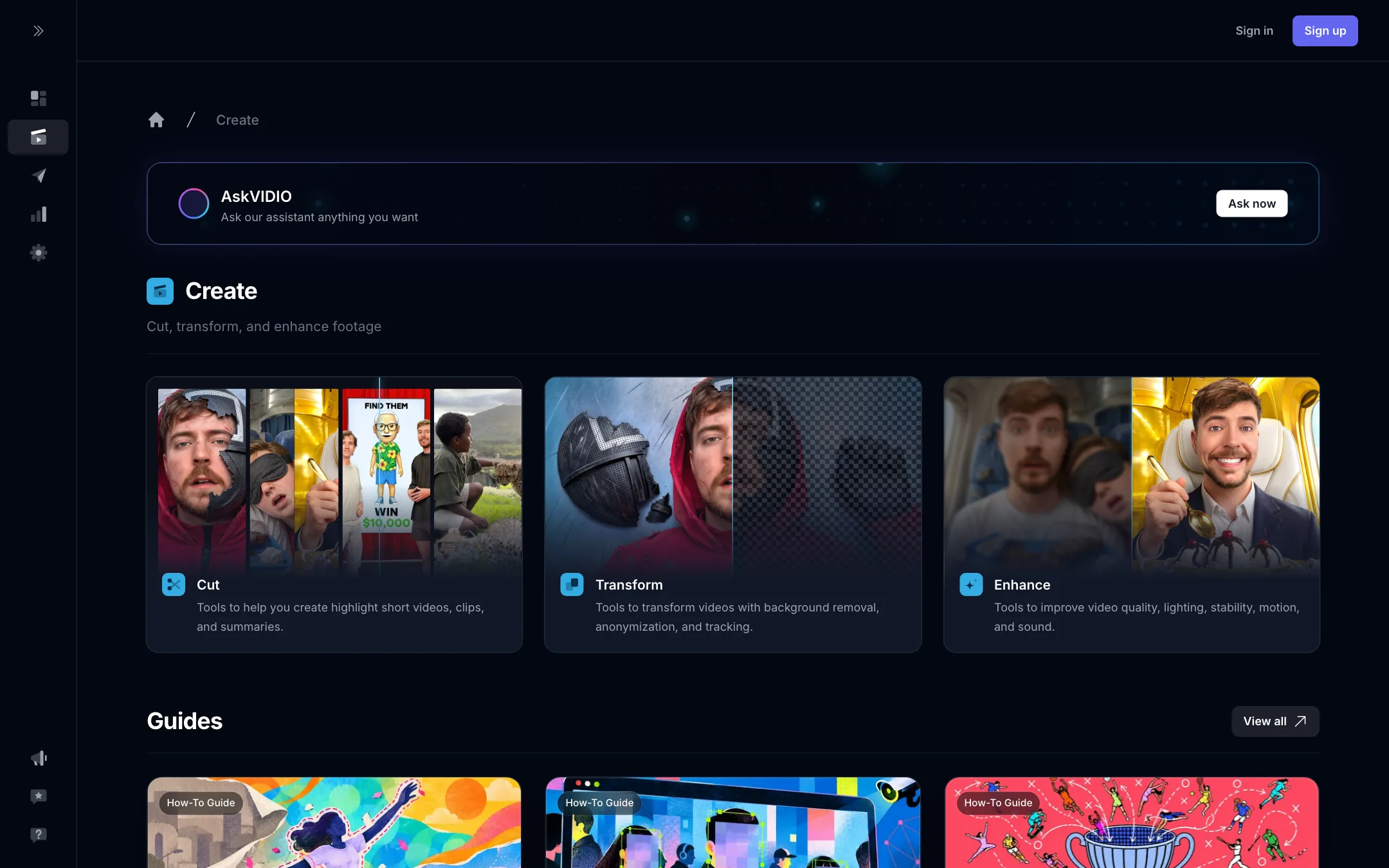
The Create hub groups tools into Cut, Transform and Enhance.
- Cut covers auto editing, highlights, Shorts and summaries.
- Transform covers background removal and replacement, face and plate blurring, object tracking and the object transformer.
- Enhance covers upscaling, lighting, stabilizing, sharpening, frame interpolation and noise removal.
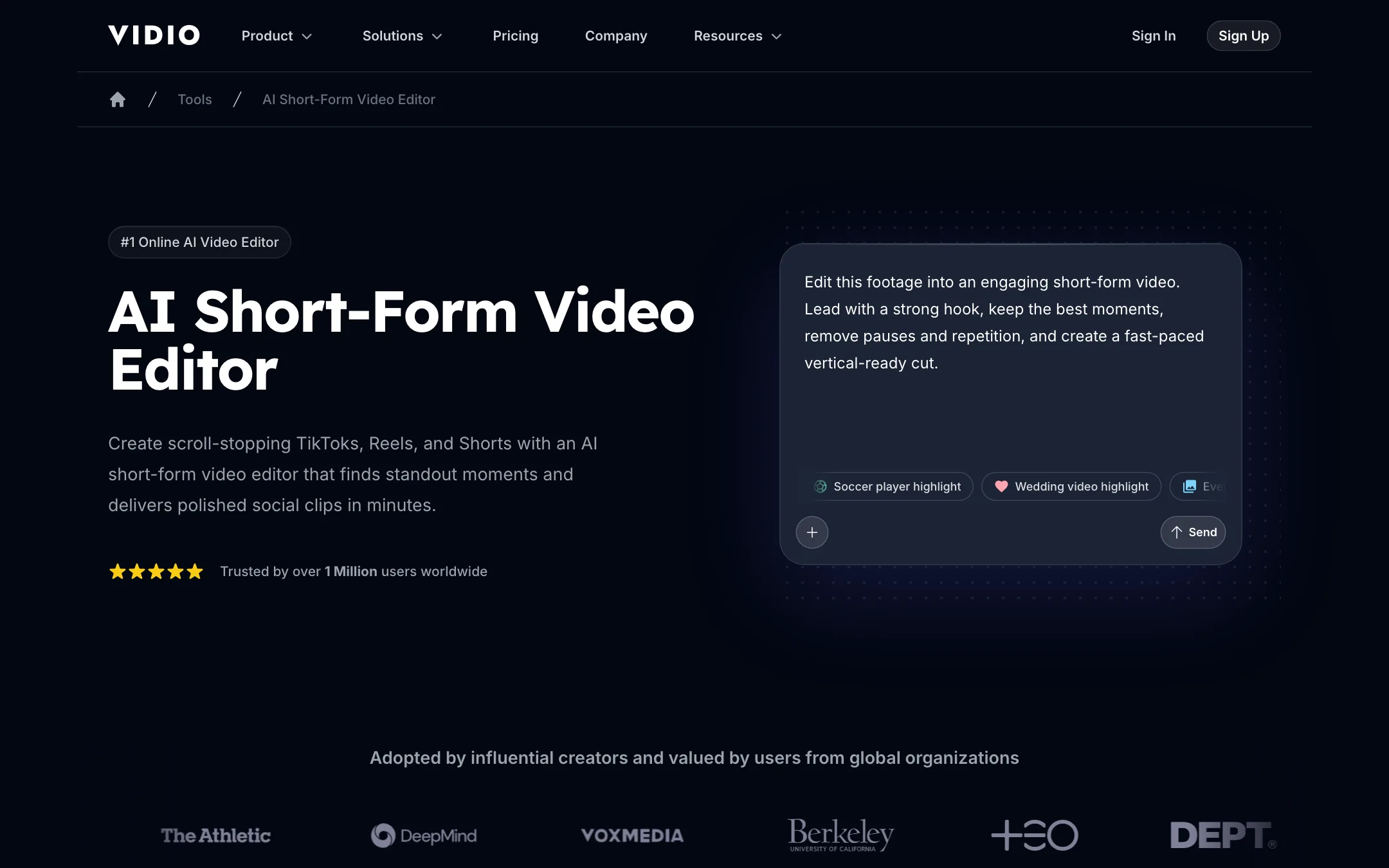
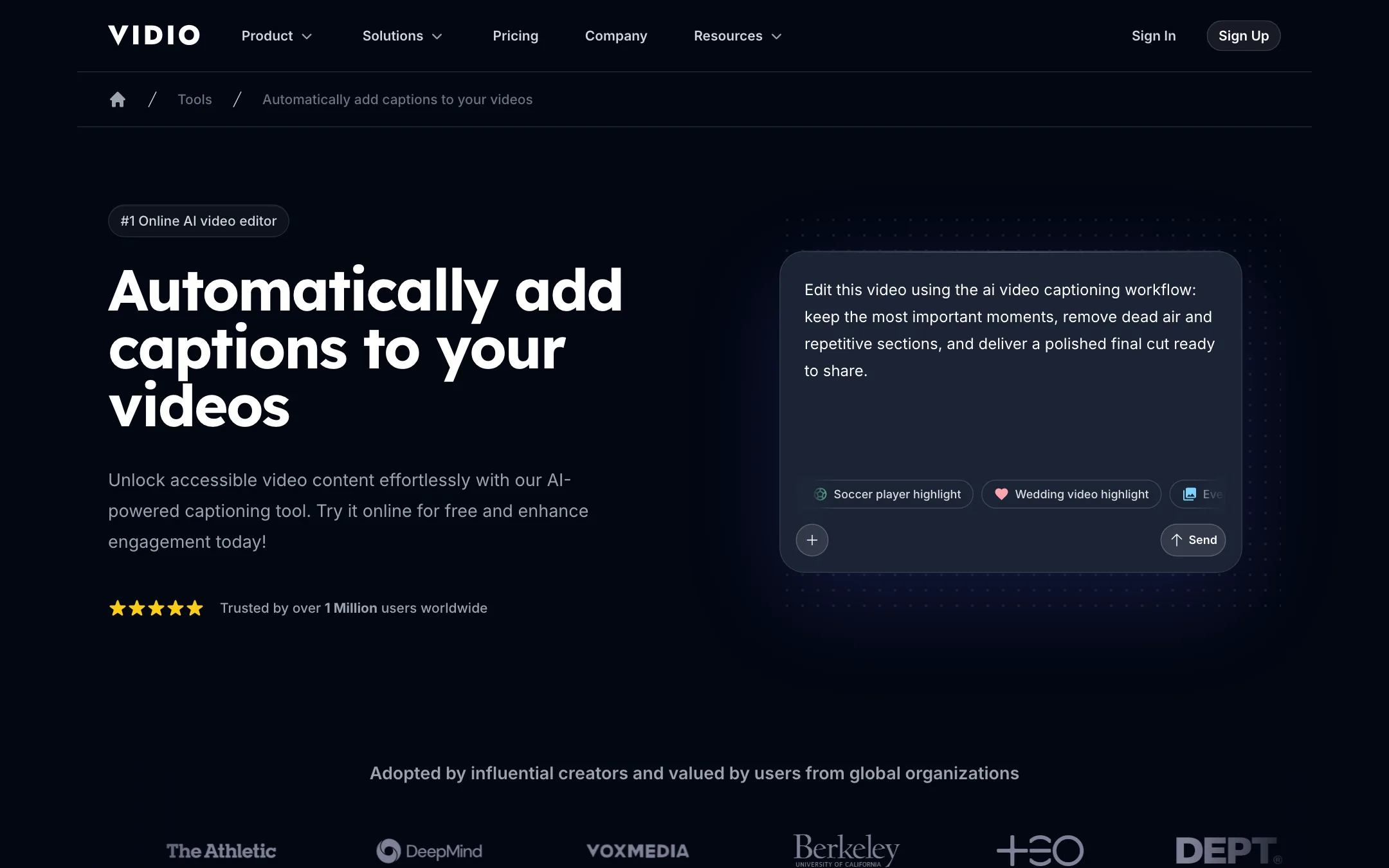
The newest part is VibeEdit, a chat-based editor. You upload footage and type what you want, for example “make the intro punchier and add upbeat music”. VIDIO says the timeline then changes to match. Its short-form editor page shows the same idea. You write a brief like “lead with a strong hook, remove pauses and repetition, create a fast-paced vertical cut”, and VIDIO assembles the edit.
A typical long-video-to-Short run
Based on VIDIO’s own walkthrough:
- Upload your footage, paste a YouTube, TikTok, Twitch or Instagram link, or pull a file from Google Drive, Dropbox or OneDrive.
- Describe the edit. Say how the Short should open and how long it should run.
- VIDIO lists every moment it found and marks its picks, such as Hook, Reaction, Outtake and Payoff. Swap moments in or out.
- Choose the pace (snappy, balanced or storytime) and the length (30 seconds, one minute or three minutes).
- Pick a royalty-free track. VIDIO says it times cuts to the beat and adds crossfades, wipes and zooms.
- Export at 9:16, 1:1 or 16:9.
If you change a cut by hand, VIDIO says captions, music and transitions shift with it.
Captions
VIDIO generates word-by-word animated captions timed to speech, in 40+ languages. You style them by describing the look in the prompt, for example “bold yellow captions with a bounce, one line at a time”. You can also export an SRT caption file. That puts VIDIO in reach of dedicated caption tools for many creators, which is why we cross-list it there.
Stream highlights
For streamers, VIDIO takes a VOD and pulls out the hype moments. Its homepage demo shows chat activity plotted over a three-hour stream with the peaks marked as highlights. That is a sensible signal for gaming content, though we have not tested how well it works on a real VOD.
Publish and analytics
The Publish area has four tools:
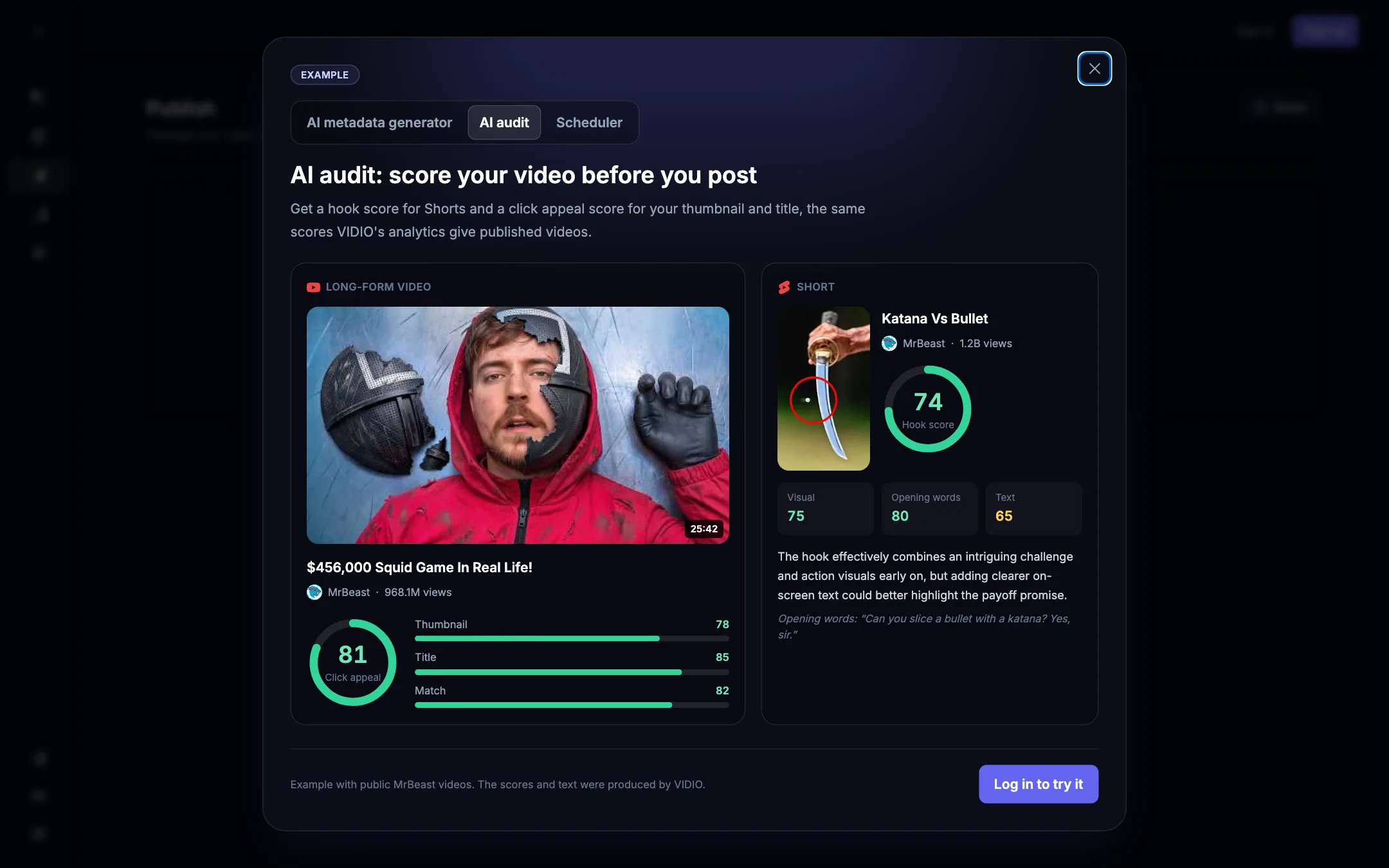
- AI audit gives a Short a hook score and a long video a click-appeal score for its title and thumbnail.
- Best time to post looks at when your channel’s videos get the most views.
- AI metadata generator writes titles, descriptions and tags.
- Scheduler publishes to YouTube at a set time.
The public demo of the audit uses MrBeast videos, and VIDIO labels the scores and text as its own output. To run it on your own video you need an account.
Creator analytics tracks subscribers, views and growth for channels on YouTube, TikTok, Twitch and Spotify, and compares a new upload with your typical video.
Output quality
We have not edited footage in VIDIO, so we cannot rate the cuts or captions first-hand.
What we can say:
- Its roots are in visual effects. Many of the testimonials on its homepage are about rotoscoping, background removal, stabilizing and upscaling. These are older, more established parts of the product.
- The AI-editing side is newer. VibeEdit and the chat-driven Shorts flow are the current focus. Like any automatic editor, expect to review the picks. An AI that finds “the best moments” still does not know your audience the way you do.
- Output resolution depends on the plan. Free output tops out at 720p. Paid plans reach 1080p, and Business and Studio add 4K export.
VIDIO cites ratings of 4.7 on G2 and 4.5 on Trustpilot. Those are the vendor’s figures. Check the review sites yourself for recent comments.
Pricing
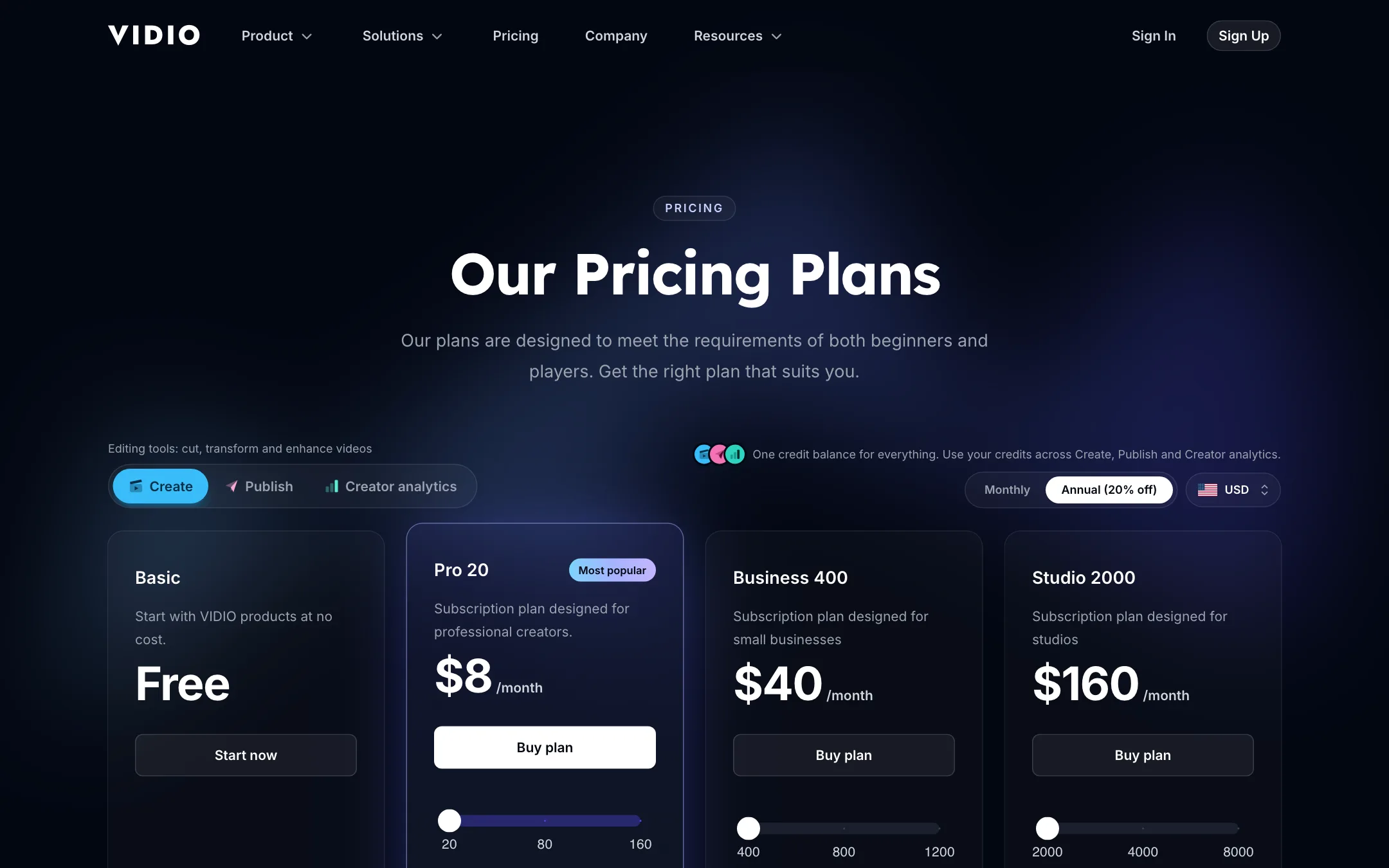
Prices below come from vidio.ai/pricing on October 19, 2026. Annual billing saves 20%.
| Plan | Price | What you get |
|---|---|---|
| Basic | Free | 10 messages a month, watermark, 720p, 10-minute inputs |
| Pro 20 | $8/mo yearly, $10 monthly | 20 credits, no watermark, 1080p, 1-hour inputs |
| Business 400 | $40/mo yearly, $50 monthly | 400 credits, 4K, 2.5-hour inputs |
| Studio 2000 | $160/mo billed yearly | 2,000 credits, 6-hour inputs, 10 jobs at once |
Each plan has a slider that adds credits for a higher price. Pro with 80 credits was $15 monthly when we checked.
Reading the credit table
The headline prices look low, but credits are where the real cost sits. The pricing page lists per-second rates:
- Random cut in VibeEdit: 0.001 credits per second.
- AI edit for most content: 0.03 credits per second. Beauty-product demos are 0.04 and player-specific sports cuts are 0.1.
- Interactive Background Changer: the calculator showed 30 credits for one minute.
Rough math at those rates, assuming you are billed on footage length: an AI edit of a 10-minute video comes to 18 credits, almost all of Pro 20’s monthly allowance. One minute of background changing costs more than Pro 20 includes. If you plan to use the heavier tools, Business is the more realistic plan.
A few other notes:
- Upload limits vary by source. The pricing page lists 1 GB free, 4 GB on Pro, 8 GB on Business and 16 GB on Studio. The FAQs on individual tool pages still say 3 GB. Trust the pricing page, but test with your real files.
- Free usage is limited by messages and uploads, not only credits: 10 messages a month and 3 uploads a day.
- Support speed scales with price. Pro lists a three-day response, Business 24 hours and Studio 12 hours.
How to test VIDIO on the free plan
The free plan is small, so plan your test before you upload anything.
- Pick one representative video. Use a recording that looks like what you make every week, trimmed under 10 minutes so it fits the free input limit.
- Spend your messages on the brief, not small tweaks. You get 10 AI messages a month. Write one clear brief with the hook, length and style you want, then judge the first result.
- Check the picks against your own judgment. Look at the moments VIDIO marks as Hook and Payoff. Would you have chosen the same ones? That tells you more than the polish of the export.
- Try the captions on muted playback. Most Shorts are watched without sound. If the word timing and line breaks read well on mute, they will work in the feed.
- Note the credit cost of every tool you touch. The free plan is the cheapest way to learn what a typical edit will cost you on Pro or Business.
- Test XML export if you use a desktop editor. It needs a paid plan, but it is the feature that decides whether VIDIO slots into an existing workflow or replaces it.
VIDIO or a dedicated clip maker?
Dedicated clip makers focus on one job: turning long talking videos into many vertical clips with captions, often with a virality score. VIDIO does that too, but spreads its effort across editing, effects, publishing and analytics. If all you need is a stack of podcast clips each week, a focused clipper may be simpler. If you also want cleanup, blurring, background changes and YouTube packaging in one account, VIDIO is the broader buy.
Verdict
VIDIO is a good fit if you run a channel and want one browser tool that handles the tedious parts: rough cuts, Shorts, captions, cleanup and scheduling. The free plan lets you try the workflow properly, and XML export means you are not locked in if you prefer to finish in a desktop editor.
Go in with your eyes open on credits. The $8 plan is a taster, not a production plan, once you move past simple cuts. Run your typical video through the free plan, note what each tool costs, and choose a plan based on that number rather than the headline price.