
What Submagic is
Submagic is a web-based editor for short vertical video. It started as a caption tool and is still best known for one thing: the bold, animated, word-by-word captions you see on TikTok, Reels and Shorts. You upload a clip, pick a caption style, and Submagic transcribes the speech and lays the captions over the video with emojis, highlighted keywords and motion.
Over time it has grown into a full short-form editor. It now finds clips inside long videos, trims silences and bad takes, adds stock B-roll and zooms, cleans up audio and posts the result to your social accounts. Submagic says more than 4 million users have signed up, and it shows a 4.7 out of 5 rating on G2 from 80+ reviews.
It is the most-clicked caption tool among our readers by a wide margin, and the second most-clicked tool on the whole site after PixVerse. That makes sense. Captions are the one edit almost every short-form creator needs on every single video.
The company is based in France, and the product is web only. There is no desktop app and no mobile app listed on the site.
Who it is for
Submagic fits you if:
- You film talking-head videos for TikTok, Reels, Shorts or LinkedIn and want them captioned in a popular, high-retention style.
- You run a podcast or interview show and want a batch of short clips from each episode.
- You coach, teach or sell a service and post several short videos a week without an editor.
- You manage social content for clients and want a saved Brand Kit per client.
Skip it if:
- You edit long-form YouTube videos with multiple tracks, color work or complex sound. Submagic is built for short clips, not a full timeline edit.
- You need dubbing. Submagic translates your subtitles, but it keeps your original voice. It does not generate a new audio track in another language.
- You want one cheap account for a whole team. Every plan is priced per member.
- Your raw videos run long and you are on a budget. Starter caps each video at 2 minutes.
How it works
Submagic’s own walkthrough has three steps: upload, let the AI edit, then export or schedule. In practice, you choose one of three starting points.
Captions and Auto Edit
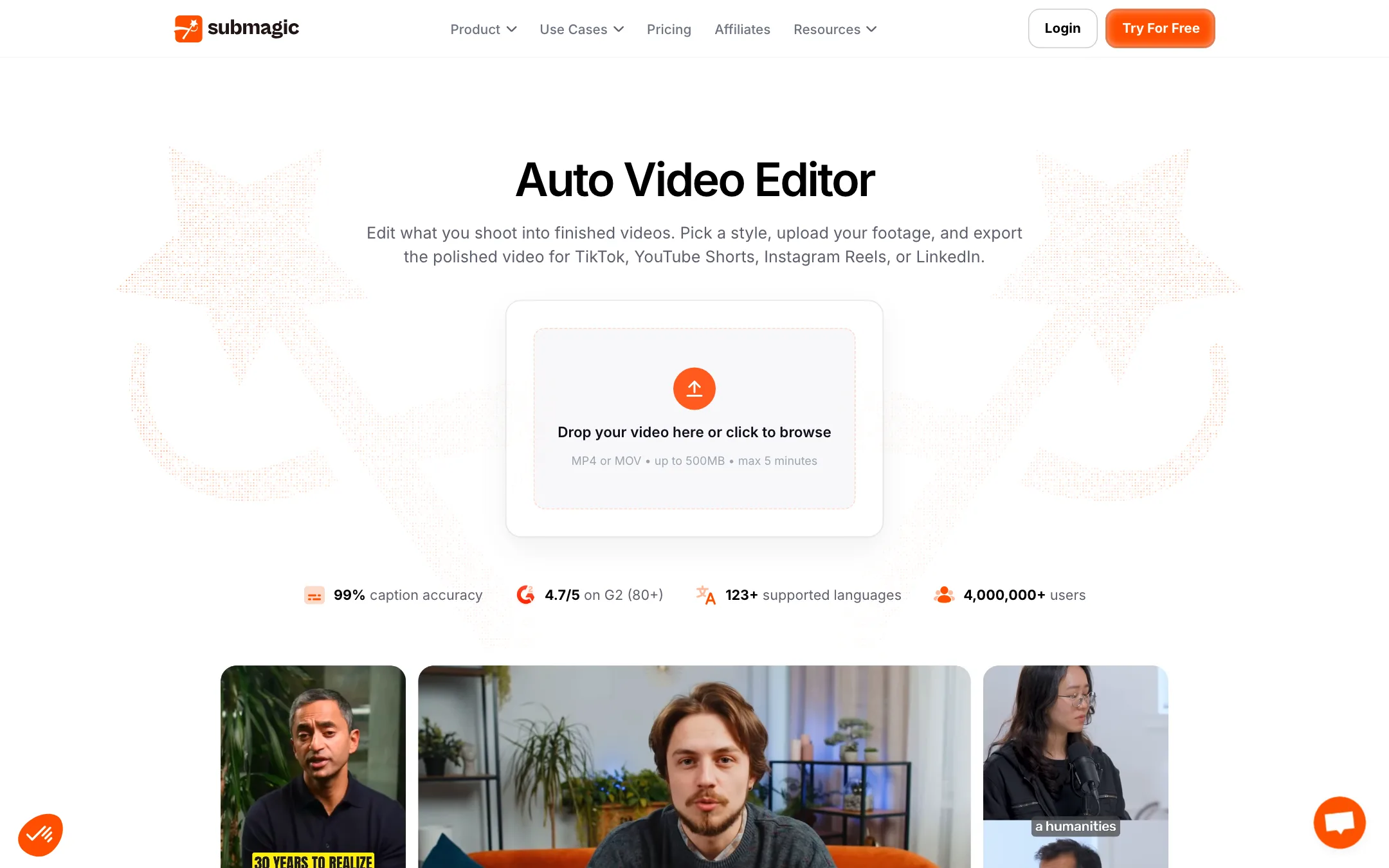
This is the core workflow. You pick a style, upload a video or paste a link, and Submagic does the rest. Its feature page names a few of the starter styles: Kelly for a minimal look, Karl for a modern one and Ella for something bold. Each style sets the caption font, colors, animation and effects in one go.
From there you can change almost everything. Submagic lists control over typography, colors, shadows, stroke, position and animation, plus custom font uploads on higher plans. A Brand Kit saves those choices so you can apply them to every new video in one click.
Auto Edit then layers on the other tools:
- Smart Trim removes dead air, filler words and bad takes. You pick Natural, Fast or Extra Fast depending on how tight you want the pacing.
- Magic Zoom adds punch-in zooms at key moments, in four styles: smooth, crash, expo and linear. You can move or add zoom points by hand.
- Auto B-roll reads your transcript and drops in matching stock clips. A slider controls how often B-roll appears. You can also upload your own clips.
- Clean audio and eye contact correction remove background noise and shift your gaze toward the camera when you read from a script.
- Sound effects and music add atmosphere and emphasis.
The biggest workflow difference from a normal editor is text-based editing. Instead of scrubbing a timeline, you edit the transcript. Delete a sentence in the text and it disappears from the video. For talking-head content, that is far faster than hunting for cut points by ear.
Magic Clips
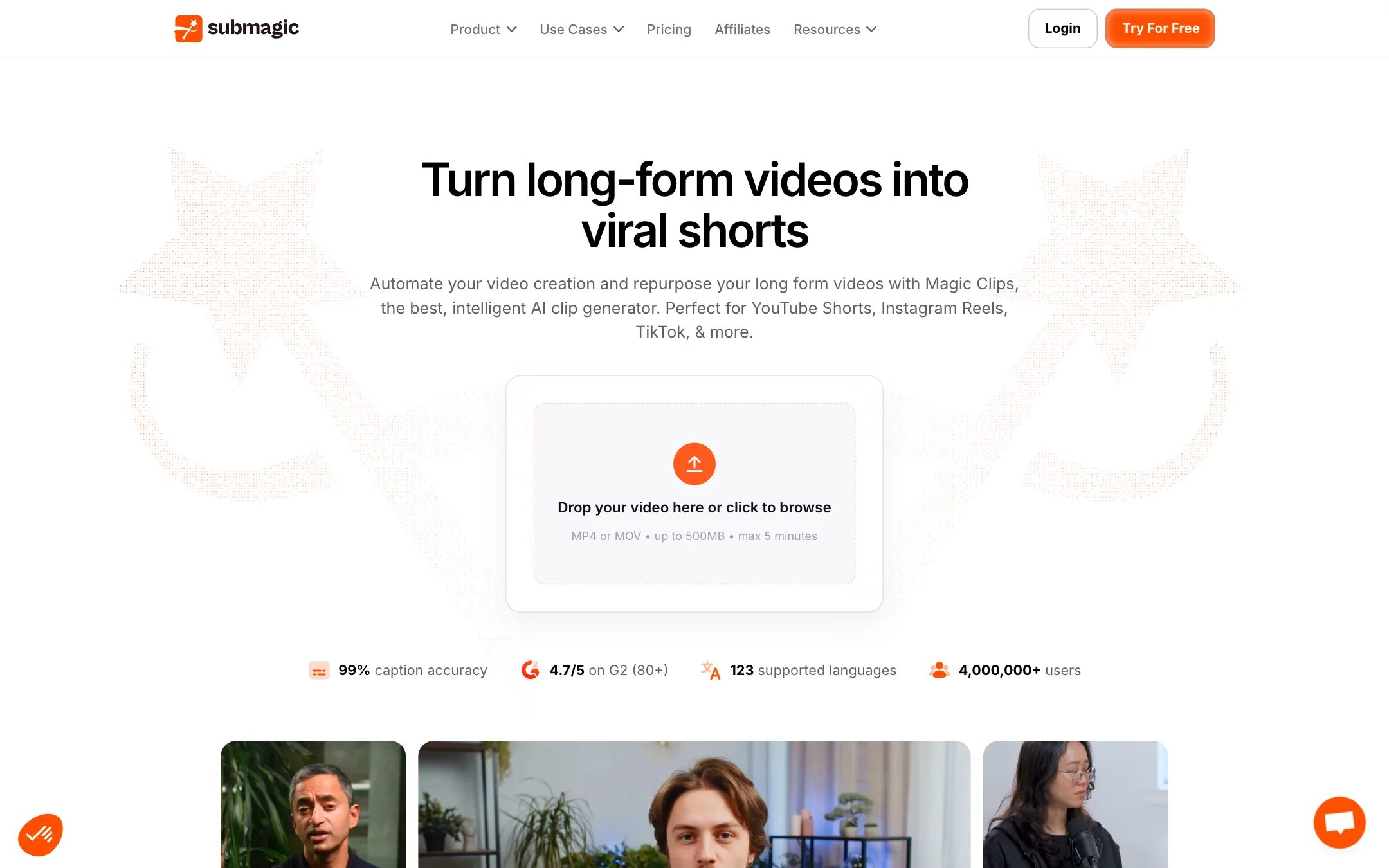
Magic Clips is Submagic’s answer to clipping tools like Opus Clip. You upload a long video or paste a YouTube link, and Submagic picks out what it judges to be the strongest moments, then turns them into separate vertical clips with captions already applied. The feature page says one long video can produce 20+ clips.
The public upload box on the Magic Clips page accepts MP4 or MOV files up to 500MB and 5 minutes. Inside the app the limits follow your plan, and Submagic’s FAQ says uploads of up to 2 hours are accepted. Magic Clips limits are listed as custom on the enterprise plan, so check what your plan includes before you count on clipping full podcast episodes every week.
As with every AI clipping tool, Submagic’s idea of a “viral” moment is a guess. Expect to review the clips, drop the weak ones and adjust start and end points.
Translation, scheduling and avatars
The translator detects your spoken language and generates subtitles in another one. Submagic is upfront that this is subtitle translation, not voice cloning or lip sync. Your original audio stays as it is.
Paid plans from Pro up can publish and schedule directly to social platforms, and Business lets you post from several accounts per platform. Submagic has also added AI avatars, which let you make videos without filming, though they are not the main reason people use the tool.
Export
The FAQ says exports run from 720p to 4K in five aspect ratios: 9:16, 4:5, 1:1, 16:9 or the original. Starter tops out at 1080p and 30fps, Pro adds 2K, and Business unlocks 4K at 60fps. You can also download captions alone as an SRT file, or export them on a green or blue background to composite in another editor. That second option is handy if you edit in Premiere, Resolve or CapCut but like Submagic’s caption styles.
Output quality
We have not run our own footage through Submagic, so here is what the company claims and what to watch for.
Submagic puts its caption accuracy at 99% on the homepage and 98% on its feature pages, across 123 languages. It also says the editor shows an accuracy figure for each video and highlights likely typos for you to fix. A custom dictionary on the Business plan helps with brand names and niche terms, which is where most transcription tools slip.
A few points to keep in mind:
- Accuracy numbers depend on your audio. A clean lav mic in a quiet room will transcribe far better than a noisy street interview. Any vendor figure is a best case.
- The language count is not consistent across the site. The caption pages say 123. The translation page says 48+ in one place and 100+ in another. If you work in a less common language, test it first.
- Speed claims are the vendor’s. Submagic says most videos finish in under five minutes and captions generate in about a minute. Long uploads and Magic Clips runs will take longer.
- Caption styles are a matter of taste. The trending styles are loud by design. They work for hooks and retention. They may look out of place on a calm, premium brand. Build your own template if that is you.
User reviews quoted on Submagic’s site praise its ease of use for beginners and the time saved per video. Those are selected testimonials, so treat them as the vendor’s marketing rather than independent evidence.
Pricing
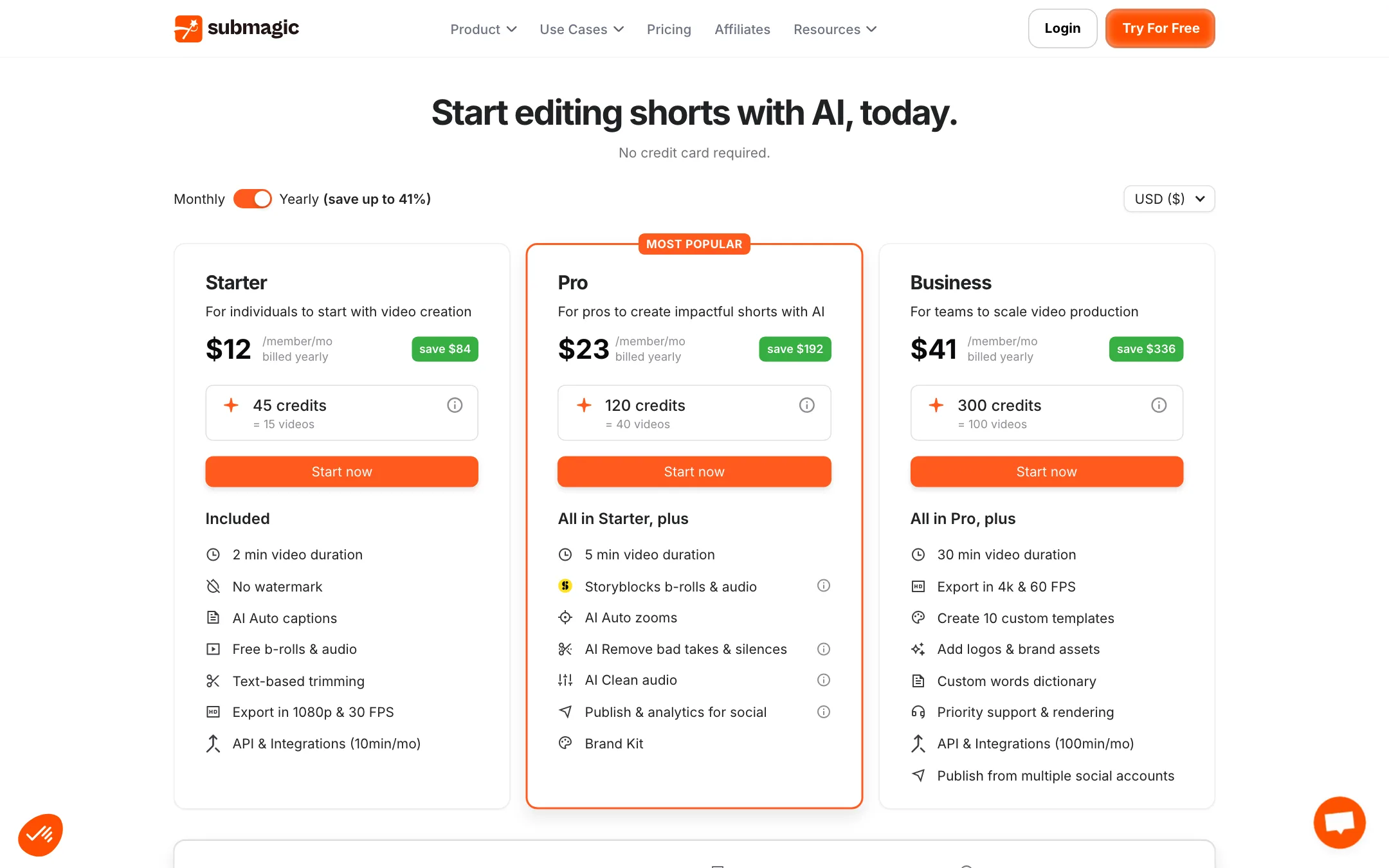
Submagic uses monthly credits and prices every plan per member. These prices were checked on the pricing page on 2026-10-19.
| Plan | Price | What you get |
|---|---|---|
| Free | Free | Limited exports, no card. Limits not published. |
| Starter | $12/mo yearly, $19 monthly | 45 credits (about 15 videos), 2-minute videos, 1080p |
| Pro | $23/mo yearly, $39 monthly | 120 credits (about 40 videos), 5-minute videos, auto zoom, trim, publishing |
| Business | $41/mo yearly, $69 monthly | 300 credits (about 100 videos), 30-minute videos, 4K 60fps, priority rendering |
| Custom | Contact sales | Custom limits, seats, SSO, dedicated support |
A few things the pricing page does not make obvious:
- Duration caps matter more than credit counts. Starter allows 2 minutes per video. If you record 3-minute talking-head clips, Starter will not fit, and you need Pro. If you want to clip from long recordings, check the Magic Clips limits too.
- Per-member pricing adds up. A three-person team on Pro pays three times $23 a month on yearly billing, not $23 total.
- Yearly billing is the real price. Monthly billing costs 37% to 41% more. The yearly saving on Business is $336 a year per member.
- Some feature limits conflict. The Business card advertises 10 custom templates, while the comparison table lists 5. Confirm in the app if templates matter to you.
- The API is metered separately. Starter and Pro include 10 API minutes a month and Business 100. Extra API packs run from $57 for 250 minutes up to $1,000 for 10,000 minutes, and you need a paid plan to buy them.
Submagic’s affiliate program pays 30% recurring for the life of the customer, which we note for transparency. It does not change how we describe the tool.
Verdict
Submagic is a safe first pick if captions are the edit you make most. The caption styles are the reason it is popular, text-based editing is quick for talking-head video, and the extras (Smart Trim, B-roll, zooms and Magic Clips) mean one subscription can cover most of a short-form workflow.
Watch three things before you pay. First, the per-video length caps: Starter’s 2-minute limit rules it out for many creators. Second, per-member pricing if you work as a team. Third, the free tier, which is real but undefined, so use it to check caption accuracy on your own audio and language. If those line up, Pro at $23 a month on yearly billing is where most solo creators will land.