
What RenderCut is
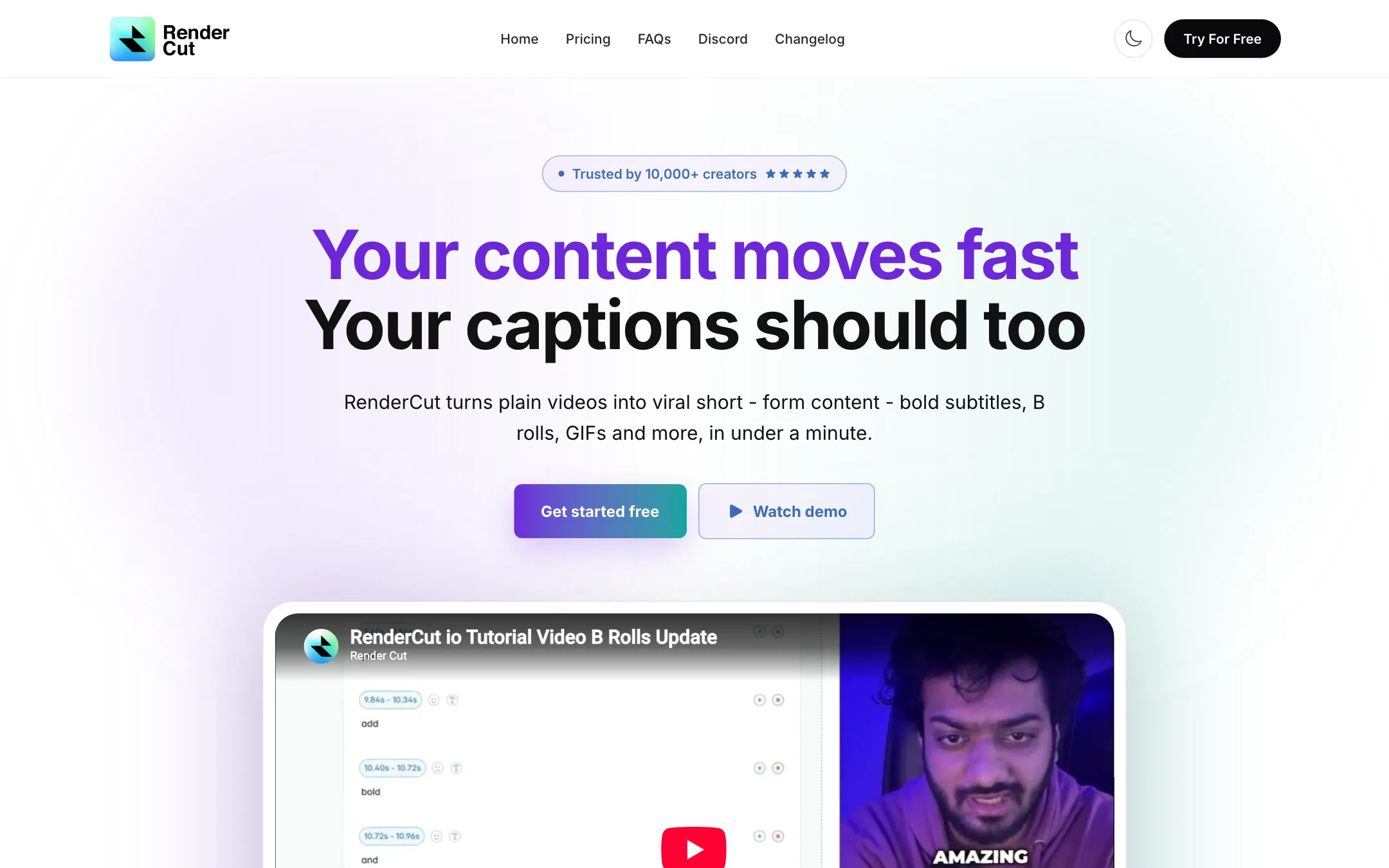
RenderCut is a browser tool that puts styled captions on short videos. You upload a clip, it transcribes the speech, and you get word-by-word subtitles you can restyle. On top of that it can add B-roll, GIFs, emoji, sound effects and a hook title.
It started life under the name Subtitleo, and older directory listings still use that name. The product now lives at rendercut.io. Its public changelog marks the official launch of RenderCut.io on 6 February 2025, with regular updates since.
RenderCut is a narrow tool by design. It does not generate video from prompts. It does not find clips in a long recording. It takes speech you already have and makes it readable and punchy for TikTok, Reels and Shorts. If you have used Submagic or the caption features in CapCut, you know the category.
Who it is for
RenderCut fits you if:
- You post talking-head shorts and want bold, animated captions on every one.
- You run a podcast and want to turn audio snippets into captioned clips without filming.
- You edit for a few clients and want saved templates and brand fonts per client.
- You want caption-first tooling for less than the big names charge.
Skip it if:
- You need to cut a long video into shorts. RenderCut has no clipping tool, so pair it with something like Opus Clip, Klap or a regular editor.
- You work on long-form video. The longest video any plan accepts is 15 minutes.
- You need translated subtitles today. Caption translation is still listed as coming soon.
- You need a vendor with published terms and formal support. Discord is the main help channel, and the terms page was down when we checked.
How it works
RenderCut describes the flow in three steps: upload, style, export. The details below come from its homepage and changelog. We did not run projects through it ourselves.
Upload
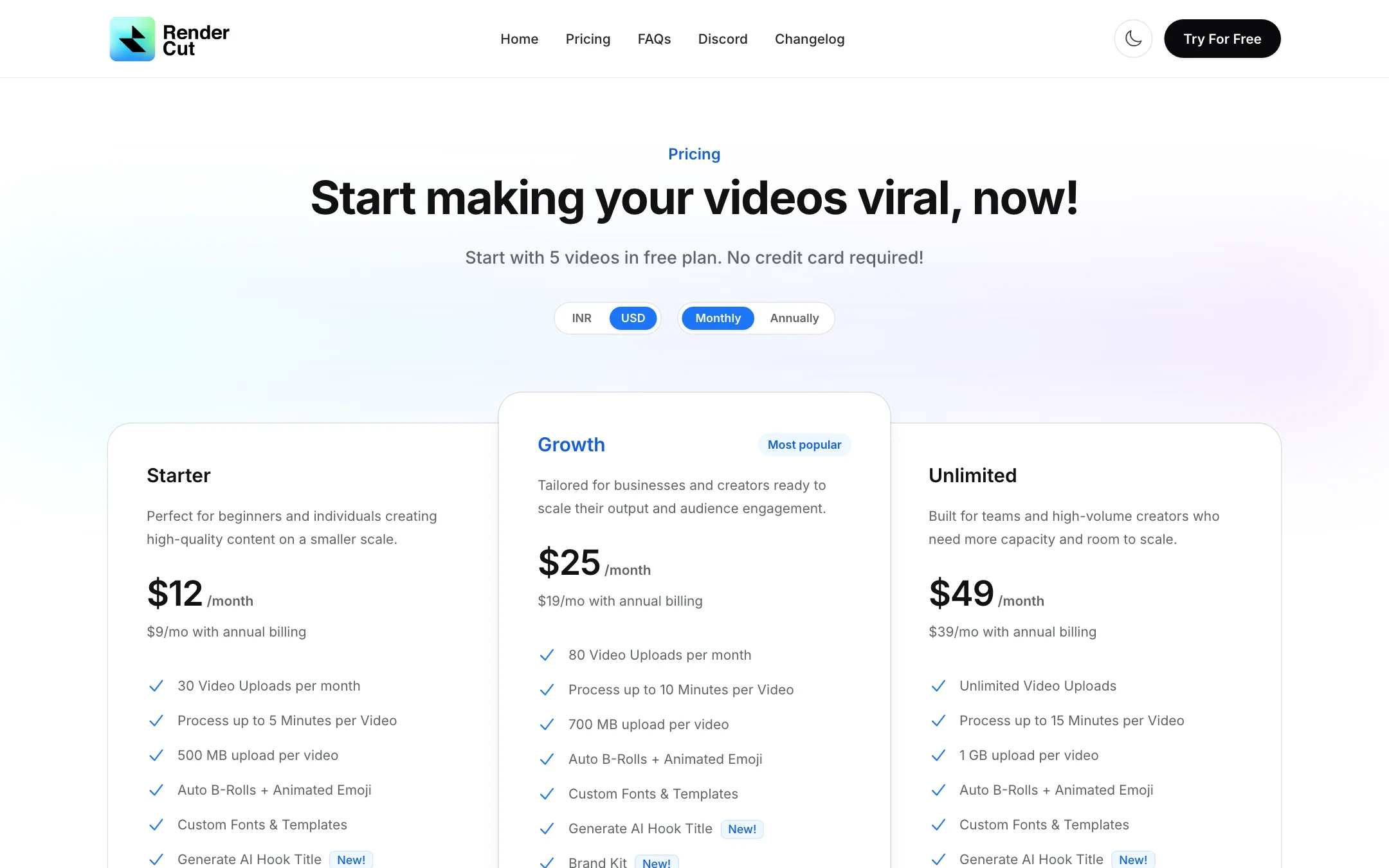
You drop in a video or an audio file. RenderCut says it takes “any format”. Each plan caps the length and file size per video: 5 minutes and 500 MB on Starter, 10 minutes and 700 MB on Growth, and 15 minutes and 1 GB on Unlimited.
Audio-only uploads are one of the more useful features. Since April 2025 you can upload a voice recording and get a captioned video back. You choose portrait or landscape, then render over a green screen or fill the space with B-roll. For podcasters and voiceover creators, that removes the need to film anything.
Transcribe and fix
RenderCut transcribes the speech and lays out caption groups. Its own FAQ is careful about accuracy. It says the subtitles are “highly accurate” but warns about errors from accents, background noise or complex vocabulary. Plan on reading every line.
The editing tools for that cleanup are solid for a small product:
- Find and replace for names and brand terms the AI gets wrong.
- Manual word grouping, so you can move words between caption lines to fix timing and pacing.
- Punctuation toggle, for the clean no-punctuation look many shorts use.
- SRT import, so you can bring in subtitles you already corrected elsewhere.
- SRT export, so the corrected text can go to YouTube or another editor.
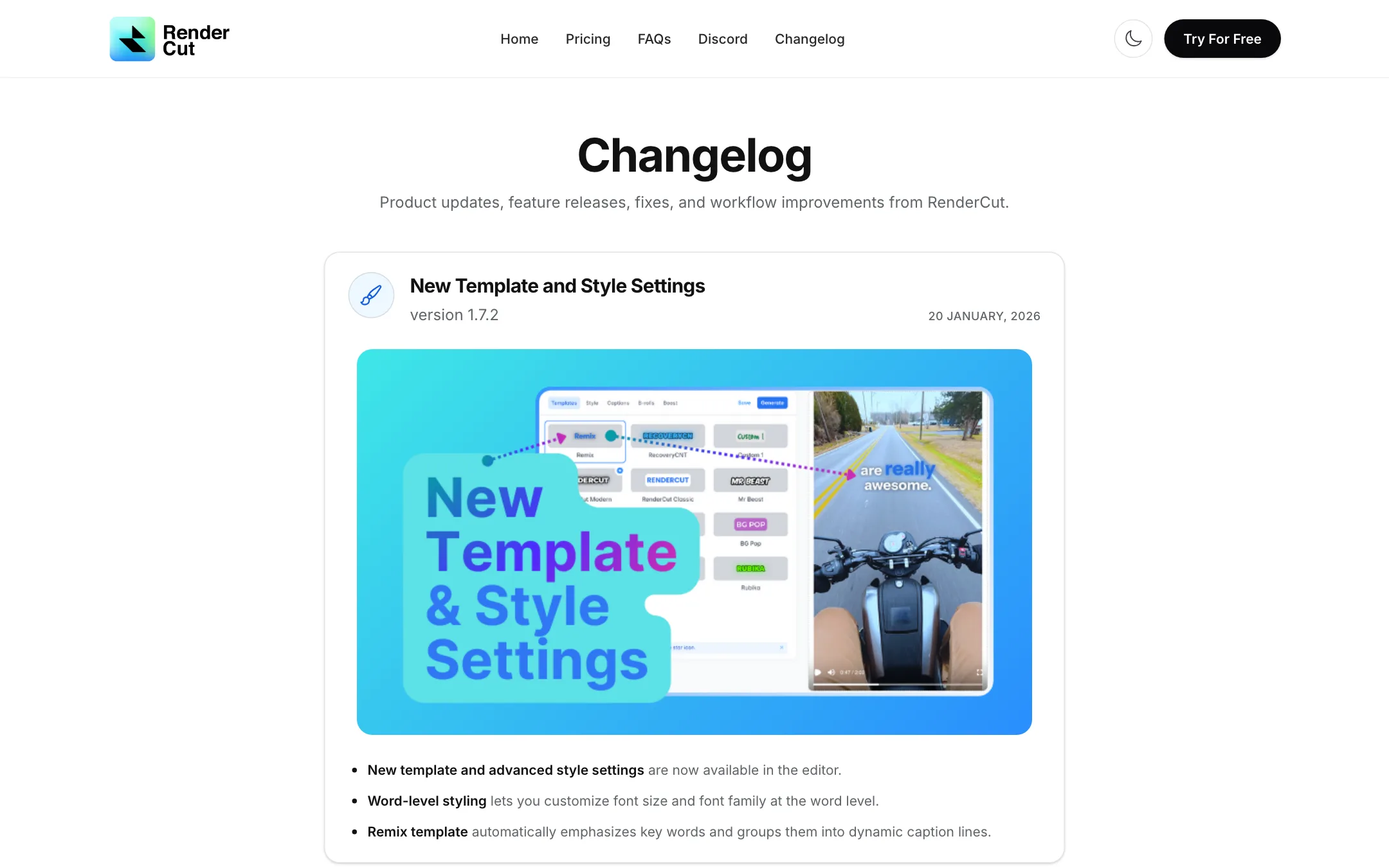
In January 2026 RenderCut added Hinglish transcription for Hindi spoken with English words. That is a niche many bigger tools handle badly, and it says something about who the team builds for.
Style the captions
This is the heart of the product. You pick a template, then change fonts, colors, backgrounds, placement and animation. RenderCut lists these controls:
- Custom fonts from your own TTF or OTF files.
- Saved templates, with one set as your default.
- Word-level styling, so a single word can get its own size or font.
- A Remix template that picks out key words and groups them into dynamic lines.
- Transparency on every color picker, for softer shadows and backgrounds.
- A brand kit with logo upload.
If you edit for clients, saved templates and the brand kit are what save time. You set each client’s look once and reuse it.
Add B-roll, GIFs and emoji
RenderCut can place B-roll automatically from a free stock library. You can also upload your own images and clips. Since May 2025 you can click any keyword in the transcript to search for matching B-roll, and you can add, remove or move B-roll slots on the timeline.
There is also an emoji layer that suggests emoji from the transcript, a GIF library you can drop onto the canvas, and sound effects added from the caption editor. The auto emoji are optional, which matters. Not every brand wants a rocket emoji every time someone says “growth”.
Hook title, cover and export
Before export you can generate an AI hook title to overlay at the top of the video. You can also set a cover image and export a thumbnail. Since November 2025 a rendered video can be reopened and edited, or duplicated as a starting point for a variation. That is useful when you want two caption styles on the same clip for testing.
Output quality
We have not tested RenderCut’s transcription or renders, so treat this section as a summary of what the vendor shows and says.
RenderCut’s claims are modest compared with many tools in this space. It promises a finished short “in under a minute” and highly accurate subtitles, and it admits accents and noise cause errors. The homepage says it is “trusted by 10,000+ creators”. Its structured data also claims a perfect 5-star rating from 10,000 reviews, which is not something you should take at face value.
What decides caption quality in practice:
- Your audio. Clean, close-mic speech transcribes well in every tool. Music beds and crosstalk do not.
- Word grouping. Two or three words per line reads better on a phone than a full sentence. RenderCut lets you set this and override it by hand.
- Restraint. Auto emoji, GIFs and B-roll on every line can bury the message. Use the toggles.
The Growth plan adds auto zoom and transitions, which give talking-head footage some motion. Silence removal, clean audio and eye contact correction are all still listed as coming soon. If you need those now, tools like Submagic already ship them.
Pricing
RenderCut uses simple plan tiers based on uploads per month and length per video. There are no credits.
| Plan | Price | What you get |
|---|---|---|
| Free | Free | 5 videos, no card |
| Starter | $9/mo yearly, $12 monthly | 30 uploads, 5 min per video, B-roll, brand kit, no watermark |
| Growth | $19/mo yearly, $25 monthly | 80 uploads, 10 min per video, auto zoom and transitions |
| Unlimited | $39/mo yearly, $49 monthly | Unlimited uploads, 15 min per video, priority support |
A few things to know before you pay:
- The INR price is 40% lower. The pricing page has a currency toggle. If you are billed in India, that is a large discount.
- Starter already has most of the styling tools. Fonts, templates, brand kit, hook titles, B-roll and emoji are all on the cheapest plan. Growth mainly buys more uploads, longer videos and auto zoom.
- Coming soon is not a feature. Growth lists silence removal, caption translation and clean audio as coming soon. Unlimited lists API access, social scheduling, eye contact AI and team workspaces the same way. Price each plan on what ships today.
- The free plan is vague. Five videos, no card. RenderCut does not say how long those videos can be or whether they carry a watermark. The paid plans list “No Watermark”, which suggests the free plan may not.
Against the field, Starter is cheap. Thirty styled shorts a month for $9 is less than most caption-first tools charge for similar volume. The trade-off is fewer finished features on the higher tiers.
Terms and refunds
When we checked, RenderCut’s Terms page, FAQs page and affiliate page all returned a “This RenderCut page has not been migrated yet” error. That means we could not confirm its refund policy, commercial use terms or how it handles your uploads. Ask on its Discord before you commit to a yearly plan, and use the free videos to test first.
Things to watch
- One testimonial mentions a lifetime deal. A reviewer calls RenderCut a “lifetime alternative” to CapCut or Submagic. No lifetime plan appears on the pricing page. It may have been an early launch offer.
- Storage moved in late 2025. The changelog says legacy storage retired on 31 December 2025 and older videos had to be downloaded before then. Keep your own copies of every export.
- Small team. The About page is written in the first person by the founder. That can mean fast fixes and direct contact. It also means less certainty about long-term support.
Verdict
RenderCut is a good pick if all you need is styled captions on short talking clips, and you want them cheaply. The styling controls are deep for the price, audio-to-video is a real extra, and the changelog shows a team that keeps shipping.
It is not a full short-form suite yet. There is no clipping, translation is not live, and the higher plans lean on features that are still coming. The missing terms page is the bigger concern for client work. Start on the free plan, check the export, and stay on Starter unless you truly need more than 30 videos a month.