

What SubtitleBee is
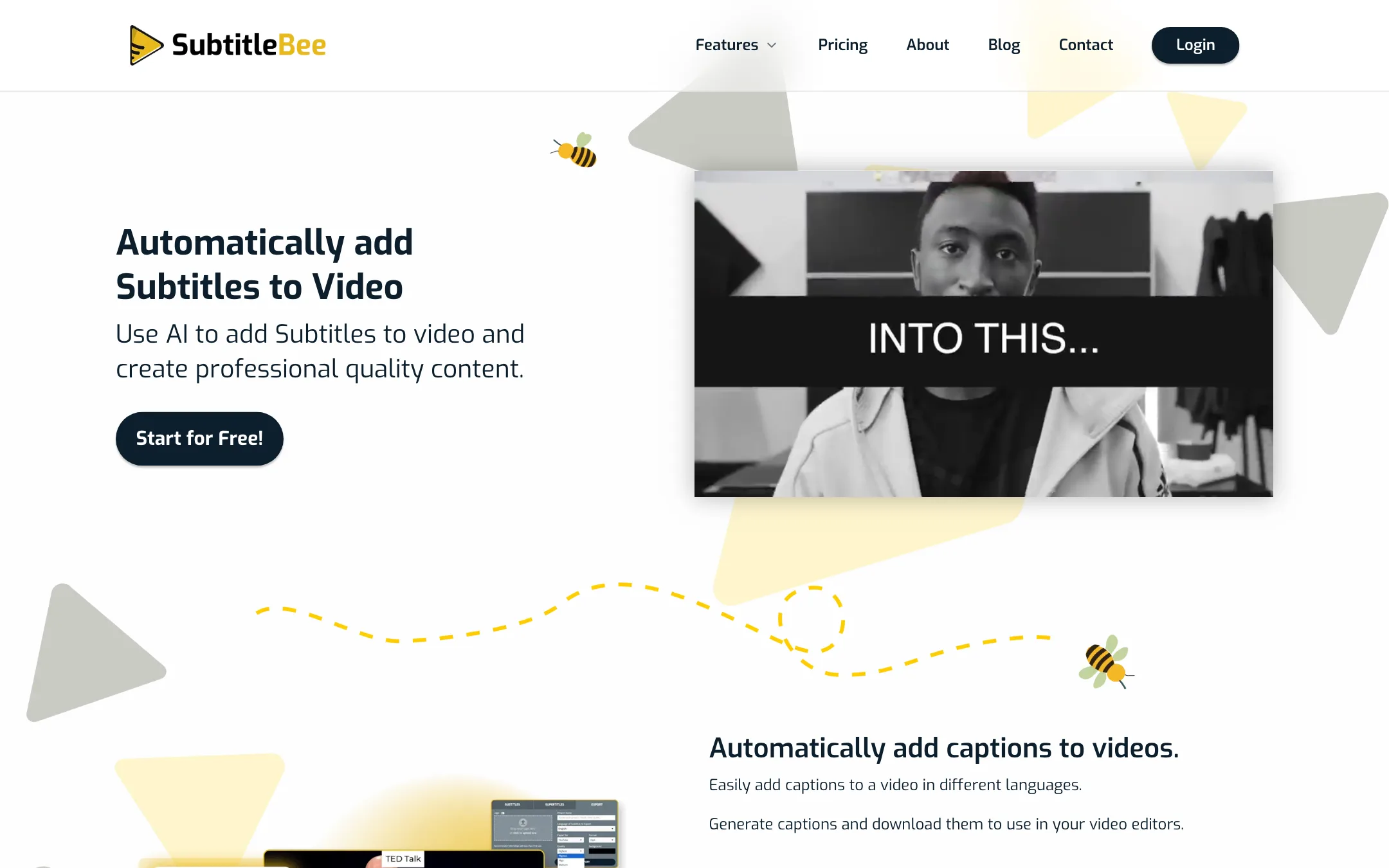
SubtitleBee is a browser-based subtitle tool. You upload a video or paste a link, tell it which language is spoken, and its speech recognition writes and times the subtitles. Then you edit the text, style it and either burn the subtitles into the video or download them as a file.
That is the core, but SubtitleBee has grown a set of extras around it. You can translate the subtitles, add text overlays it calls Supertitles, stamp your own logo on the video, add a progress bar and crop the video for vertical platforms. There is also a converter, a compressor and a plain audio transcription mode.
SubtitleBee’s page title claims “95% accurate” subtitles, and its FAQ repeats that the service is “mostly 95% accurate”. We did not test that. Treat it as the vendor’s number. The company also lists big usage figures on its homepage: 13.1 million media uploads, 101 billion subtitles and 79 million translations.
Who it is for
SubtitleBee fits you if:
- You make course, lecture or training videos and want subtitles plus your school or brand logo on every export. One of the testimonials on the site comes from a professor who uses it for exactly that.
- You publish the same video in several languages and want the translations in the same place as the original subtitles.
- You want a progress bar, a title and subtitles on a social clip without opening a full editor.
- You need subtitle files (SRT, ASS, VTT or TXT) for another editor or a video platform, not just burned-in captions.
Skip it if:
- You make short-form clips and want animated, word-by-word captions with emoji and highlights. SubtitleBee’s styling is font, color, size, opacity and background. Tools like Submagic or Zubtitle aim at that look.
- You want a free plan you can actually publish from. SubtitleBee’s FAQ says downloads are disabled on the free trial.
- You make lots of very short clips. Credits are counted in 20 to 60-minute blocks, so a 30-second clip still uses a whole block.
- You re-edit often. Every re-export after a download counts as a new video and spends credits.
How it works
SubtitleBee’s homepage walks through four steps. Here they are with the details the help pages add.
1. Upload or paste a link
You can upload MP4, MOV, WMV, AVI or WebM, in any aspect ratio and resolution. You can also paste a link to a video. SubtitleBee does not list which sites its link import supports. If an upload is slow, its FAQ suggests checking your connection, refreshing or trying another browser, and making sure the file is under your plan’s size limit.
2. Pick the language and generate
You choose the language spoken in the video. SubtitleBee then transcribes the audio and syncs each subtitle line to the speech. The language list covers more than 120 languages, according to SubtitleBee.
The FAQ is upfront about one weak spot. Music videos can be transcribed, but heavy music makes errors likely. SubtitleBee’s own advice is to paste the lyrics in by hand.
3. Edit and style
The editor lets you fix words, adjust timing, and change the font, color, size, opacity, background and position of the subtitles. The number of font styles depends on your plan: 5 on free, 15 on Starter, 30 on Premium and all of them on Business.
This is also where the extras live:
- Translate Subtitles. Once the original subtitles exist, a button translates them into another language. Each plan caps translations per video: 3 on Starter, 10 on Premium and 15 on Business.
- Supertitles. A text overlay layer for titles, calls to action and notes, with its own fonts, colors and animation. SubtitleBee says you can make several versions for different platforms.
- Custom logo. Replace the SubtitleBee watermark with your own logo from the Export tab. This is listed from Starter up.
- Progress bar. A colored bar that fills as the video plays. SubtitleBee pitches it for social posts.
- Crop and resize. Reframe the video for Instagram Stories, TikTok, Snapchat or portrait posts. You can set several crops at different times so the subject stays in frame.
4. Export
You can export the video with subtitles burned in as MP4, AVI or MOV, or download the subtitles alone as SRT, ASS, VTT or TXT. There is a catch here. According to the FAQ, you cannot download the SRT before you export the video. Once the export is done, a Download transcript button appears on the dashboard.
If you need to change subtitles after you have downloaded a video, you duplicate it from the dashboard and edit the copy. SubtitleBee’s FAQ says the duplicate counts as a new upload and costs credits again when you export it. Plan your edits before you hit export.
Output quality
We did not run our own footage through SubtitleBee, so the points below come from the vendor’s pages.
- Accuracy. SubtitleBee claims up to 95%. Its FAQ also says the AI learns from your uploads over time, so accuracy should improve the more you use it. It does not explain how that works or which speech model sits underneath.
- Hard audio. Heavy music, by SubtitleBee’s own account, causes errors. Expect the same for crosstalk and noisy recordings, which trip up every speech-to-text engine to some degree.
- Translation. Testimonials on the site praise translation accuracy. Machine translation is fine for reach and accessibility, but get a native speaker to check anything customer-facing.
- Styling. The look is classic subtitles: a font, a color and a background box. If you want the animated, word-highlight style that dominates TikTok and Reels, this is not the tool built for it.
The safest approach is the one the FAQ suggests. Read through the transcript in the editor and fix mistakes before you export, because each re-export costs credits.
Pricing
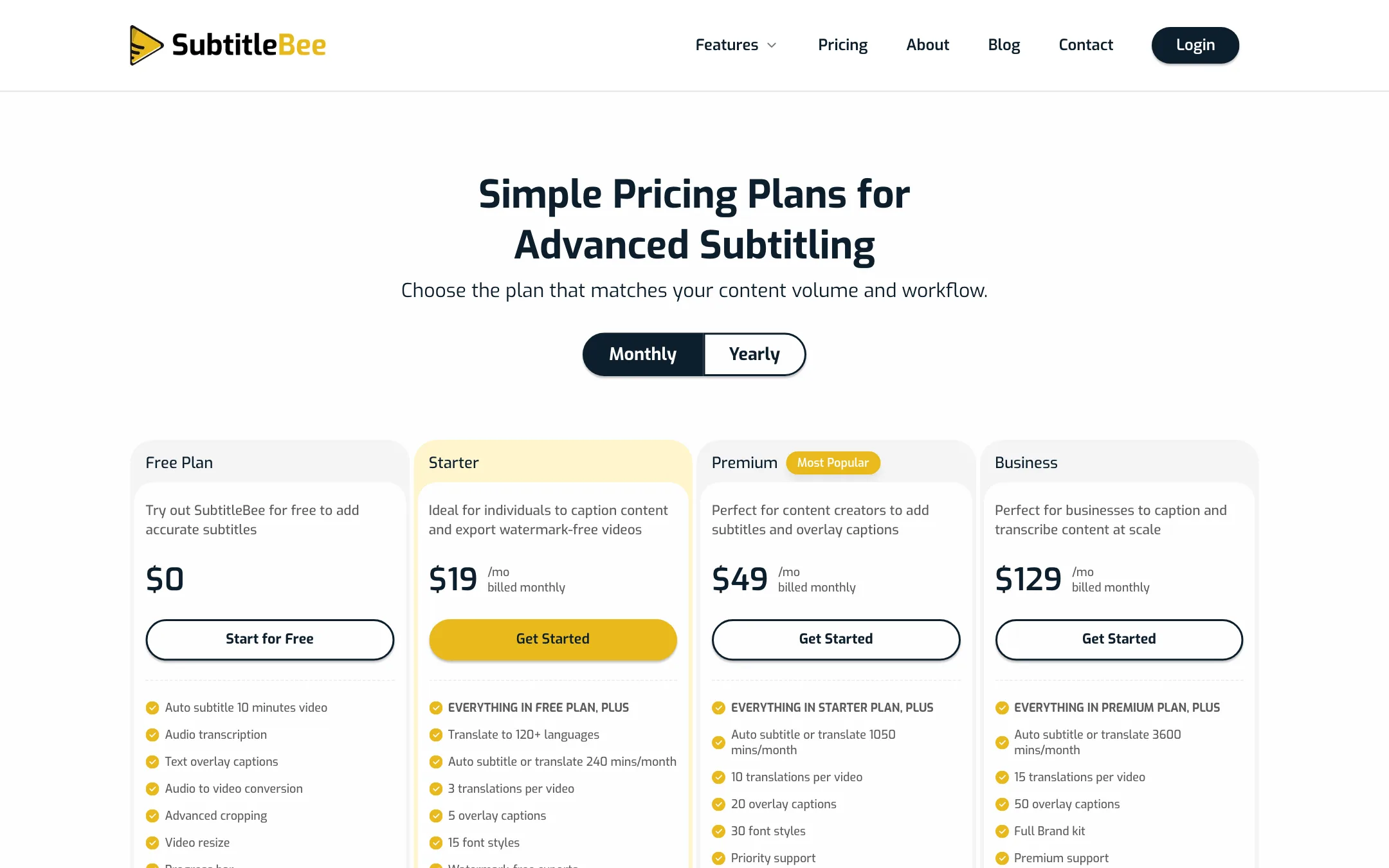
SubtitleBee sells plans by minutes, exports and translations. Yearly billing takes 12% off.
| Plan | Price | What you get |
|---|---|---|
| Free | $0 | 10 minutes of auto-subtitles, 1 export in the comparison table, watermark |
| Starter | $19/mo, or $199/yr | 240 min a month, 12 exports, 3 translations per video, no watermark |
| Premium | $49/mo, or $519/yr | 1,050 min a month, 35 exports, 10 translations per video |
| Business | $129/mo, or $1,359/yr | 3,600 min a month, 60 exports, 15 translations per video, brand kit |
| Custom | Contact sales | Higher volume and longer videos |
The parts that need a closer read:
- The free plan conflicts with itself. The comparison table shows one video export on the free trial. The pricing FAQ says downloads are disabled during the trial. The homepage FAQ only says export options depend on your plan. Assume you cannot download on free.
- Credits are blocks, not minutes. The “max video length” on each plan is really the size of one credit. On Starter, one credit covers up to 20 minutes, so a one-hour video costs 3 credits. On Business, the same hour costs 1.
- Translations cost extra exports. SubtitleBee’s FAQ says an English and a Japanese version of the same video is 2 credits, more if the video is long.
- Top-ups. Extra credits cost $3 per 20 minutes on Starter, $2 per 30 minutes on Premium and $1.75 per 60 minutes on Business. The pricing FAQ says top-ups start from Premium, while the Starter card lists the $3 rate. Check your account page before you count on them.
- Storage. Paid plans include cloud storage. Free and cancelled accounts lose their videos after 15 days, with no recovery.
- Refunds. The pricing FAQ says refunds follow the terms of service and consumer law. The terms themselves offer a full refund only when the service failed, such as a long outage or a software error.
The pricing page also showed a regional coupon during our check (“MALAYSIA” for 10% off monthly plans). That may differ where you are.
Affiliate program
SubtitleBee runs its own affiliate program. The page advertises 25% commission per referral, a recurring payout, instant approval and “300+ signed affiliates”. It also shows “$5.00 on pro registration” without explaining how that relates to the 25%. You need a free SubtitleBee account to apply.
Verdict
SubtitleBee is a solid pick if you want subtitles, translations, a logo and a progress bar in one browser tool, and you publish mostly longer videos. Course creators, teachers and marketing teams get the most from it. The 120+ language list and the subtitle file exports make it useful beyond social media too.
It is a weaker pick for short-form creators. There are no animated caption styles, short clips still eat whole credit blocks, and every translation or fix after export costs another credit. Use the free plan to check accuracy on your own audio, then start on Starter yearly if the minutes fit.