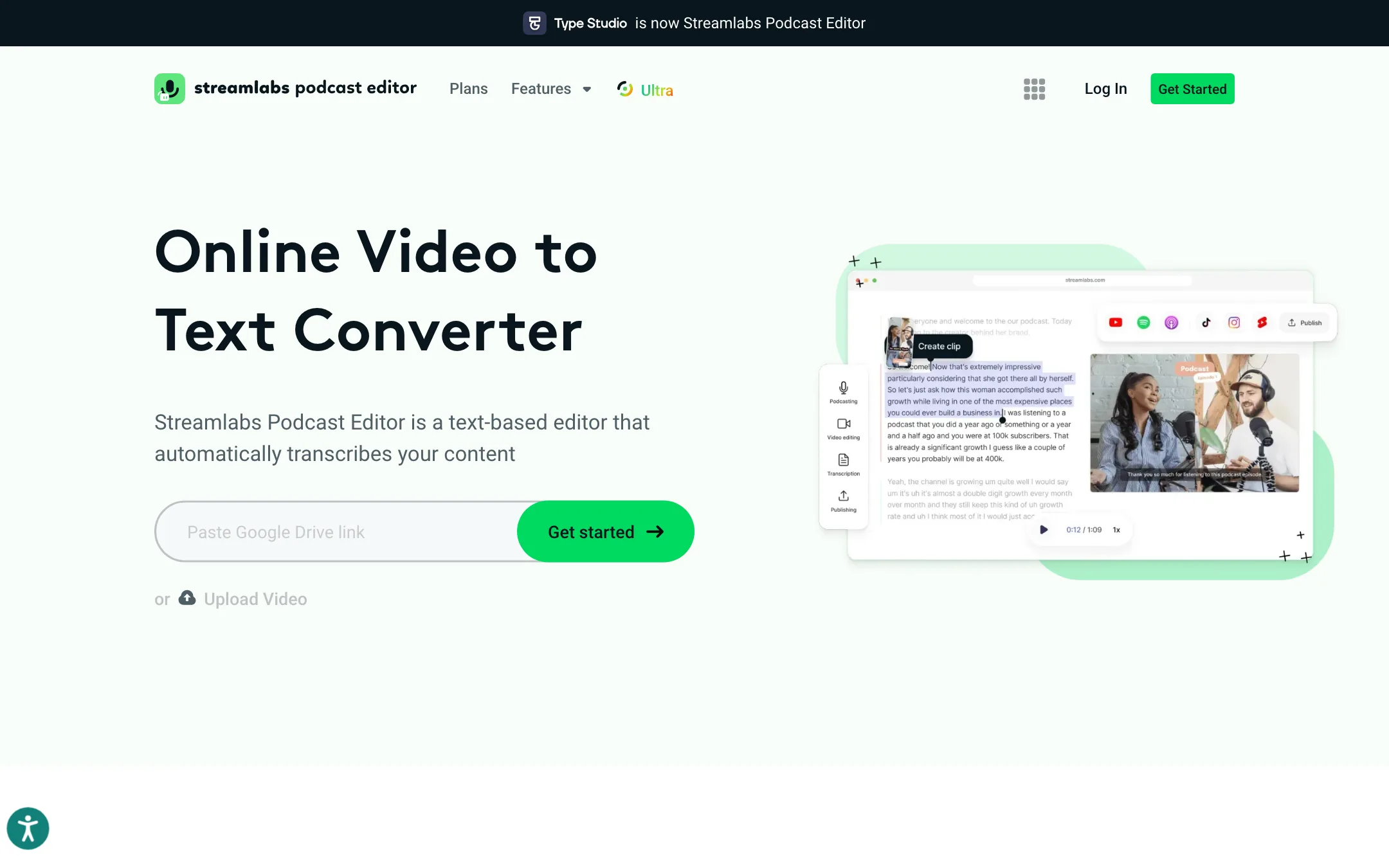
What Streamlabs Podcast Editor is
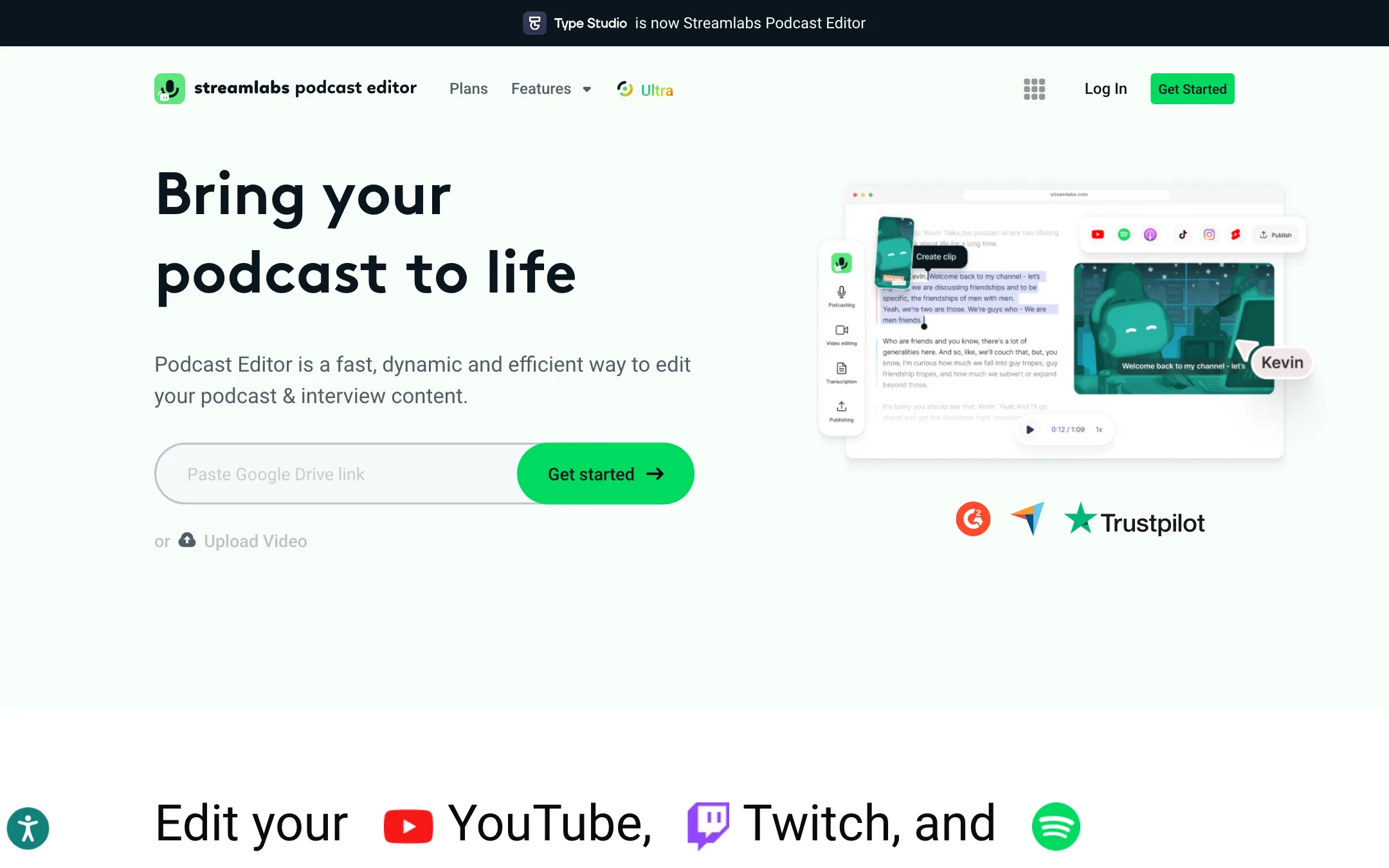
Streamlabs Podcast Editor is a text-based video editor that runs in your browser. You upload a recording. It transcribes the audio. Then you edit the video by editing the text. Delete a sentence in the transcript and that part of the video disappears.
It started life as Type Studio. The banner on the product page still says Type Studio “is now Streamlabs Podcast Editor.” Streamlabs, best known for its live streaming software, now owns it, and Streamlabs is owned by Logitech.
The target user is clear from the copy. Streamlabs aims it at podcasters, interview shows and Just Chatting streamers who record long, talk-heavy videos and want to cut them down and turn them into clips for TikTok, Reels and Shorts.
Who it is for
Streamlabs Podcast Editor fits you if:
- You record podcasts, interviews or talk streams and spend too long scrubbing a timeline.
- You want to cut ums, pauses and dead air quickly.
- You need subtitles, translated captions or a transcript file for every episode.
- You already pay for Streamlabs Ultra, which includes Podcast Editor Pro at no extra cost.
Skip it if:
- Your videos are visual, not verbal. Gameplay montages, B-roll heavy edits and music videos do not suit transcript editing.
- You need multi-track audio mixing, color grading or effects. This is not a replacement for Premiere or DaVinci Resolve.
- You edit many hours a month and want everything free. The free plan covers only one hour.
How it works
Streamlabs describes a simple flow: record, edit, share.
1. Record or upload
You can upload an .mp4 or .mov file, or record in Streamlabs Talk Studio, its browser-based recording studio, and send the recording straight into Podcast Editor. Streamlabs calls this “flow between tools.” The product page lists YouTube, Twitch and Spotify content as typical sources.
2. Edit the transcript
Podcast Editor transcribes the whole video with AI. You then edit like a document. Streamlabs’ own description: “highlight the transcribed text where you want to edit and delete it to edit out that portion of your video.”
The feature it leads with is cleanup. Streamlabs says you can remove filler words, pauses, bloopers and expletives without guessing where they are on a timeline. For talk content, this is where text-based editing saves the most time. You can read a 40-minute episode faster than you can watch it.
3. Dress it up
Once the cut is right, you add the visual layer:
- Subtitles, with custom fonts and colors.
- Text overlays and headlines, placed with drag and drop.
- Images, from a stock library of images, emojis and shapes, or your own logo and media.
- Aspect ratio changes, so a horizontal podcast can become a vertical clip.
4. Clip and repurpose
Streamlabs says the editor can “extract highlight clips with AI,” so you can pull short moments from a long episode for social. You can also duplicate a project and cut different versions from it.
Beyond video, Podcast Editor can turn a transcript into an article. Streamlabs pitches this for blogs, newsletters and SEO, and says the tool generates a code snippet to embed the video and transcript on your site.
5. Export and share
You can export the video, export the transcript as .srt, .vtt or .txt, or share a link to the finished video by email instead of attaching a file. Work saves automatically in the browser.
Output quality
We have not tested Podcast Editor hands-on, so we cannot rate its transcription accuracy or clip picks. Here is what to expect from the category and from Streamlabs’ own claims.
Transcription accuracy decides everything in a text-based editor. If the transcript misses words, your cuts land in the wrong places. Accuracy usually drops with heavy accents, cross-talk, background music and game audio. Clean podcast audio from good microphones gives the best results in any tool of this type.
AI highlight picks are a starting point, not a final edit. AI clippers judge moments from the transcript and audio, not from what your audience finds funny. Expect to review and trim.
Translation covers 30+ languages, per Streamlabs. Machine-translated subtitles are fine for reach, but check them before you publish in a language you cannot read.
What Streamlabs offers as proof is social: a testimonial from Rhett & Link of Good Mythical Morning, and quotes from smaller podcasts. The page also shows G2, Capterra and Trustpilot logos, though the text we captured did not include the ratings themselves.
Pricing
Podcast Editor can be bought on its own, or unlocked as part of Streamlabs Ultra. The pages do not agree on the details, so here is everything they show.
| Plan | Price | What you get |
|---|---|---|
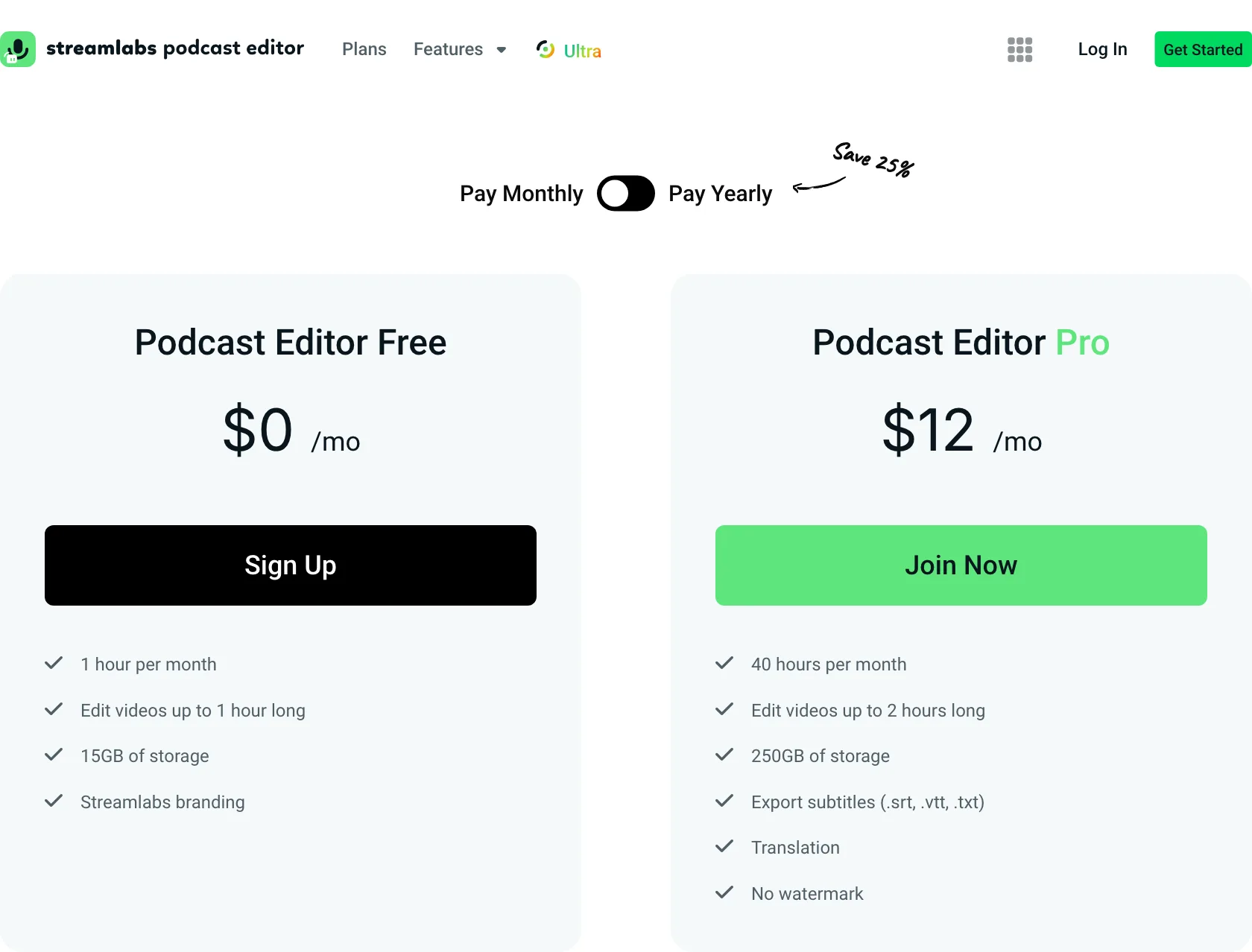
| Free | Free | 1 hour a month, 1-hour videos, 15GB storage, watermark |
| Podcast Editor Pro | $12/mo | 40 hours a month, 2-hour videos, 250GB storage, subtitle export, translation, no watermark |
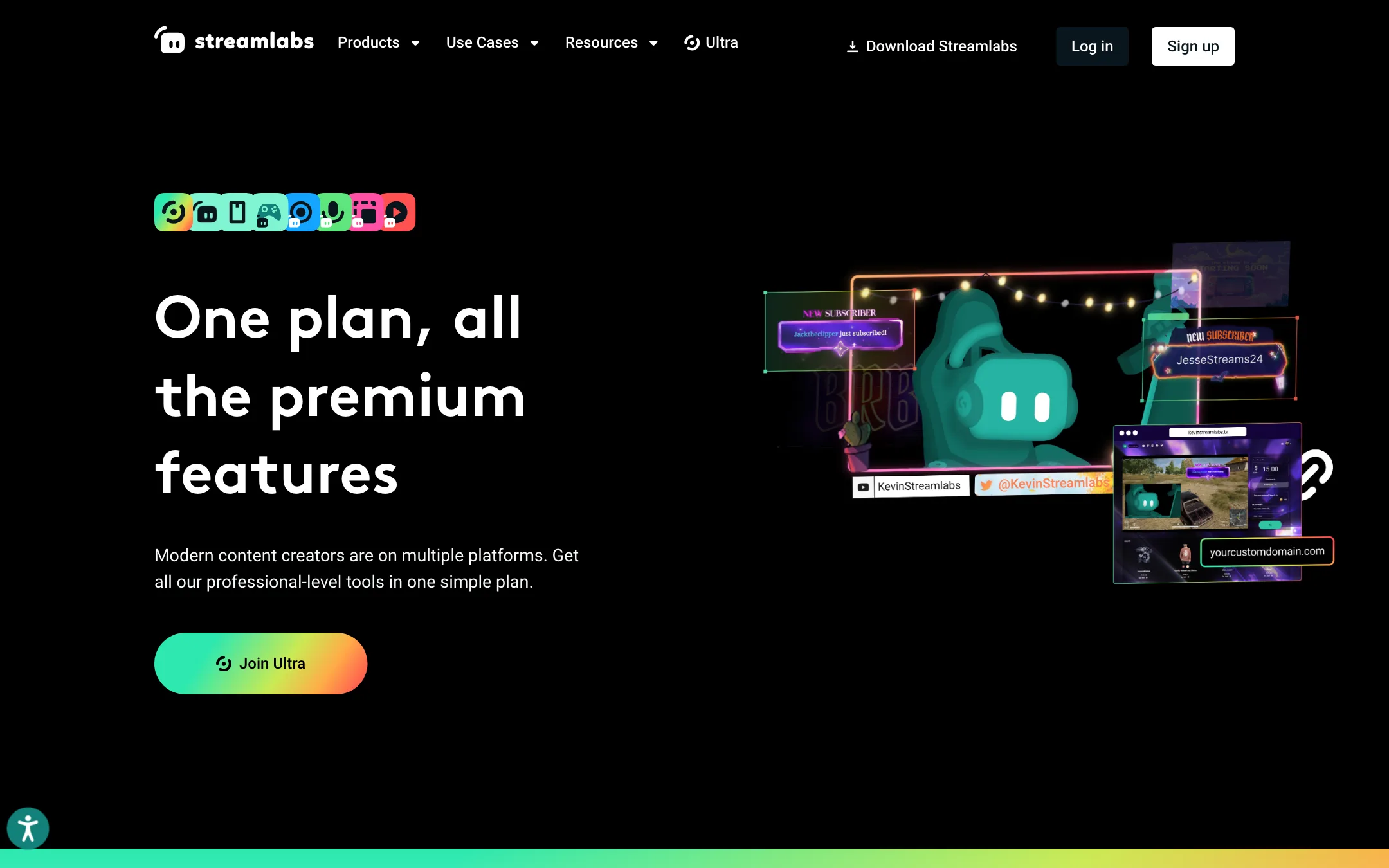
| Streamlabs Ultra | $27/mo or $189/yr | Pro tier in Podcast Editor and every other Streamlabs creator tool |
| Streamlabs Ultra+ | Not shown | Ultra plus dedicated support and more storage |
What the pages do not make clear:
- The yearly price. The plans page loads with Pay Monthly selected and shows $12. A Pay Yearly option promises “Save 25%,” but when we checked, the price on the page did not change when we switched it. A 25% saving would put yearly Pro near $9 a month, but confirm at checkout.
- Pro or Ultra? Some feature pages tell you to “subscribe to Streamlabs Ultra to unlock all of Podcast Editor’s capabilities” and do not mention the $12 Pro plan. The plans page lists both. If you only edit podcasts, Pro looks cheaper. If you stream too, Ultra billed yearly works out to $15.75 a month and covers Podcast Editor, Cross Clip, Video Editor and Talk Studio without watermarks.
- Translation on Free. Feature pages say “try out the translation with a free plan first.” The plans page lists translation under Pro. Expect limits on the free plan.
- “$53 value”. The Ultra banner says $27 a month is a “$53 value.” That is Streamlabs’ own sum of separate tools, not a discount you can check.
Is the free plan enough?
One hour a month is enough to test the editor on a single episode. It is not enough to run a weekly show. If your episodes are longer than an hour, the free plan cannot even load them. Pro raises the cap to 2-hour videos and 40 hours a month, which covers most weekly or even daily podcasts.
Getting the most out of it
Text-based editors reward a bit of prep. These habits apply to any tool of this type, and they help you stretch the free hour too.
- Record clean audio. The transcript is only as good as the audio. Use a separate microphone per speaker if you can, and keep music and game sound low during talk segments.
- Test with your worst episode. If the free hour handles your noisiest recording with cross-talk, it will handle the rest. If it struggles, you know before you pay.
- Do the rough cut in text, then check by ear. Deleting words is fast, but a cut in the middle of a breath can sound abrupt. Play back each edit point before export.
- Remove filler words in moderation. Stripping every “um” and pause can make a relaxed conversation sound rushed. Keep a few natural pauses.
- Cut clips from the finished edit. Clean up the full episode first, then pull highlight clips. That way every clip inherits the fixes.
- Export the transcript every time. The .srt and .vtt files work as captions on YouTube and Spotify, and the .txt file is a head start on show notes. Note that the plans page lists subtitle export as a Pro feature.
- Use Talk Studio if you record remote guests. Streamlabs says recordings flow straight into Podcast Editor, which skips a download and upload step.
How it compares
Text-based editing is now common, so you have options:
- VEED is a broader browser editor with subtitles, dubbing, avatars and generative video. It does more, and costs more.
- Detail is an iPhone and iPad editor for talking-head videos and podcasts, with on-device auto edit. Pick it if you record on mobile.
- FireCut works as a plugin inside Premiere Pro or DaVinci Resolve. Pick it if you already edit in a pro timeline and want AI cleanup there.
Podcast Editor’s edge is price and the Streamlabs bundle. If you already stream with Streamlabs, the tool is effectively free with Ultra.
Verdict
Streamlabs Podcast Editor is a straightforward text-based editor for talk content. Transcript editing, filler-word removal, subtitles, translation and clip extraction cover what most podcasters need to get an episode out and promote it. It runs in the browser and has a big company behind it.
The free hour a month is only a taster, and the pricing pages contradict each other on Pro versus Ultra and on billing. Start on the free plan with one episode. If the transcript is accurate for your voice and audio setup, $12 Pro is good value, and Ultra is the better buy if you stream with Streamlabs too.

