What Riverside is
Riverside started as a remote recording studio for podcasts. You send a link, your guest joins from a browser, and each person is recorded locally on their own device. That local recording is the core idea. Your guest’s video is captured at up to 4K on their machine and uploaded in the background, so a choppy internet connection does not end up in the final file.
Today Riverside is much more than a recorder. It has a text-based video editor, an AI clip maker called Magic Clips, animated captions, AI translation and dubbing, podcast hosting, social scheduling, live streaming and webinars. Riverside pitches it as one flow: record, edit, repurpose, stream and publish.
It is not an AI video generator. Nothing here makes footage from a prompt, apart from AI B-roll to fill gaps. You bring the people and the conversation. Riverside handles everything after you hit record.
Who it is for
Riverside fits you if:
- You run a video podcast or interview show with remote guests.
- You want one tool for recording, editing, clips and publishing instead of four.
- You post clips from long conversations to TikTok, Reels, Shorts and LinkedIn.
- You run webinars or live shows and want the recording to turn into content afterwards.
- You are a marketing team producing customer stories, testimonials or internal training.
Skip it if:
- You want AI to make video from a script with no camera involved. Look at a text-to-video tool instead.
- You edit cinematic or heavily designed video. A timeline editor gives you more control than a transcript.
- You only need clips from footage you already have. A dedicated clipper can be cheaper.
How it works
Riverside lays out its product as five steps. Here is what each one covers, based on Riverside’s own pages.
1. Record
You open a studio and invite guests by link. Riverside records each person on separate tracks: video up to 4K and audio as WAV at 44.1 or 48 kHz. Up to 10 people can be recorded in one session on every plan. There is a teleprompter for the host, screen-share recording, virtual backgrounds and in-person multi-cam recording. Business adds producer mode, async recording, guest teleprompters and custom frame rates of 25 and 29.97 FPS. Lower plans record at 24 FPS.
2. Edit
When the recording finishes, Riverside transcribes it. You then edit the video by editing the text. Search for a phrase, select it, delete it, and the video cut follows. Because every speaker is on a separate track, you can remove crosstalk and change layouts after the fact.
On top of manual editing, Riverside lists a set of AI tools:
- Remove Silences and Remove Fillers with a sensitivity setting, so you choose how snappy the pacing gets.
- Find Fluff, which flags intros, rambles and behind-the-scenes chatter for deletion.
- Smart Layouts, which switch the frame to whoever is talking.
- Eye Contact, which adjusts your gaze when you were reading notes.
- Magic Audio, which cleans noise and evens out the sound.
- VideoDub, where you fix a line in the transcript and Riverside regenerates the audio in your voice with lip sync.
- AI B-roll, which generates footage from a prompt or the script to fill visual gaps.
You can also edit by chatting with the AI agent and switch to manual edits whenever you like. Riverside says you set the rules, such as how aggressive silence removal should be.
3. Repurpose
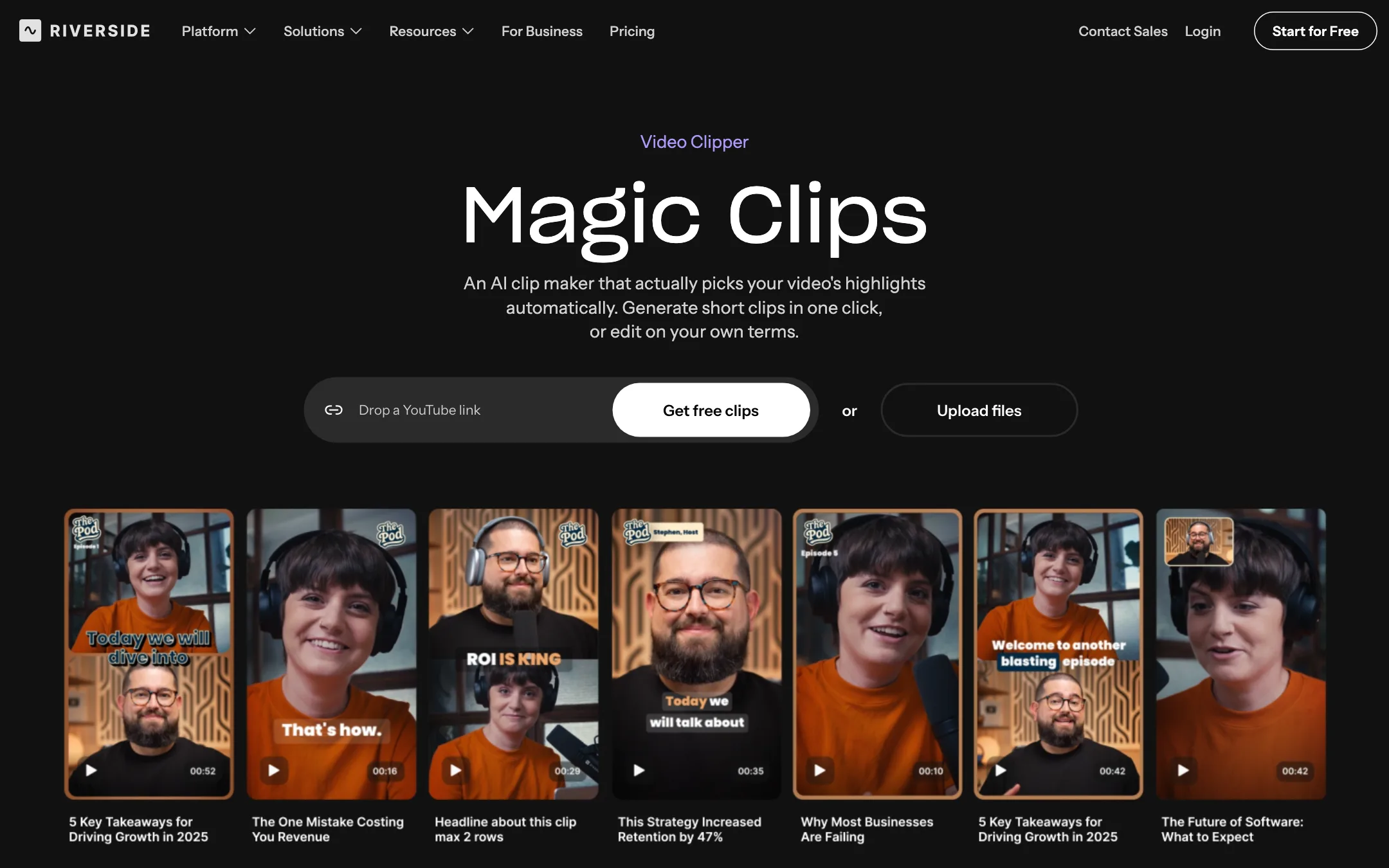
Magic Clips is the feature most short-form creators come for. Riverside says it finds the highlights in a long recording and returns ready-to-post clips. You set the aspect ratio, branding, layout and length once as a preset. Then you can tweak each clip: change the length, pick a focus speaker or keyword, swap the background, add captions.
Captions are one click and fully styled. Riverside claims 99% accuracy. There are also animated clips that turn you and your guests into babies, anime characters or pandas, which use AI credits.
The AI Co-Creator goes beyond clips. Feed it your show’s tone and topic and it drafts show notes, titles, chapters, social captions, thumbnails, blog posts and newsletters.
4. Stream
Grow and above stream in 1080p to unlimited destinations at once, including YouTube, LinkedIn, X, Twitch, Instagram and TikTok, with a custom RTMP option. The Webinar plan adds registration, email reminders, Q&A, polls, call-ins and HubSpot sync.
5. Publish
Riverside hosts podcasts and pushes them to Spotify, Apple and YouTube, with analytics. Grow adds a content planner that schedules posts to YouTube, TikTok, Instagram, LinkedIn, X and Facebook and writes the description from the content.
A typical podcast-to-clips run
- Create a studio with your logo, colors, intro and outro.
- Send the guest link and record. Leave the tab open until uploads finish.
- Open the recording in the editor. Run filler and silence removal at a gentle setting.
- Read through the transcript and cut the slow parts.
- Run Magic Clips with your vertical preset.
- Review the clips, fix captions, and drop the weak ones.
- Schedule the clips and publish the full episode from the same account.
Output quality
Riverside’s quality story is about capture, not generation. Local recording means the file you edit is the file each camera captured, not a compressed call. Riverside shows 3840 x 2160 tracks for every speaker and says recordings are unaffected by internet speed. Creators quoted on its pricing page mention clean 1080p remote video as a pleasant surprise.
The AI layer is where you should keep expectations in check:
- Magic Clips picks moments it thinks will perform. Riverside says it has the “virality formula cracked.” Any AI clipper picks some duds, so plan to review every clip before it goes out.
- Lip sync features like VideoDub and AI Translation edit faces. Check results closely before you publish, especially for close-ups.
- AI B-roll is generated footage. It suits filler and context shots, not hero moments.
We have not tested these features hands-on. The claims above come from Riverside’s pages and the quotes it publishes.
Pricing
Riverside’s pricing is confusing, and you should know why before you sign up.
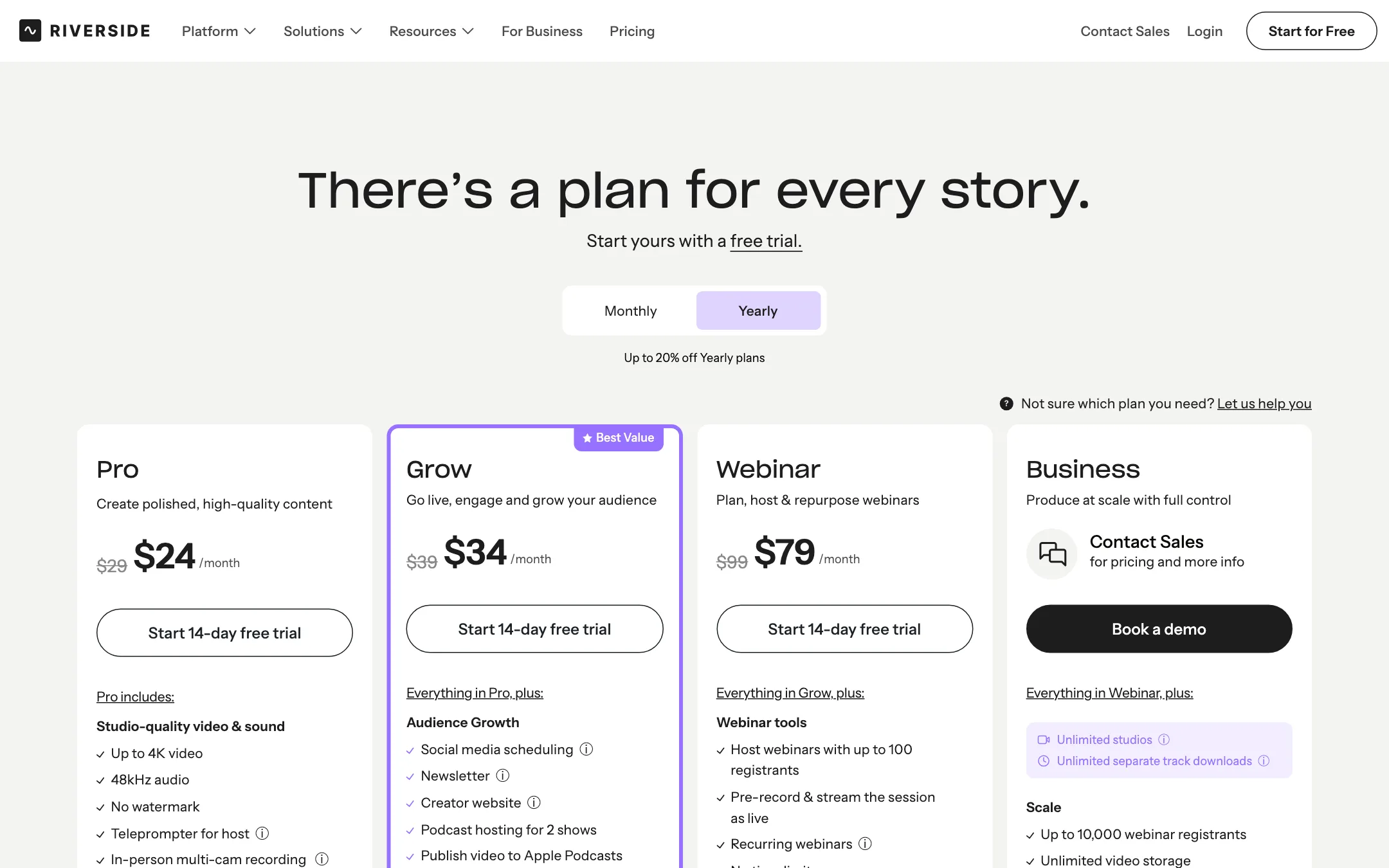
When we fetched the pricing page from the US, it showed a Free plan and these prices:
| Plan | Price | What you get |
|---|---|---|
| Free | $0 | 2 hours of multi-track recording, per the card |
| Pro | $24/mo yearly, $29 monthly | 4K recording, editor, Magic Clips, 2,000 AI credits, 1 studio |
| Grow | $34/mo yearly, $39 monthly | Scheduling, newsletter, multistreaming, MCP, 2 studios |
| Webinar | $79/mo yearly, $99 monthly | Webinars up to 100 registrants, HubSpot, 3 studios |
| Business | Contact sales | Unlimited studios, collaboration, API, SSO |
An earlier crawl from outside the US was shown no Free card and much lower prices: Pro at $14 monthly or $12 yearly, Grow at $19 or $16, and Webinar at $49 or $39. When we checked again on 2026-10-21, that location saw the same $24, $34 and $79 yearly prices as the US, but still no Free card. Prices may vary by region, so trust the price at your own checkout, not a screenshot or a review.
A few other things worth knowing:
- Every paid plan has a 14-day free trial.
- Recording is unlimited, downloads are not. Separate-track downloads are capped at 15 hours a month on Pro, 20 on Grow and 25 on Webinar. If you hit the cap, you keep access but cannot download new separate tracks until the next cycle.
- AI credits are separate. AI Translation, AI B-roll and animated clips use credits. Pro starts with 2,000 and Business with 12,000, then you buy more. Magic Clips, Magic Audio and the AI Co-Creator do not use credits.
- One studio per show. A studio holds one show’s recordings, hosting and website. Two podcasts or two clients means Grow or higher.
- Extra editors cost extra. An additional editor seat is an add-on below Business. Real collaborative editing is Business-only.
Free plan
The US pricing card sums up the free plan as “Try 2 hours of multi-track recordings”. Third-party pricing guides from 2026 add 720p video and a Riverside watermark. Treat that as a test drive, not a production plan.
Riverside vs dedicated clip makers
If your only job is turning long videos into shorts, a dedicated clipper like OpusClip or Klap may be cheaper. Riverside’s edge is that the clip comes from the original 4K local tracks, not a re-encoded upload, and that layouts and captions know who is speaking. If you already record on Riverside, Magic Clips is the obvious first stop. If you record elsewhere, compare prices before paying for a whole studio to get clips.
Riverside also overlaps with Descript, which offers transcript editing and recording too. Riverside leans harder into remote recording quality, livestreaming and webinars. Descript leans into editing depth.
Pros and cons in practice
Riverside saves the most time when a lot of your content is people talking. Recording, editing, clipping, captioning and publishing in one tab removes export and upload steps between tools.
The weaknesses show up at the edges. Pricing that changes by region makes budgeting across a team awkward. Credits for translation and B-roll mean the plan price is not the full price if you lean on those features. And if you want generated visuals rather than recorded ones, this is the wrong product.
Verdict
Riverside is the best all-in-one choice if your video starts as a conversation. Local 4K recording, transcript editing, Magic Clips and built-in publishing cover the whole path from call to clips. Pro is enough for one show. Grow makes sense once you schedule social posts or stream.
Check the price at your own checkout, budget for AI credits if you plan to translate or generate B-roll, and look elsewhere if you need AI to create footage from a prompt.