
What Motion is
Motion is a video agent made by Mosaic, a Y Combinator startup. You give it footage, writing, a reference video or just an idea. It plans the video, builds the shots, edits them and, in Motion’s words, “watches the cut before you see it.”
If you knew this tool as Mosaic, it is the same product under a new name. The listed mosaic.so is now a company page for “an applied AI product lab,” and the product lives at motion.so. Mosaic announced the Motion name on October 20, 2026, the day before we checked it.
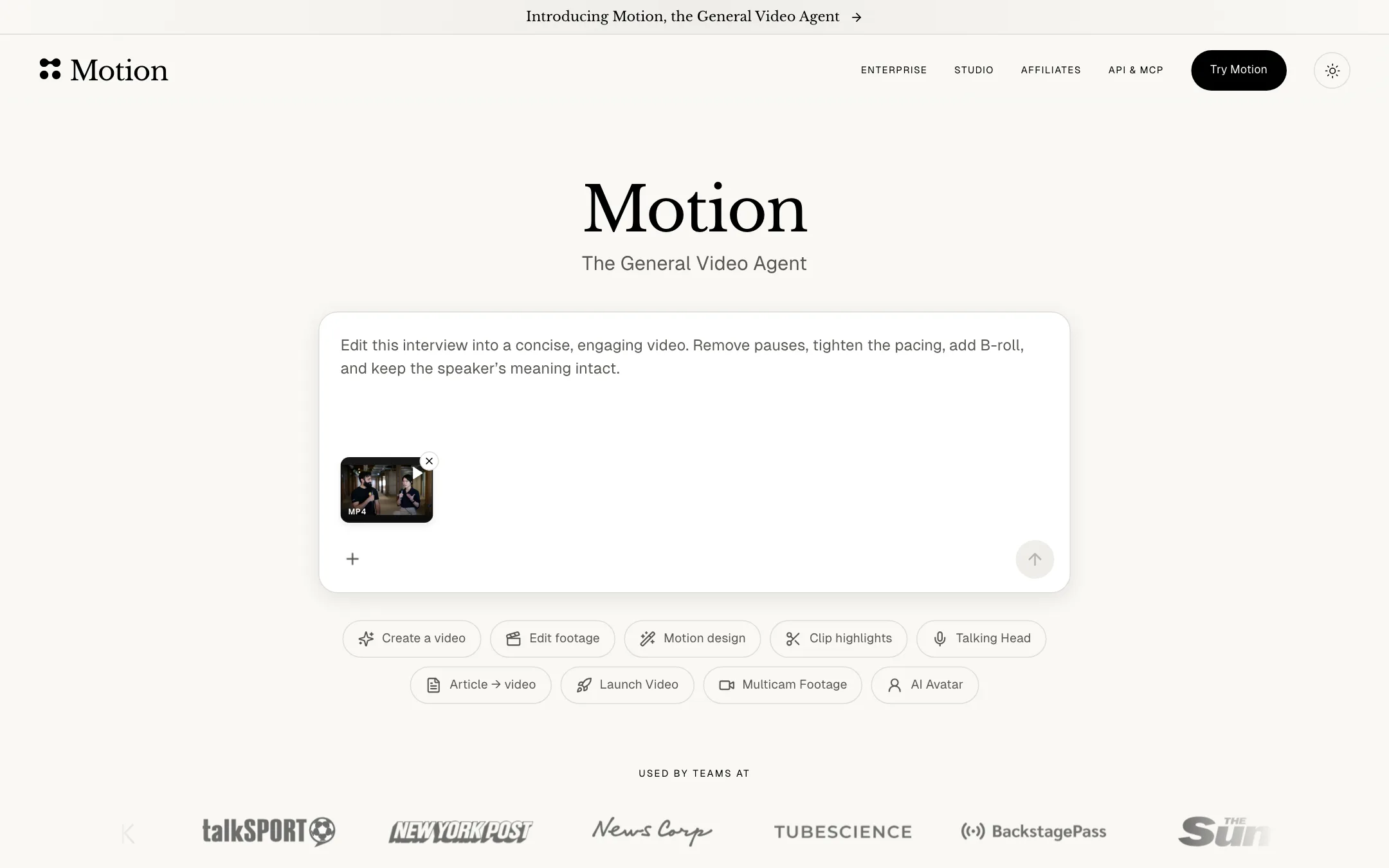
What makes Motion different from most tools in this category is where it starts. Most AI video tools start from a prompt and generate clips. Motion’s main pitch is editing: take a raw interview, remove the pauses, tighten the pacing, add B-roll and keep the speaker’s meaning intact. It can also generate media and build motion graphics, but your own footage is the centre of the workflow.
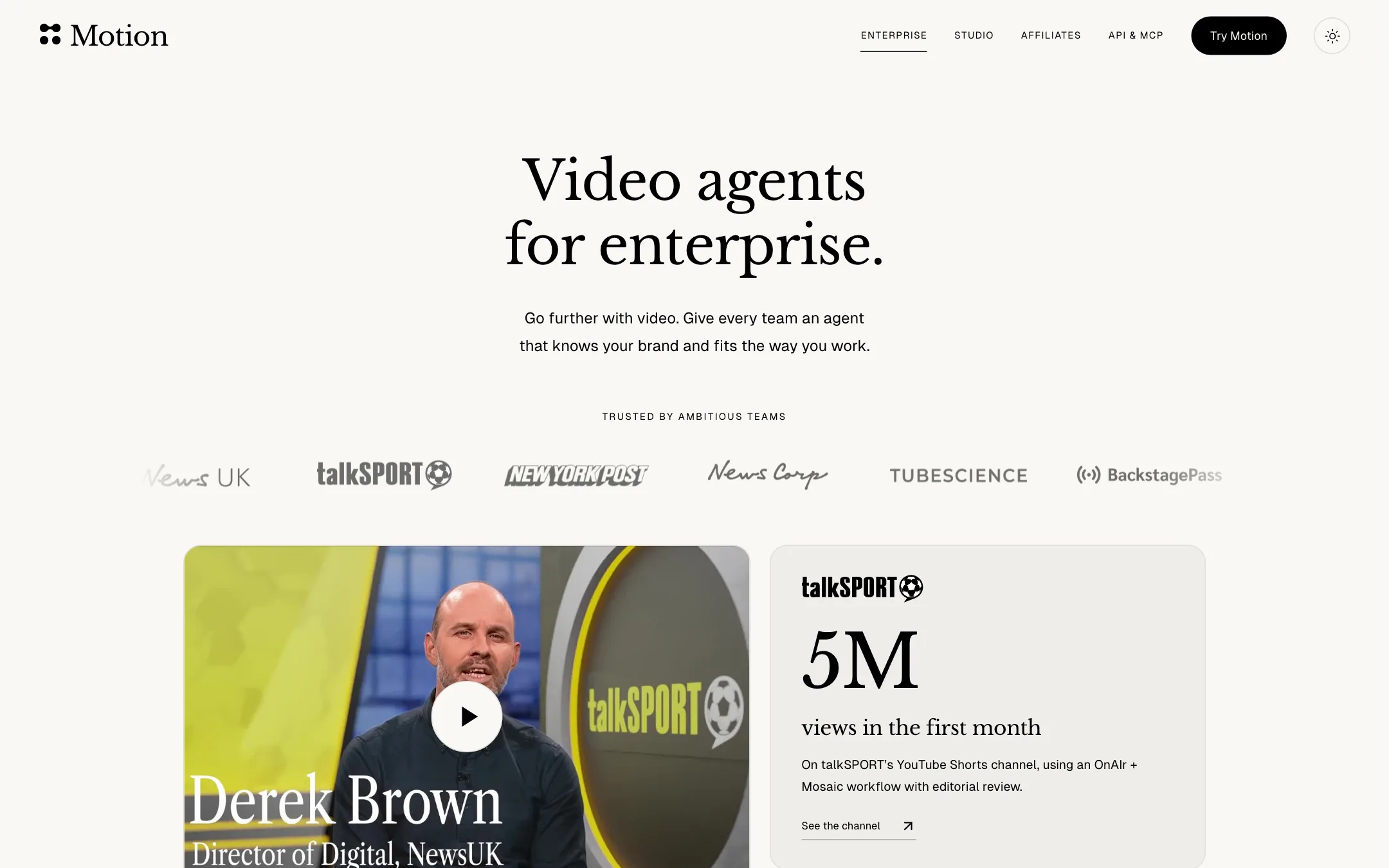
Mosaic says Motion is “trusted by 100,000+ users” and quotes News UK, whose talkSPORT team says vertical video output went from 5 or 6 shorts a day to 15 to 20. Treat that as a vendor case study, not an independent result.
Who it is for
Motion fits you if:
- You have raw footage, like interviews, podcasts, demos or founder videos, and want a finished edit without doing it yourself.
- You make launch videos or product explainers and want motion graphics without learning After Effects.
- You already use Premiere Pro, After Effects or Resolve and want an AI first cut you can keep editing there.
- You publish the same kind of video every week and want it to run on a schedule.
- You build software and want video editing inside your own product or agent through an API or MCP.
Skip it if:
- You want to test for free before paying. There is no advertised free plan.
- You want predictable per-video pricing. Credits vary with engine, effort, length and edits.
- You mainly want cinematic text-to-video clips. A dedicated generator gives you more model choice and clearer pricing.
- You need a mature, stable product. The rebrand is days old and plan names are still moving.
How it works
Everything starts in a chat box. The homepage shows a set of starting points under it: create a video, edit footage, motion design, clip highlights, talking head, article to video, launch video, multicam footage and AI avatar.
A typical footage edit
- Attach your footage. Motion accepts video, images, audio, a style reference, or a link to a video.
- Write the brief in plain language. Motion’s own example is “Edit this interview into a concise, engaging video. Remove pauses, tighten the pacing, add B-roll, and keep the speaker’s meaning intact.”
- Add a reference if you want a style. Motion says it follows the reference’s pacing and typography.
- Let the agent plan and build the first cut.
- Give notes. You can reply in chat, annotate the preview, change things directly in the preview or work in the timeline.
- Export an MP4, post it through a connected social account, or send the project to your editor.
Four ways to give notes
This is the part of Motion that stands out on paper. You are not limited to chat.
- Iterate in chat. Type “remove the whiteboard” or “make the intro shorter” and the agent does it.
- Annotate the preview. Draw on the frame where you want a change. Motion says it reads both the mark and the timestamp and edits that moment. Its demo shows a speaker circled and turned into a close-up.
- Adjust directly. Drag a title or rewrite it right in the preview.
- Edit the timeline. Clips, titles and audio sit on separate layers. You can trim a clip, move a title and scrub the cut yourself.
That mix matters. Chat-only editors get frustrating when you know exactly which frame is wrong. Being able to point at it, or grab the timeline, removes a lot of back and forth.
Exports to pro editors
Motion exports to After Effects, Premiere Pro, DaVinci Resolve, Remotion and Hyperframes. The pitch is “keep editing in the tools you already use.” If that export carries layers rather than a flat file, Motion becomes a fast first-cut tool for working editors, not a replacement for them. Check what each export contains for your project before you build a workflow around it.
Plugins, automations and social posting
- Plugins pull in sources from Dropbox, Google Drive, Slack, Frame.io, Getty, Notion, GitHub and Figma, so the agent can use your brand assets and briefs.
- Automations run a saved brief on a schedule, when a new YouTube video lands, or when a Twitch or Kick stream ends. Each run opens its own chat for review. Motion’s example is turning the week’s updates into a short video every Monday at 9am.
- Social connections let you schedule finished videos to Instagram, YouTube, TikTok, LinkedIn, X, Facebook, Threads, Reddit, Mastodon, Bluesky and Snapchat, and see how they perform.
API and MCP
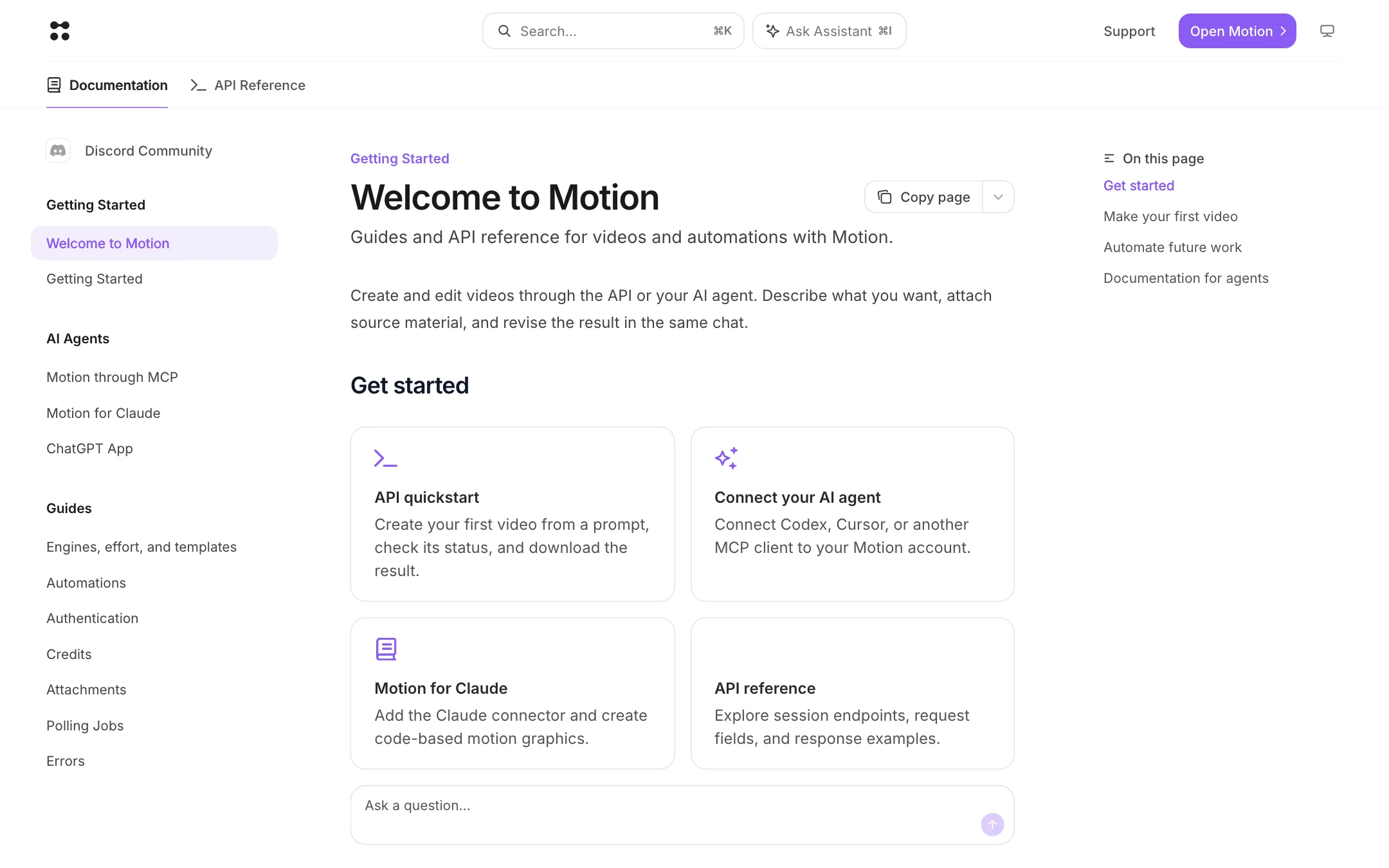
Motion has public docs at docs.motion.so. The REST API takes a prompt and optional attachments, returns a job, and gives you a chat link so you can open the result in the app and keep editing. An MCP server lets Claude, ChatGPT, Cursor and other agents create and revise videos.
There is a catch with the Claude connector. The docs say it supports only “Motion medium,” which is code-based motion graphics: shapes, type, layouts and transitions. AI image and video generation, music, sound effects and voiceovers are not available through it. You need the web app for those. The same docs say this connector uses the Legacy Motion engine, while the engines page says Legacy is limited to “eligible existing accounts.” Expect that to be tidied up.
Engines and effort
The docs list two engines. GVA 1.0 is the default for new projects, with Standard and Extended effort. Motion Legacy has Light, Medium and High effort and is limited to older accounts. Effort changes runtime and credit use. Templates require a Pro or Max plan.
Studio and Enterprise
Mosaic also sells two services on top of the app. Studio is a done-for-you launch film service, “human direction, powered by Motion,” with YC startups as its listed clients. Enterprise adds brand kits, shared workspaces, access controls, onboarding and SOC 2 Type II documentation. Mosaic states it does not use customer data to train AI models.
Output quality
We did not run Motion hands-on for this review, so everything here comes from Motion’s own pages, docs and named customers.
Where Motion says it is strong:
- Editing talking-head and interview footage. This is its headline example, and the News UK numbers back up the volume claim for that one customer.
- Following a reference. Motion says it matches a reference video’s pacing and typography, which is useful for keeping a series consistent.
- Motion design. It builds animated graphics from code, which tends to give clean, sharp text and shapes rather than the soft, smeared look of generated video.
What to watch for:
- Generated media. Motion can generate images, video, music and voiceover in the app, but it does not name the models behind them. You cannot judge that quality from the marketing pages.
- Judgment calls. Any agent that cuts footage for you can remove the wrong pause or pick weak B-roll. Plan to review every cut before you publish, which is why the timeline and annotation tools matter.
- Change. A brand-new engine (GVA 1.0) and a relaunch the day before our check mean results may shift quickly.
Pricing
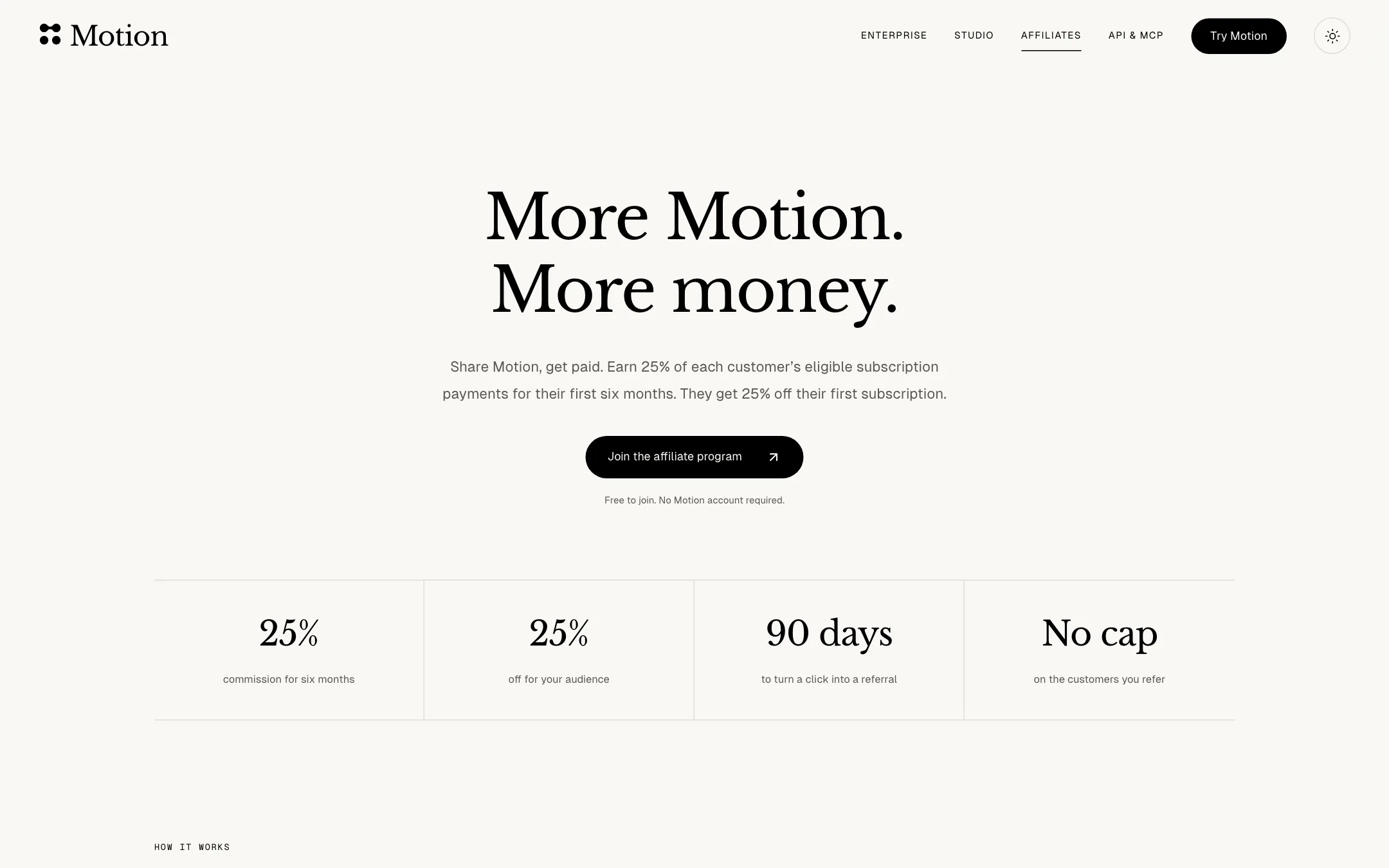
Motion runs on credits, and its pricing page is not public. motion.so/pricing returns a 404. The homepage FAQ, the affiliate page and the docs each give part of the picture.
| Plan | Price | What you get |
|---|---|---|
| Flex | $6 per 200 credits | No subscription, credits never expire |
| Pro | From $29/mo | 1,000 credits a month, bundles up to 50,000, monthly or annual billing |
| Max | $99/mo | Named on the affiliate page; allowance not published |
| Enterprise | Custom | 50,000+ credits a month, brand kit, team features |
A few things to know before you pay:
- There is no advertised free plan. The cheapest test is a $6 Flex pack.
- Credit cost per video is not listed. The docs say cost depends on the engine, effort, length, generated media and follow-up edits. Every round of notes can cost more.
- The plans do not line up across pages. The homepage FAQ names Flex, Pro and Enterprise. The affiliate calculator and the docs also mention Max. Check the in-app pricing screen for the current list.
- Flex and top-ups cost 3 cents a credit. That makes Pro’s 1,000 credits for $29 slightly cheaper per credit than Flex’s 200 for $6, so a subscription only pays off if you use most of it.
- Annual billing exists, but the discount is not published.
How to spend fewer credits
- Start with a Flex pack and one short edit to learn how many credits a typical job uses.
- Write a clear brief with a reference attached. A vague brief leads to more revision rounds.
- Use Standard effort first and save Extended for demanding jobs.
- Group your notes into one message instead of sending many small ones.
- Finish fine adjustments in the timeline or in your own editor, where they cost nothing.
Verdict
Motion is a serious attempt at an AI editor that starts from your footage. The mix of chat, annotation, direct editing and a real timeline is more practical than chat alone, and exports to Premiere Pro, After Effects and Resolve make it useful even if you already have an editor you love. Automations and the API push it beyond one-off edits.
The weak spots are commercial, not conceptual. Pricing is hidden inside the app, there is no free plan, credit costs per video are unclear, and the product was relaunched under a new name the day before we looked. Buy a $6 Flex pack, run one real edit, and see how many credits it takes before you commit to Pro.