
What Kapwing is
Kapwing is a video editor that runs in your browser. It started as a simple online editor and meme maker. Today it is a full multi-track editor with a long list of AI tools on top.
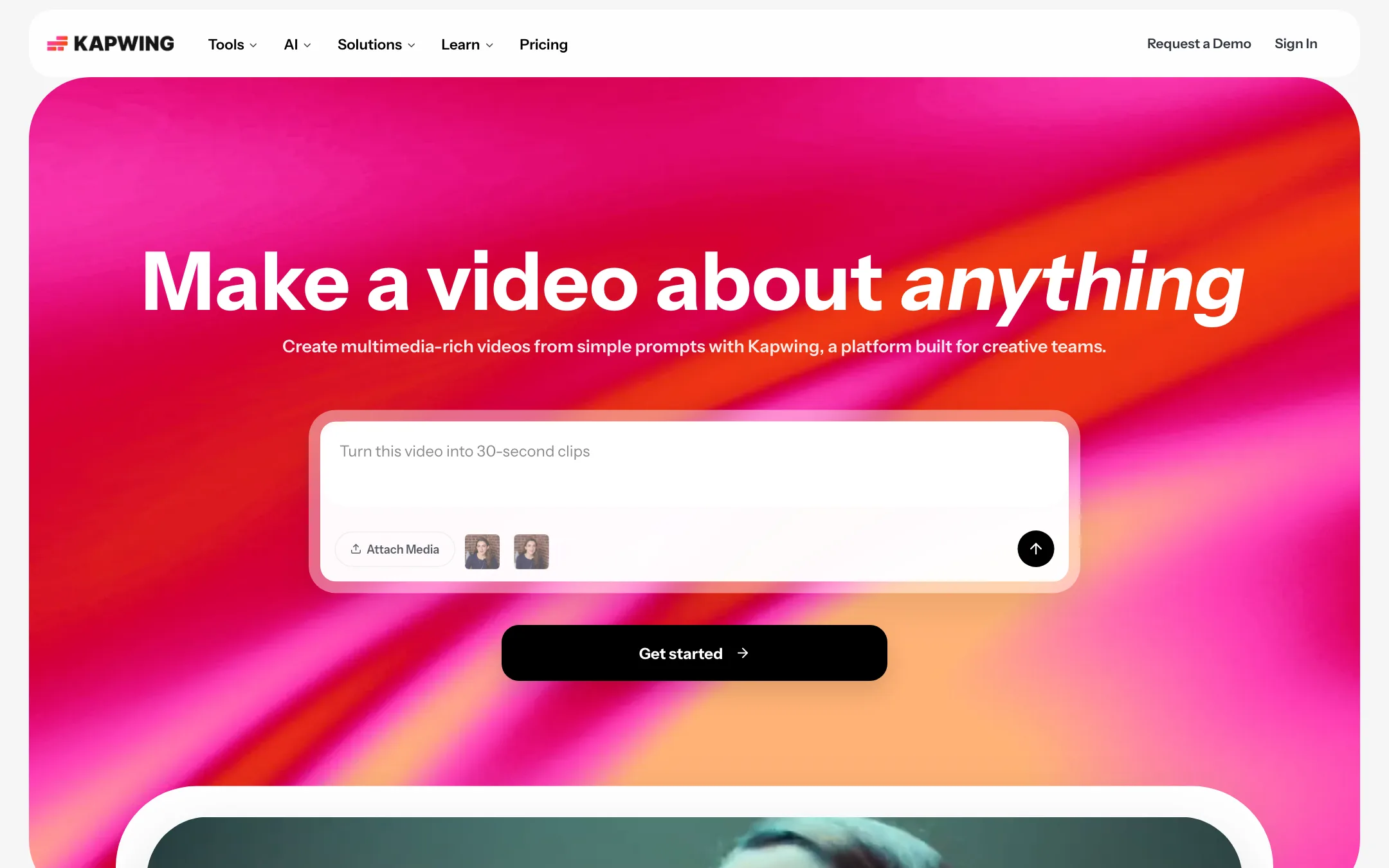
The pitch has shifted. The homepage now says “Make a video about anything” and leads with a prompt box. Type an idea, and Kapwing’s assistant, Kai, builds a project with scenes, voiceover, music and subtitles.
Underneath that, Kapwing is still an editor first. You get a timeline, a canvas, and tools for subtitles, resizing, silence cutting, clip making, dubbing and team review. The AI tools save you steps. The timeline lets you fix what they get wrong.
Kapwing says more than 30 million creators use it. Another page on the same site says 35 million. Either way, it is one of the established names in online editing.
Who it is for
Kapwing fits you if:
- You make social video and spend most of your time on subtitles, resizing and trimming.
- You run a small marketing or comms team and want shared projects, comments and a Brand Kit.
- You teach and want students to edit in a browser without installing software.
- You cut podcasts or talking-head videos and want silences and filler gone fast.
- You want to try AI-generated scenes but keep them inside a normal editing workflow.
Skip it if:
- You want a desktop editor with full color grading and pro audio. A desktop NLE will serve you better.
- You only need captions. A dedicated caption tool is cheaper and often more styled.
- You want the best possible AI generations. Kapwing resells outside models. Test them at the source too.
- You hate paying yearly to get a fair price. Monthly Pro costs 50% more.
How it works
Everything lives in the Studio, Kapwing’s editor. You upload footage (MP4, MOV, AVI, WebM and other common formats), paste a link to import content, record your screen or camera, or start from a template. The timeline sits at the bottom, the canvas in the middle, and a toolbar of AI tools on the right.
Core editing tools
These are the tools most people pay for, according to Kapwing’s own tool pages:
- Subtitler: auto-generates subtitles, lets you style them, and exports SRT or VTT files.
- Trim with Transcript: delete words in the transcript and Kapwing cuts the matching video.
- Smart Cut: removes silences automatically.
- Clean Audio: reduces background noise.
- Speaker Focus: reframes video to keep the speaker in shot when you change aspect ratio.
- Resize Video: switches between 16:9, 9:16, 1:1 and other sizes.
- Repurpose Studio and Clip Maker: cut a long video into short, social-ready clips.
- Find Scenes, Auto Level Audio, Chroma Key, Video Stabilization and background removal for video and images.
None of these are new ideas. The value is having them all in one browser tab, inside a project your teammates can open.
A typical repurposing run
- Upload a podcast or long YouTube video.
- Run Smart Cut to drop the dead air.
- Open Repurpose Studio and let it suggest short clips.
- Resize the keepers to 9:16 and turn on Speaker Focus.
- Add auto-subtitles and apply your Brand Kit fonts and colors.
- Share the project link for comments, then export.
Kai and AI video generation
Kai is Kapwing’s AI assistant. Per Kapwing, you give it a prompt, a script, an article, a PDF or reference images. It can rewrite your prompt, build a storyboard with scenes and camera angles, and choose a model. You review the plan before it spends credits, then refine single scenes by chatting or in the timeline.
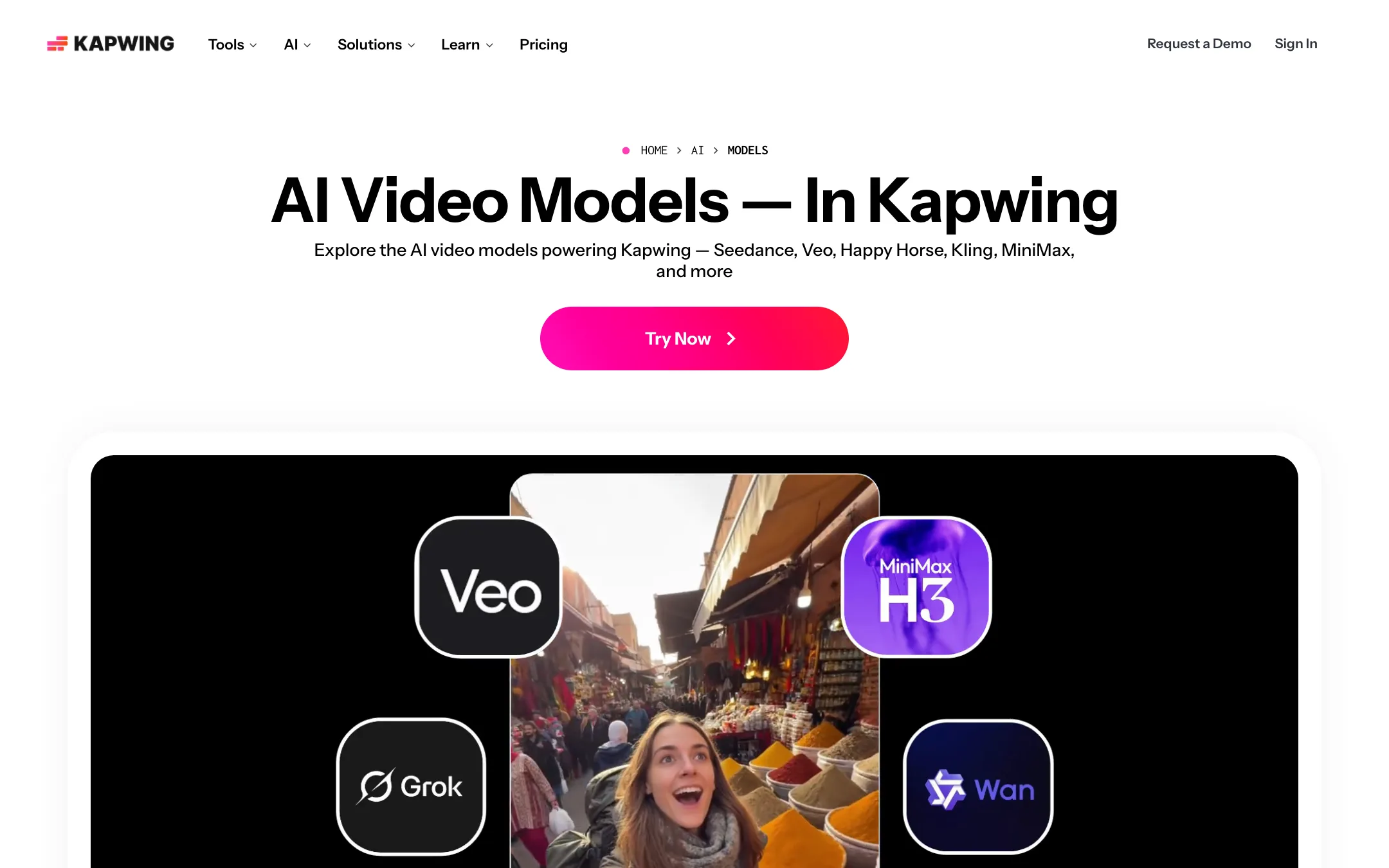
Kapwing is open about not training its own video models. Its FAQ says it “primarily integrates third-party AI models.” The models page lists:
- Seedance 2.5: up to 30 seconds, with up to 30 reference files. Kapwing’s longest model.
- Seedance 2.0 and Seedance Pro: cinematic and action scenes.
- Veo 3: 1080p with native audio and start and end frames. Needs a paid plan.
- MiniMax H3: up to 15 seconds with audio. Kapwing calls it a good cost-to-quality balance.
- Kling Motion Control and Kling Omni: motion transfer and reference-guided scenes.
- Grok Imagine Video and Happy Horse 1.0: short social clips and pure text-to-video.
The counts do not line up. The models page says “10+ AI video models.” The generator page says “18 leading AI models integrated.” Another AI page names Sora among supported models, but Sora is not on the models list. Read the model picker inside the app for the current list.
Kapwing also offers Character Consistency, which saves an AI character so you can reuse it in later scenes, and hundreds of Custom Kais, preset prompts for trends like motion transfer or billboard product ads.
Dubbing, voice and lip sync
Kapwing says it dubs into 40-plus languages. Text to speech is on every plan with minute caps. Voice clones and lip sync are Business-only. If dubbing with matched lips is your main job, a dedicated tool may give you more control. If you only dub now and then, having it next to your subtitles is convenient.
Collaboration
This is where Kapwing pulls ahead of many AI-first tools. Pro and above give you a shared workspace, real-time collaboration, comments on the video, project link sharing, version history, private folders and a Brand Kit with custom fonts. For a team that reviews every clip before it goes out, that saves a lot of back-and-forth.
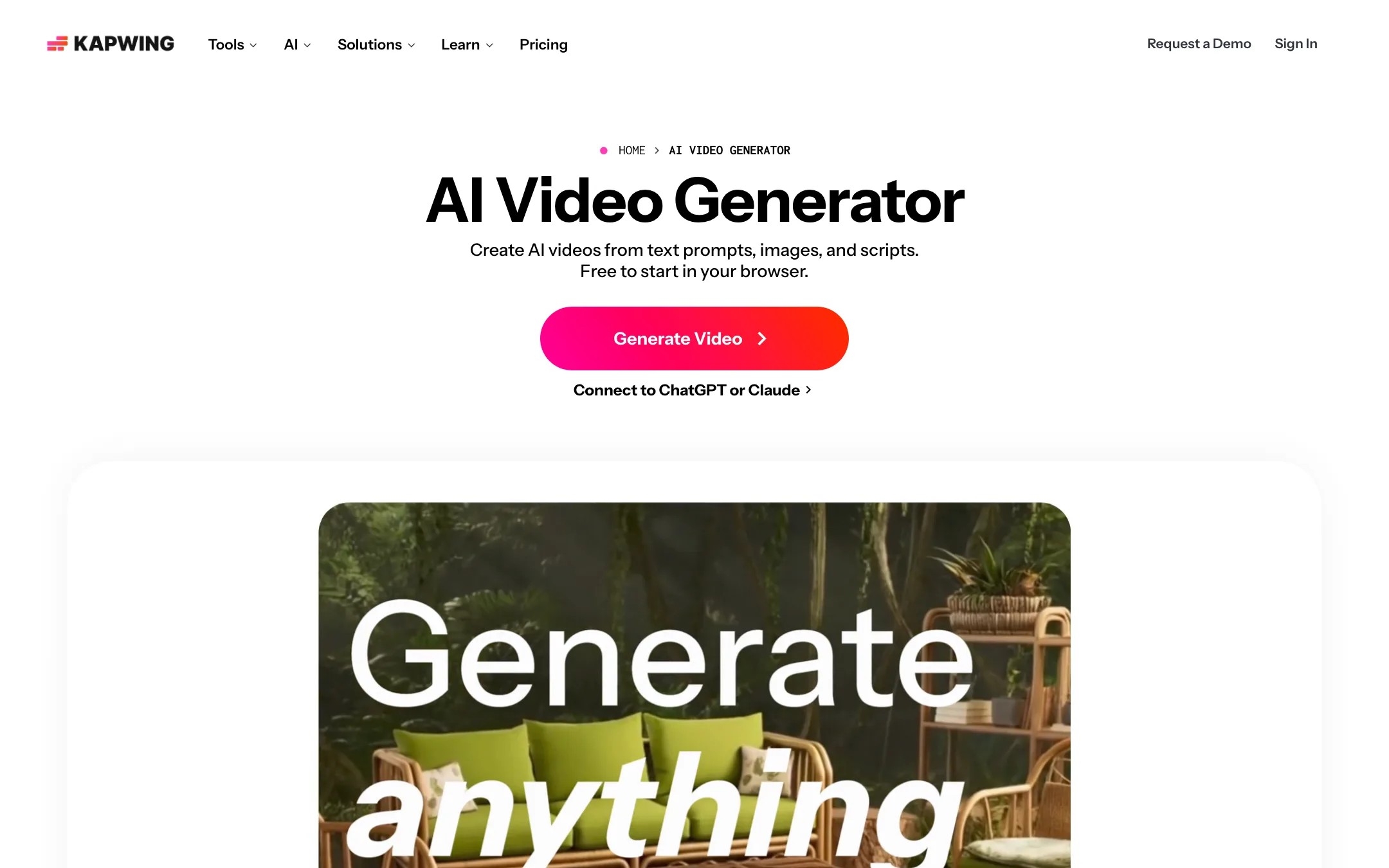
Kapwing also offers a connector so you can generate and edit from ChatGPT or Claude, per its AI pages.
Output quality
We have not run Kapwing’s AI features ourselves, so this is what Kapwing claims and what to check.
For editing tools, quality mostly comes down to accuracy. Kapwing’s own testimonials praise the auto-subtitles, which is a good sign but still vendor-picked. Check names, jargon and accents in your own footage before you trust a full export.
For generated video, quality depends on the model you pick, not on Kapwing. A Veo 3 clip in Kapwing should look like a Veo 3 clip anywhere else. What Kapwing adds is the storyboard step and the editor afterward. What it costs you is credits, and each model uses a different amount.
Things to test on the free plan:
- Subtitle accuracy on your own voice and terms.
- Repurpose Studio’s picks. Do the suggested clips start and end where you would cut?
- Speaker Focus on a two-person shot.
- One AI scene in the model you would actually use, so you see the credit cost.
Free exports are 720p with a watermark, so judge structure and accuracy, not final sharpness.
Pricing
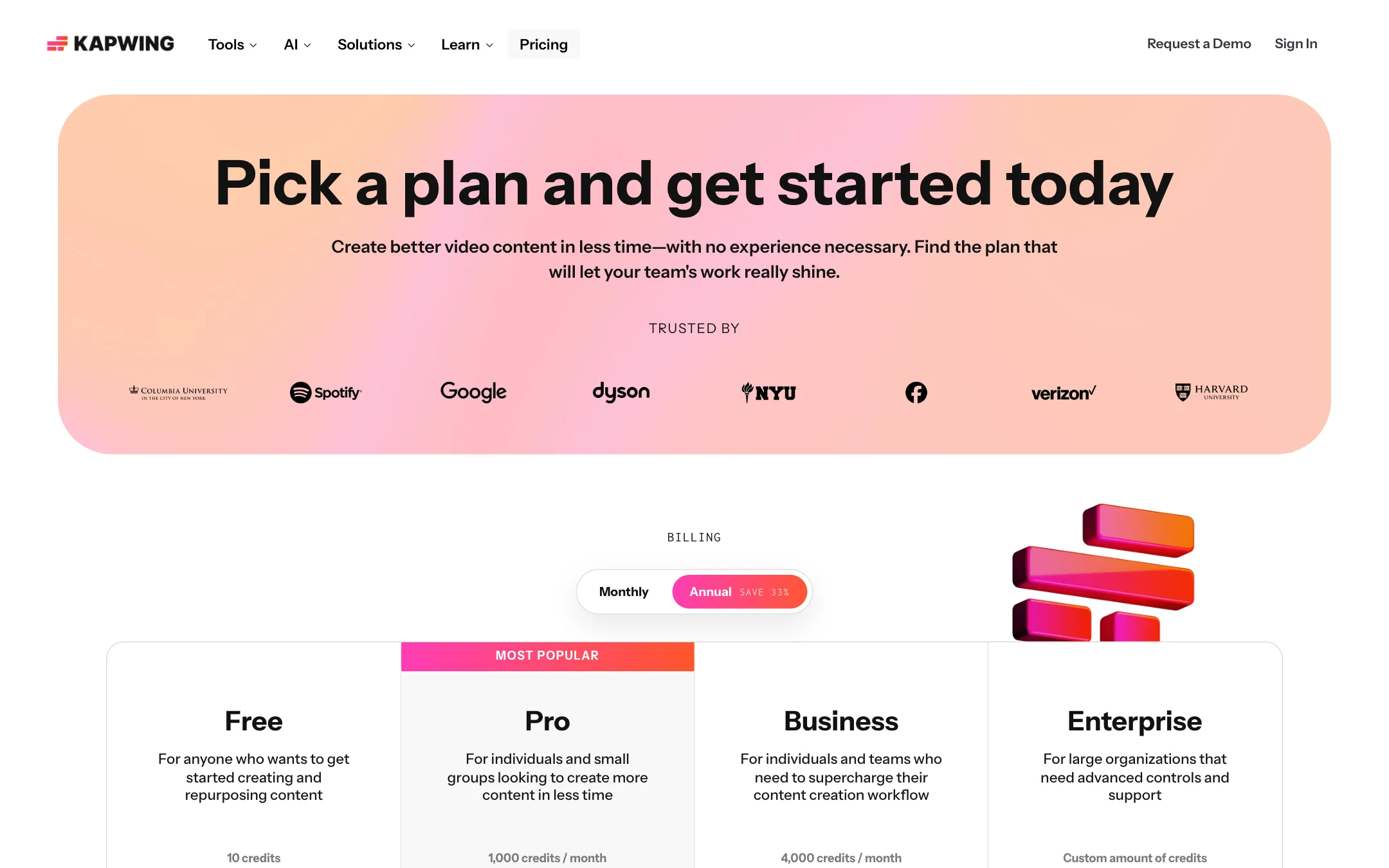
Kapwing has four plans. The pricing page defaults to yearly billing, which is easy to miss.
| Plan | Yearly | Monthly | Credits | Key limits |
|---|---|---|---|---|
| Free | $0 | $0 | 10 | 720p, 4-minute exports, watermark, 3-day storage |
| Pro | $16/mo | $24/mo | 1,000 a month | 4K, 2-hour exports, no watermark, 200 GB |
| Business | $50/mo | $64/mo | 4,000 a month | Voice clones, lip sync, buy extra credits, 800 GB |
| Enterprise | Custom | Custom | Custom | SSO, account manager, onboarding |
Monthly caps per plan from the pricing table:
| Feature | Free | Pro | Business |
|---|---|---|---|
| Auto-subtitling | 10 min | 1,000 min | 4,000 min |
| Auto-translating | 5 min | 500 min | 2,000 min |
| Text to speech | 1 min | 50 min | 200 min |
| Clean Audio | 5 min | 500 min | 2,000 min |
| Lip sync | None | 30 min | 130 min |
What the pricing page does not make obvious:
- The prices you see first are yearly. Toggle to monthly and Pro jumps from $16 to $24, Business from $50 to $64.
- The “save 33%” badge is only true for Pro. On Business, yearly saves about 22%.
- Lip sync is inconsistent. The Pro plan card does not list lip sync, and Business advertises it as an upgrade. The comparison table below gives Pro 30 minutes a month.
- Free storage is temporary. Files on the free plan are kept for 3 days, so do not leave projects there.
- Credits are shared. Subtitles, dubbing, TTS and AI generation all draw from the same pool, and generation models cost different amounts.
- Only Business can buy more credits. On Pro, you wait for the monthly refill or upgrade.
How to make your credits go further
- Do the cheap work first. Smart Cut, resizing and manual edits do not need generation credits. Use AI generation only where you need new footage.
- Review Kai’s storyboard before generating. Kapwing says you can approve the plan first. Cut scenes you do not need before credits are spent.
- Pick the model to match the shot. Kapwing itself flags MiniMax H3 as the cost-quality pick. Save Veo for shots that need its start and end frames.
- Download your SRT and VTT files. They do not depend on export limits and are useful on any platform.
Refunds
Kapwing does not refund subscriptions. Its refund policy says that since a free version exists, it does not issue refunds once you upgrade. Subscriptions renew automatically. Cancel in Workspace Settings before the renewal date, and you keep paid features until the period ends. Test properly on the free plan before you pay, especially if you pick yearly billing.
Affiliate program
Kapwing runs a public affiliate program through Tapfiliate. It pays recurring commission when someone clicks your link and buys Kapwing Pro within 30 days. Everyone starts as a standard affiliate and can move up to VIP and Super tiers, which pay more and add perks like a free Pro subscription. Kapwing does not publish the commission rate.
Verdict
Kapwing is a strong pick if your work is everyday social and team video. Subtitles, transcript trimming, Smart Cut, resizing and clip making cover most of what a creator or small marketing team does each week. Shared workspaces and comments make it better for teams than most AI-first tools.
The AI generation is useful but not unique. It resells outside models, and Kapwing’s own pages disagree on how many. Treat it as a handy extra inside a good editor, not the reason to subscribe.
Watch the billing. Pay yearly or Pro costs $24 a month, and there are no refunds. Use the free plan to check subtitle accuracy and the clip suggestions on your own footage first. If they hold up, Pro at $16 a month yearly is fair value for what you get.