
What CaptionCreator is
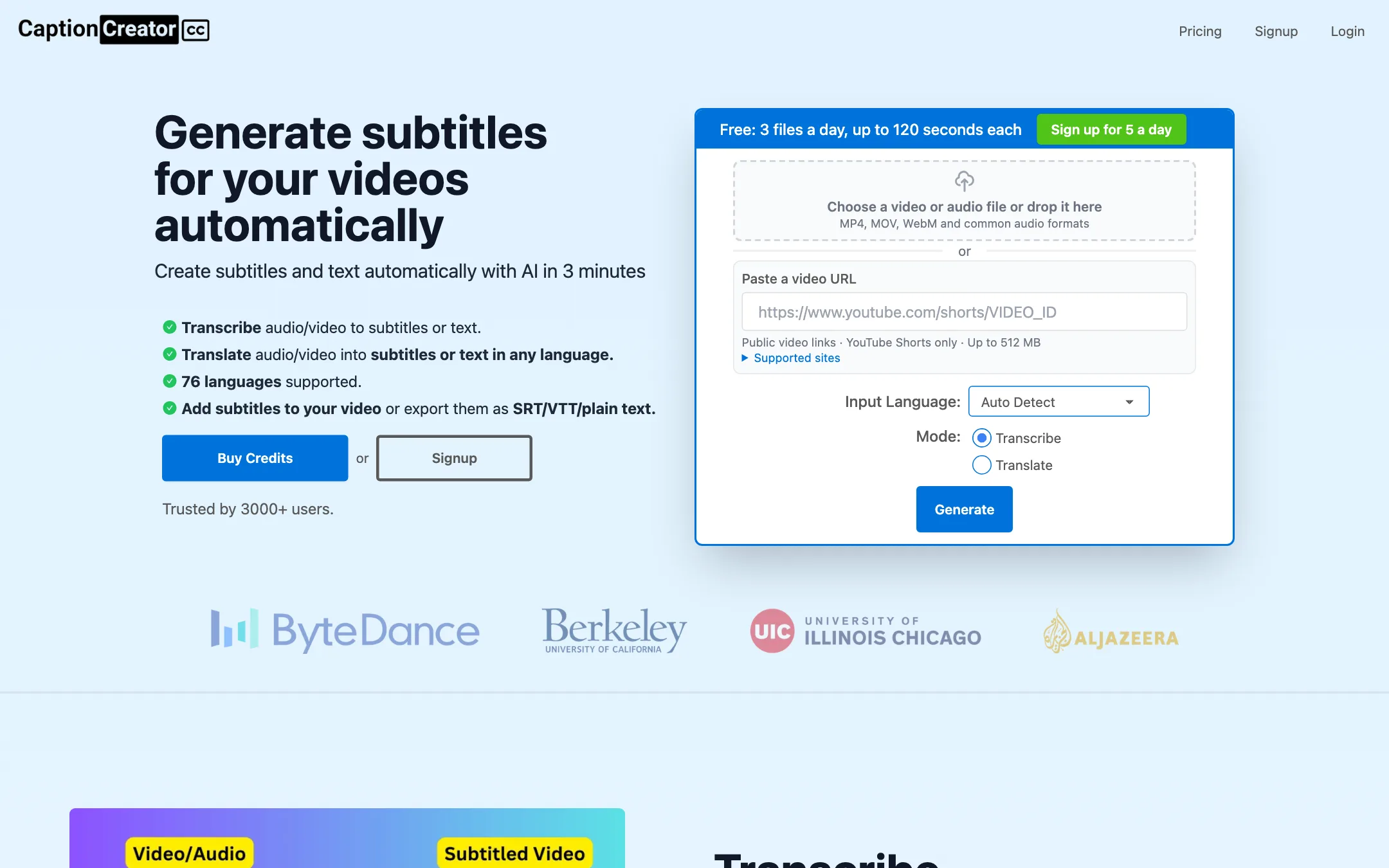
CaptionCreator is a single-purpose subtitle generator in your browser. The homepage is the tool. You drop in a video or audio file, or paste a link, choose the input language and pick a mode. It then either transcribes the speech into subtitles or translates it into subtitles in another language.
From there you can tidy the subtitles in a studio, pick a style and burn them into the video. You can also skip the video and download the subtitles as SRT, VTT or plain text.
It is a small product. The footer links to the developer’s other site, PassiveShorts, and the support contact is a single email address. The site says it is “trusted by 3000+ users” and shows quotes from three YouTubers, including DaFluffyPotato, who says it transcribed a 3-hour video in 3 minutes.
Who it is for
CaptionCreator fits you if:
- You want subtitles on a clip right now and do not want to create an account first.
- You caption a lot of minutes and want the lowest price per minute you can find. $10 for 300 minutes works out to about 3 cents a minute.
- You repost clips from TikTok, Instagram, X or Shorts and want to pull them in by link.
- You need subtitles in another language, or SRT files for YouTube or an editor.
Skip it if:
- You want a video editor. There are no b-roll, zooms, cuts, music or overlays. It does subtitles.
- You need regular YouTube videos imported by link. Only Shorts are supported.
- You want animated, highlighted caption templates like Submagic or Captions. CaptionCreator has a style picker, but it does not show what the styles look like before you sign in.
- You need a documented accuracy figure or a named model for compliance work. CaptionCreator does not publish either.
How it works
Upload or paste a link
The upload box takes MP4, MOV, WebM and common audio formats. The link field accepts individual public posts from X, Instagram, Facebook, TikTok and YouTube Shorts. CaptionCreator says YouTube imports request the highest resolution available, up to 4K, and that link imports are capped at 512 MB.
Its FAQ lists what will not work. Private posts, login-protected videos and some public recordings cannot be fetched, and the importer never signs in to your accounts. If a link fails, download the video and upload the file.
Choose a language and a mode
The input language defaults to Auto Detect. You can also choose one of the 76 languages in the list. Then you pick a mode:
- Transcribe writes subtitles in the language spoken in the video.
- Translate writes subtitles in a different language you choose.
CaptionCreator also claims its AI copes with noisy recordings, speakers switching between languages, and a range of accents. Those are vendor claims. Test them on your own audio during the free tier.
Edit and export
After generation, you edit the subtitles in what CaptionCreator calls the studio. All plans, including free, list access to every subtitle style and to the studio. When you are done, you can:
- Burn the subtitles into the video. Free exports are watermarked and go up to 1080p. Paid exports drop the watermark and support up to 4K.
- Download an SRT or VTT file for YouTube, a video platform or your editor.
- Download plain text for show notes, blog posts or a transcript.
The FAQ says any length of video is done in under 3 minutes. That matches the YouTuber quote on the homepage but is still the vendor’s claim.
Extra free tools
The footer links to a set of small utilities: SRT to VTT and back, SRT or VTT to text, and adding a caption to a GIF or an image. There are also landing pages for TikTok, Shorts, Instagram and Facebook captions, which all lead back to the same generator.
Output quality
We did not test CaptionCreator with our own files, so this section reports what the vendor says.
- Accuracy. The FAQ answer to “Is it accurate?” is one line: “We use the latest AI model behind the scenes.” CaptionCreator does not name the model or give an accuracy figure.
- Speed. CaptionCreator says any length finishes in under 3 minutes. A testimonial says 3 hours of video took 3 minutes.
- Hard audio. It claims to handle noisy audio, mixed languages and accents. Every speech model has limits here, so keep an eye on names, jargon and crosstalk.
- Resolution. Free exports go up to 1080p. Paid plans list 4K support.
The 76-language list and the speed claims fit a modern open speech model. Treat that as a guess, not a fact, since CaptionCreator does not say what it runs.
Pricing
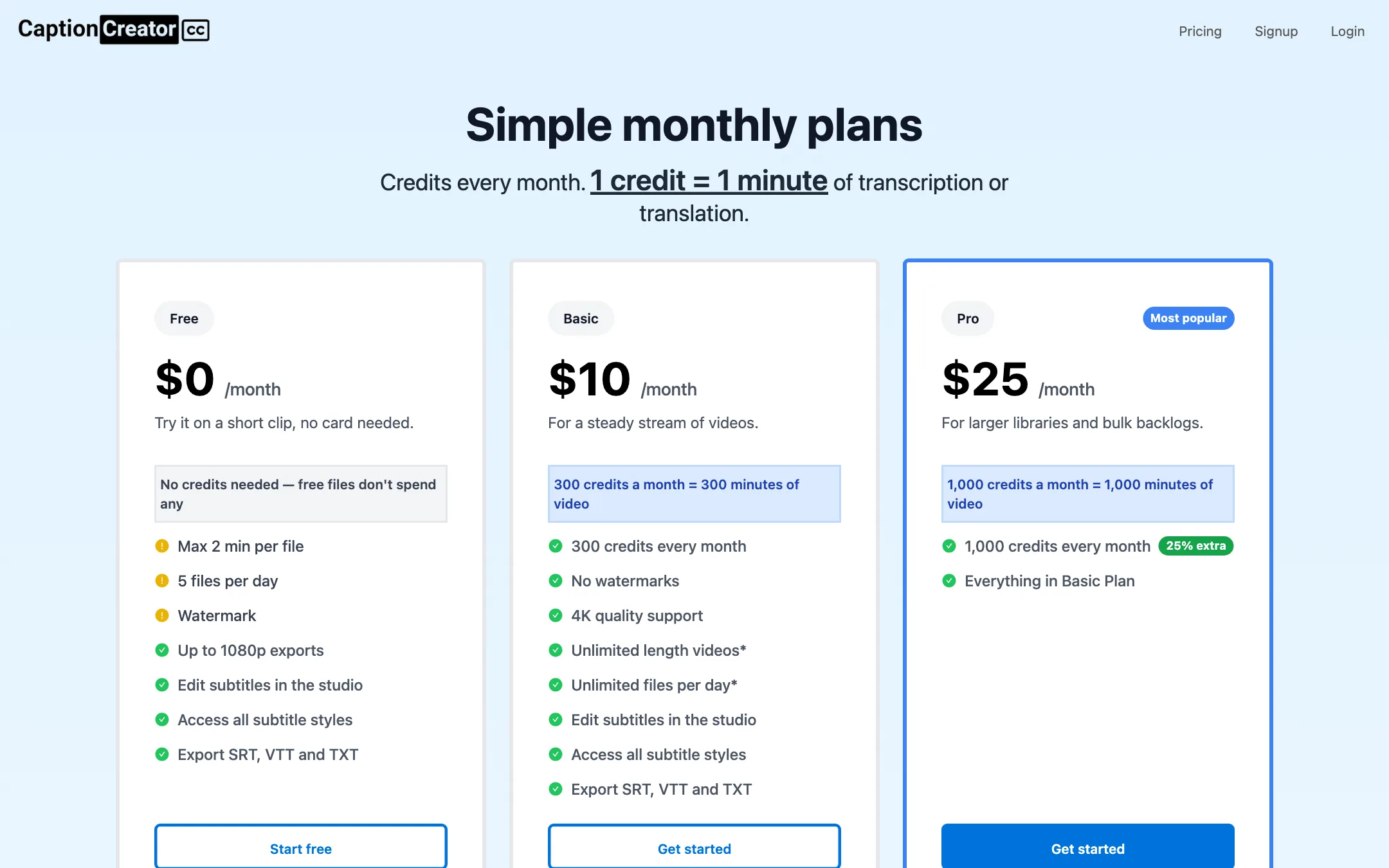
CaptionCreator prices everything in credits. One credit is one minute of transcription or translation, rounded up per file. Free files do not use credits.
| Plan | Price | What you get |
|---|---|---|
| Free | $0 | 3 files a day without an account, 5 with one, 2 minutes each, watermark |
| Basic | $10/mo | 300 credits, no watermark, 4K, any length, any number of files |
| Pro | $25/mo | 1,000 credits, everything in Basic |
What to know before you pay:
- Round-ups add up on short clips. A 61-second clip costs 2 credits. If you caption lots of very short clips, your real minutes run below the headline number.
- Credits expire monthly. Plan credits are good for the month they arrive and do not roll over. If you caption in bursts, buy for your average month, not your busiest.
- Credit packs changed in 2026. Packs bought on or after 7 August 2026 expire after 365 days. Packs bought before that date never expire. The pricing page does not currently list packs, but the terms still describe them.
- Yearly plans are mentioned but not shown. The terms say yearly plans get credits monthly. The pricing page only shows monthly prices.
- Refunds are narrow but clear. You have 30 days from the first payment of your first subscription to email for a refund. You get back the unspent share of that payment, minus non-recoverable fees. Renewals and second subscriptions are not covered, and cancelling does not count as a request.
How to make your minutes go further
Credits are simple, but a few habits stretch them:
- Test on the free tier first. Free files do not touch your credits. Run a 2-minute sample of your hardest audio, with music, accents or crosstalk, before you subscribe.
- Trim before you upload. Every minute counts, rounded up per file. Cut intros, outros and dead air in your editor first.
- Batch short clips. Ten 50-second clips cost 10 credits. One 8-minute compilation costs 8. If your workflow allows it, caption a longer master and cut it afterwards.
- Use Transcribe, then translate elsewhere if needed. Translate mode spends credits like transcription. If you need five languages, that is five runs of the same minutes. Price that out before you choose a plan.
- Spend monthly credits before they reset. Plan credits do not carry over. Older one-off packs never expire, so keep those for last.
How it compares
CaptionCreator sits at the cheap, simple end of the captions category. Here is how it lines up with the kinds of tools you might weigh it against:
- Against short-form caption apps such as Submagic or Zeemo, CaptionCreator is plainer. Those tools sell animated word highlights, emoji and b-roll. CaptionCreator sells minutes of accurate-enough subtitles at a low price.
- Against transcription services such as Happy Scribe, CaptionCreator has fewer collaboration and review features and no human transcription option. It is also far cheaper per minute.
- Against free built-in captions in CapCut or YouTube, CaptionCreator gives you clean SRT and VTT files, a translate mode and 76 languages in one place. If your editor’s auto-captions already work for you, you may not need it.
The best reason to pick it is price and speed, plus a free tier you can try in under a minute without handing over an email address. The best reason to skip it is if you want the captions themselves to be part of the visual hook.
Verdict
CaptionCreator does one job and keeps the price low. The no-signup free tier lets you check quality in a minute, the link import saves a download step for social clips, and $10 for 300 minutes is hard to beat. The refund and credit rules are written out in plain terms, which many bigger tools do not manage.
The limits are just as clear. It is not an editor, YouTube links work only for Shorts, and there is no published model or accuracy figure. If you want animated short-form caption styles or a full editing timeline, look elsewhere. If you want cheap, quick subtitles and SRT files, start with the free tier and move to Basic when you hit the 2-minute cap.