What CANVID is
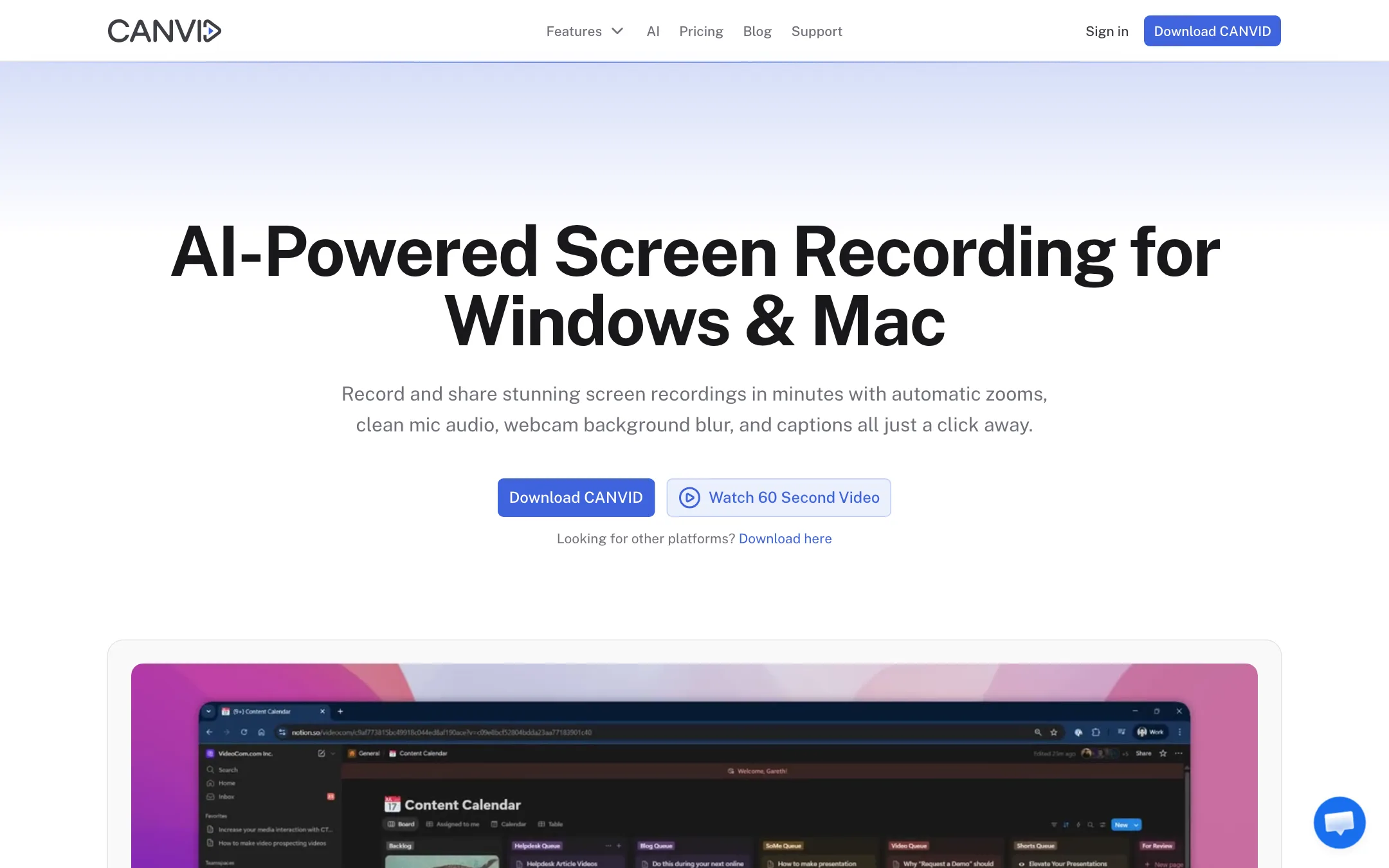
CANVID is a desktop screen recorder for Windows and Mac. You record your screen, webcam, mic and system audio. CANVID then polishes the recording in the same app: it zooms in where you click, smooths your cursor, cleans up your voice and adds captions.
The idea is that most of the editing happens while you record. Your clicks become zoom keyframes. When you stop, you get something close to a finished demo instead of a raw capture.
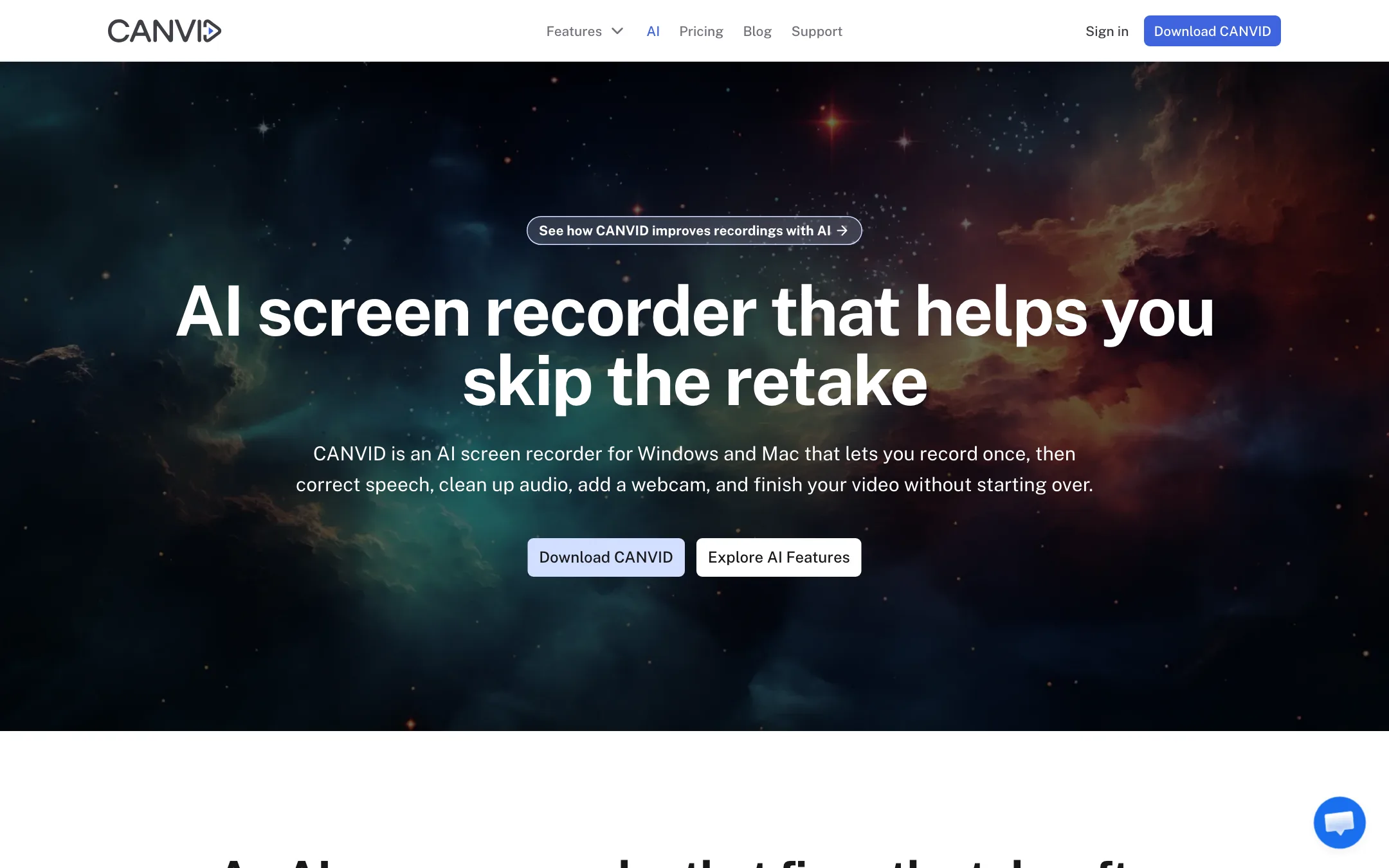
On top of that, CANVID has a set of AI tools that go beyond the usual. You can fix a word you misspoke by typing the correction. You can add a talking webcam after the fact, generated from an avatar. You can blur private details that CANVID finds on screen.
CANVID is made by VideoCom.com Inc. It pitches itself against Screen Studio, Loom, FocuSee and ScreenPal, and says it is trusted by more than 5,000 makers.
Who it is for
CANVID fits you if:
- You record product demos, launch videos or feature walkthroughs.
- You run a tutorial or how-to channel on YouTube and want zooms and captions without a heavy edit.
- You answer support tickets or hand off bugs with quick videos and want a link to share.
- You work on Windows. Many polished auto-zoom recorders are Mac-only. CANVID runs on both.
- You prefer to buy software once rather than pay every month.
Skip it if:
- You only need a quick, free screen capture. Your operating system’s built-in recorder will do.
- You need to work fully offline. CANVID needs a connection to run.
- You want a general video editor for camera footage. CANVID is built around screen recordings.
- You need team admin today. Workspaces and license management are still marked “coming soon.”
How it works
Record
You pick what to capture: a display or a window, plus webcam, microphone and system audio. Mic and system sound are separate sources you can turn on or off before or after recording. Webcam resolution can be capped at 720p, 1080p or 4K, with 1080p as the default for new recordings, according to the October 2026 changelog.
While you record, CANVID tracks your clicks and cursor movement. That data drives the automatic zooms later.
Edit
When you stop, the recording opens in CANVID’s editor. Here is what you can do, per CANVID’s feature pages:
- Zooms. Auto-zoom follows your clicks. You can adjust or remove any zoom, add manual zoom and pan, and set a default zoom level.
- Cursor. Smooth out jittery cursor movement, add motion blur, or keep native cursor shapes for each operating system.
- Timeline. Trim, split and drag segments. A “Compress Cuts” option tidies gaps.
- Camera layouts. Place the webcam as an overlay, a split pane beside the screen, or a floating card. Shapes include 16:9, square, 4:3, vertical and portrait.
- Aspect ratio. Output vertical for TikTok, square for Instagram or widescreen for YouTube.
- Transcript and captions. CANVID builds a time-stamped transcript. Click a word to jump to that moment, and use the same transcript for synced captions you edit like text.
The AI tools
This is where CANVID stands out from simpler recorders:
- AI Speech Edit. Said the wrong number? Select it in the transcript, type the right word or re-record just that segment, and CANVID replaces the speech. It says it can sync the change with your webcam footage too.
- AI Voice Clarity. Removes hum, echo and background noise from the mic track. System audio is left untouched.
- AI Webcam. Record without a camera, then choose an example avatar or one you made, and CANVID generates a webcam track lip-synced to your voice. CANVID also calls this Synthetic Webcam.
- Camera background effects. Blur, remove or replace your real webcam background without a green screen.
- Privacy Areas. CANVID finds sensitive information on screen and lets you blur, pixelate or cover it. Useful before you share a recording of a real dashboard or inbox.
AI features run either in the cloud or on your own machine. On supported Windows hardware, CANVID runs some AI locally and says it is optimised for Intel Core Ultra and Intel Arc chips through a partnership with Intel. When local AI is not available, it falls back to the cloud.
Share
Export to MP4 or GIF, up to 4K. Or hit Quick Share, which renders the video, uploads it to CANVID’s cloud and copies a view-only link to your clipboard for Slack, LinkedIn, X or email.
Output quality
We have not tested CANVID ourselves. Here is what CANVID claims and what its pages and changelog show.
Auto-zoom recorders live or die on how natural the zooms feel. Too many and the video feels seasick. Too few and viewers miss the click. CANVID lets you adjust every zoom afterwards and set a default zoom level, which is the right safety net. User quotes on its homepage praise the animations and the minimal interface, and one says a simple recording doubled installs of a VS Code extension. Those are the vendor’s chosen quotes.
The AI tools are more ambitious than the zooms. Speech correction and a synthetic webcam are hard problems. CANVID’s own blog has a post on “pro tips for best results” with AI retakes, which suggests results vary with the recording. Test them on your own voice before you rely on them for client work.
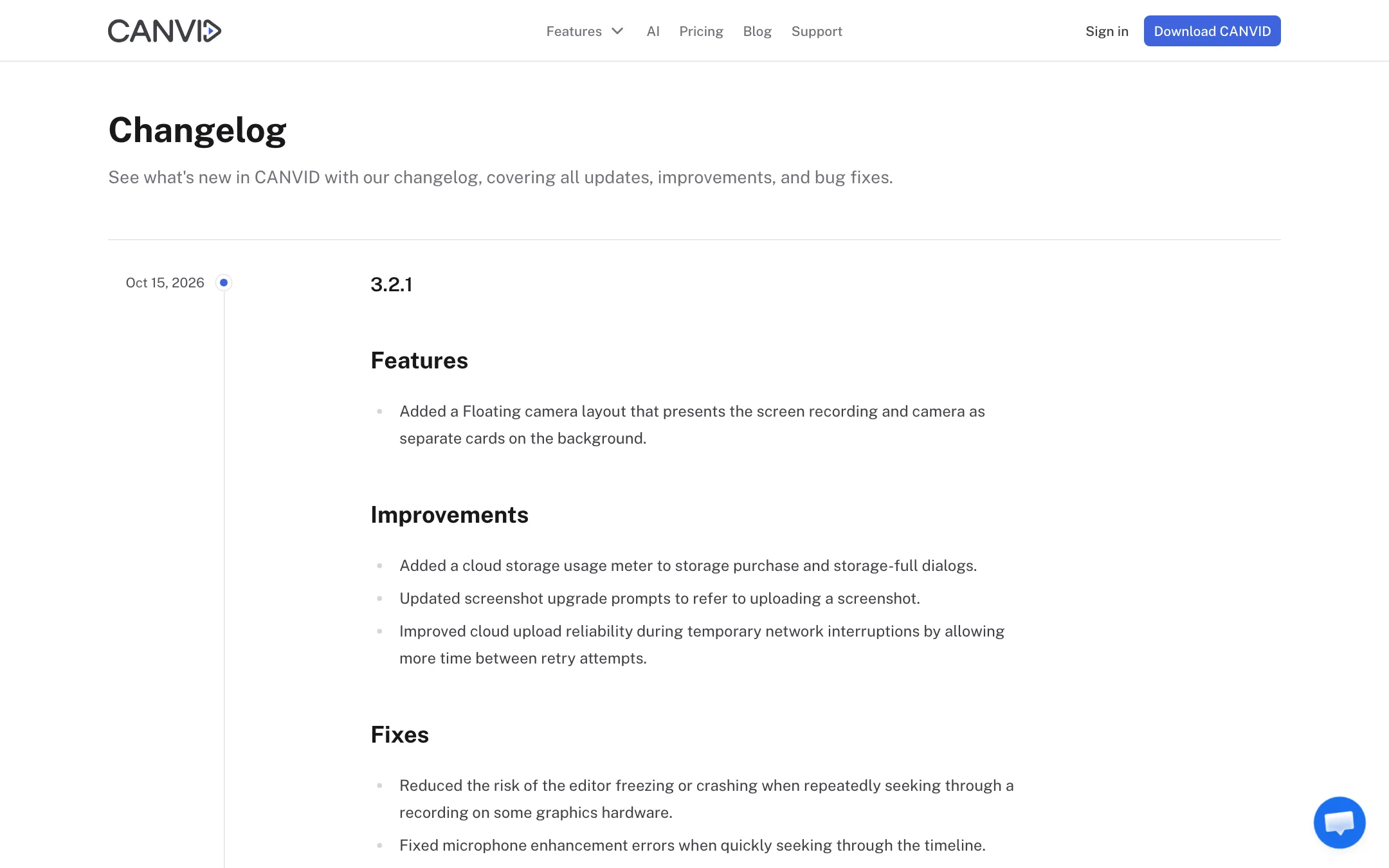
The changelog is a good sign. Releases in October 2026 added camera layouts, cursor options and webcam resolution settings, and fixed a long list of crashes, memory issues and export bugs. It is an actively maintained app. The same list also shows it is a complex one, with fixes for editor freezes on some graphics hardware and older AMD drivers. If your PC is older, test before you buy.
How it compares
CANVID publishes its own comparison pages against Screen Studio, Loom, FocuSee and ScreenPal. Read them as sales pages, but they point to the real differences:
- Screen Studio is the best-known auto-zoom recorder, but it is Mac-only. CANVID’s main pitch against it is Windows support and a lifetime licence.
- Loom is built for quick async messages and team sharing, with a browser-first workflow. CANVID is a heavier desktop app with a real editor, and its Quick Share covers the link-sharing part.
- FocuSee is the closest match, with auto-zoom, cursor effects and AI captions on Windows and Mac. Compare the AI extras and the pricing model before you choose.
- ScreenPal is a long-running, budget recorder and editor with hosting. CANVID focuses more on polish and automation.
If you already use a full editor like Premiere or Resolve, you may only need CANVID for the recording and zoom pass. Export the MP4 and finish elsewhere. If you want one tool from capture to share link, CANVID covers the whole job.
Pricing
CANVID has two ways to pay, plus a teams option.
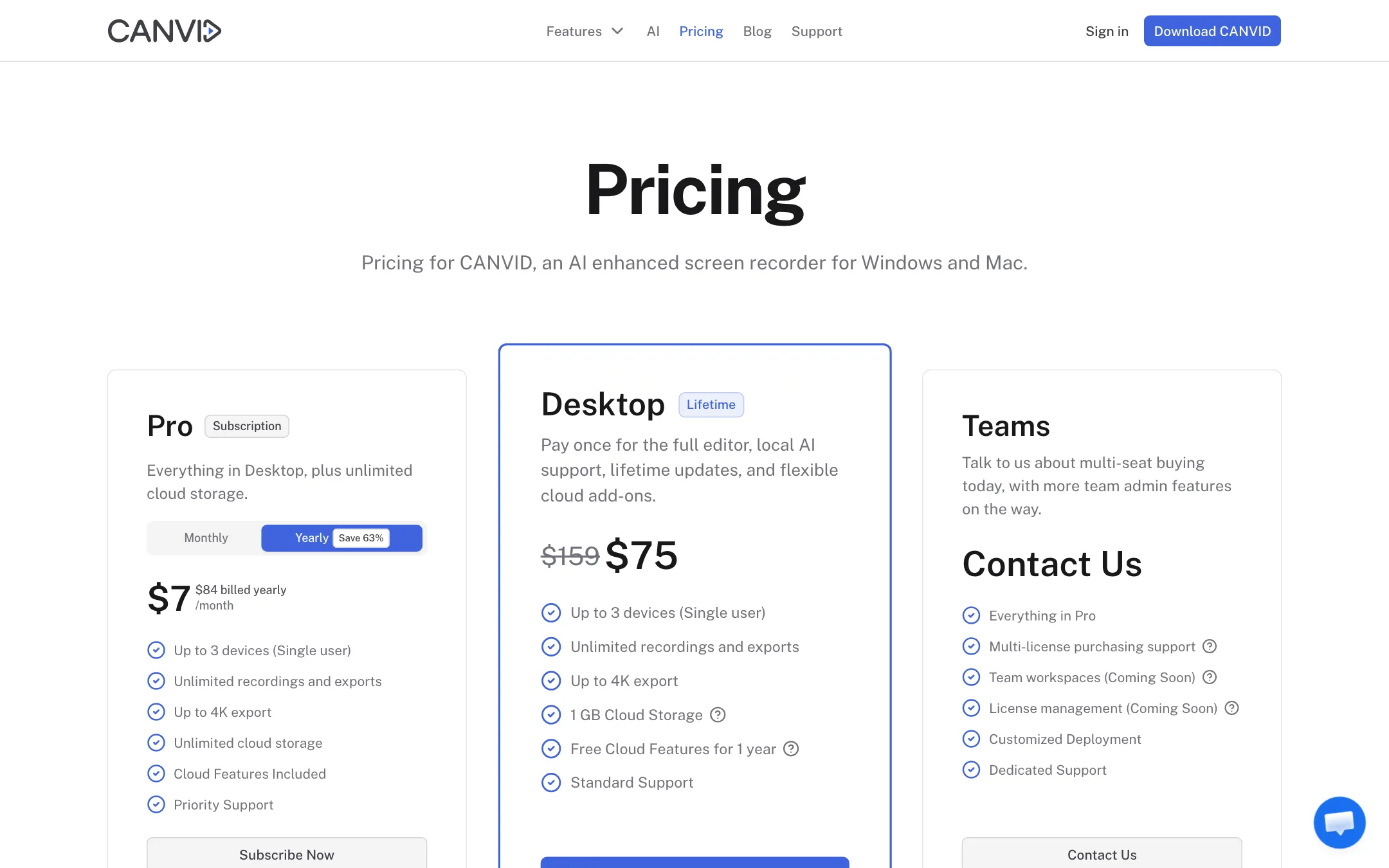
| Plan | Price | What you get |
|---|---|---|
| Free trial | Free | All features, but no export or Quick Share |
| Pro | $7/mo billed yearly ($84), $19 monthly | Unlimited cloud storage, cloud AI included, priority support |
| Desktop | $75 once (shown down from $159) | Full editor, local AI, lifetime updates, 1 GB cloud, cloud AI free for a year |
| Teams | Contact sales | Multi-license buying now, admin features later |
Both licences cover up to 3 devices for one person, unlimited recordings and 4K export. There are no limits on recording length.
What to think about:
- The lifetime licence is the better deal for most solo creators. $75 is about what Pro costs in eleven months. You lose unlimited cloud storage and, after the first year, free cloud AI.
- Cloud AI after year one costs extra on Desktop. CANVID says you can buy cloud credits as needed, but we did not find a published price for them. Local AI keeps working on supported Windows hardware.
- Mac users depend more on the cloud. Local AI is described for Windows hardware. If you are on a Mac and rely on AI Webcam or Speech Edit, Pro may make more sense.
- Storage is tight on Desktop. 1 GB fills fast with 4K Quick Share links. A 25 GB add-on is $25 a year.
- The “Save 63%” label is real. Monthly Pro is $19. Yearly at $84 works out to $7 a month.
You can switch from Pro to the Desktop licence later. CANVID publishes a separate refund policy page; read it before buying.
Affiliate program
CANVID runs its affiliate program on Lemon Squeezy. It says you can earn up to $22.35 per referred purchase with no cap. Payouts are NET30 after refunds and chargebacks, with a $10 minimum. You apply through Lemon Squeezy and need approval.
Verdict
CANVID is a strong option if you record demos or tutorials, especially on Windows where good auto-zoom recorders are rarer. Click-driven zooms, voice cleanup and captions cover most of what a polished screen video needs. Speech correction and the synthetic webcam are genuine extras, though you should test them on your own recordings.
The trade-offs are clear. You cannot export anything until you pay, the app needs a connection, and the lifetime licence’s free cloud AI ends after a year. For a solo creator, the $75 Desktop licence is the easy pick. Choose Pro if you share lots of links or work mostly on a Mac.