
What Camtasia is
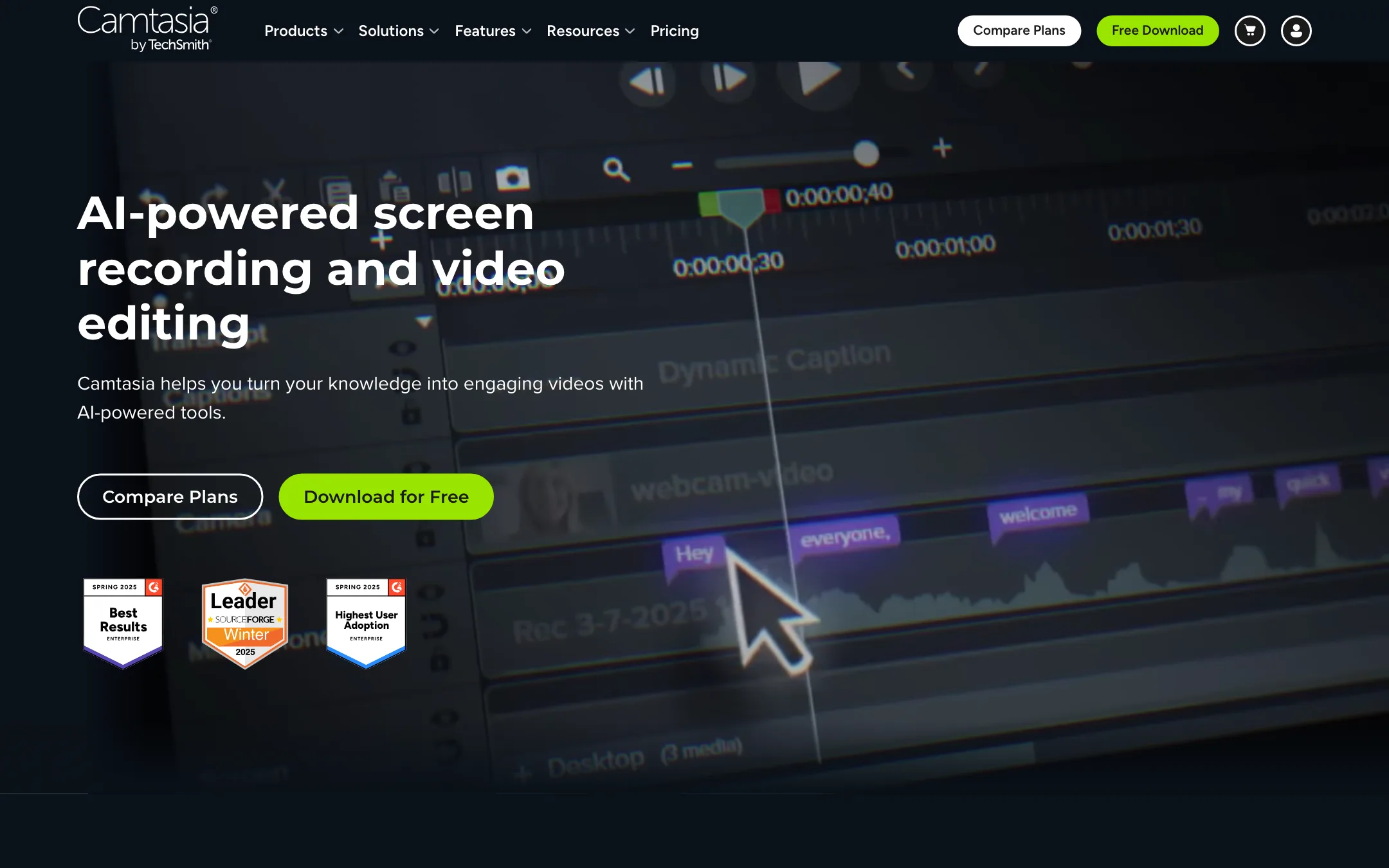
Camtasia is TechSmith’s screen recorder and video editor. It has been the default tool for software tutorials, course videos and training content for a long time. You record your screen, camera and microphone, then edit the result on a timeline built around screen recordings.
TechSmith now sells Camtasia as a suite. The plans bundle several products:
- Camtasia Editor: the recorder and timeline editor most people mean by “Camtasia.”
- Camtasia Snagit: screenshots, quick screen recordings and step-by-step guides.
- Camtasia Audiate: transcription, text-based editing, AI scripts, AI voices, avatars and dubbing.
- Screencast: hosting with timestamped comments and review.
- Camtasia Assets: stock video, music, images and templates.
- Camtasia Online: a browser tool for quick recording and simple edits at 1080p.
The AI features come mostly from Audiate. That is why they appear in our avatars, dubbing and captions categories as well as video editors.
Who it is for
Camtasia fits you if:
- You make software tutorials, product demos, onboarding videos or online courses.
- You record your screen and want zooms, callouts and cursor effects without fiddly keyframing.
- You narrate a lot and want to edit by editing a transcript.
- You publish to a learning platform and need quizzes or SCORM export.
Skip it if:
- You edit vlogs, music videos or cinematic footage. A general editor fits better.
- You mostly make vertical Shorts and Reels from long videos. A clip maker is faster.
- You want AI avatars and dubbing on a small budget. They sit on the $599 Pro plan.
How it works
Recording
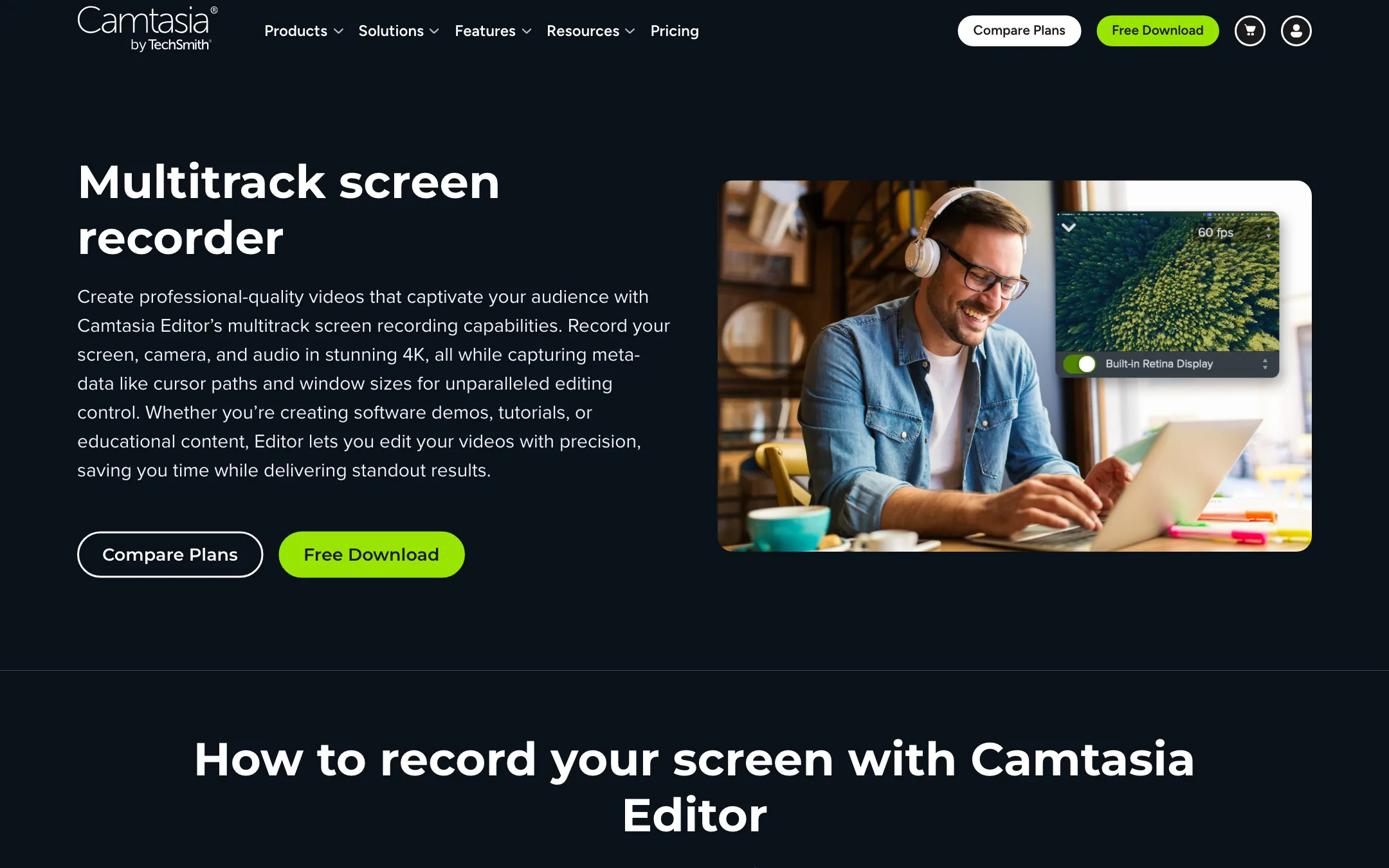
Camtasia’s recorder is the core of the product. TechSmith calls it Rich Recording Technology. It records the screen, camera, microphone and system audio as separate layers. It also records cursor movement, clicks and keystrokes as data, not just pixels.
That matters more than it sounds. Because the cursor is data, you can smooth a shaky cursor, make it bigger, add click highlights or even redraw its path after recording. Because the camera is its own track, you can move or resize it later. TechSmith says recordings go up to 4K at 60 frames per second.
Editing
The editor is a drag-and-drop timeline. TechSmith’s pitch is that complex edits like zooms or callouts are “only a few clicks away.” You get:
- Zoom and pan, plus an AI auto zoom that TechSmith says focuses on the important part of the screen.
- Callouts, annotations, arrows and highlights.
- Transitions, filters, text animations and themes for consistent branding.
- Cursor effects powered by what TechSmith calls Screentelligence, which it says runs locally on your machine.
- Background removal for webcam footage without a green screen, plus a classic chroma key.
- PowerPoint import, so slides can sit alongside your recording.
A typical tutorial run
- Open the recorder and pick the screen area, camera, microphone and system audio.
- Record the walkthrough. Do not worry about small mistakes.
- Open the recording in the editor. The screen, camera and audio land on separate tracks.
- Open the transcript and delete the words you do not want. Audiate cuts the matching video.
- Run filler word removal to drop the ums and hesitations.
- Add zooms, callouts and cursor highlights where viewers need help following along.
- Generate captions and export to a file, Screencast or your learning platform.
Text-based editing
On Essentials and above, Camtasia transcribes your audio and lets you edit the video by editing text. TechSmith puts it simply: “To cut a mistake, just delete a word.” Filler words and hesitations can be detected and removed automatically.
This is the same idea Descript made popular. For narrated tutorials it can cut editing time a lot. You still need to check the cuts, since automatic filler word removal can clip a word or leave an awkward jump.
AI features by plan
TechSmith ties AI features tightly to plans. Here is what each one adds, according to its pricing page. We have not tested these hands-on.
- Starter: AI redaction and step capture in Snagit, background noise removal, webcam background removal. The Camtasia Editor is watermarked.
- Essentials: text-based editing, filler word removal, speech-to-text transcription and unlimited caption generation.
- Create: AI scripts from a prompt, script improvement, 200+ AI voices with mood, speed and accent controls, and mixing several voices in one project.
- Pro: AI avatars in 49 styles, script translation, audio dubbing, image generation, and AI titles, chapters and descriptions in Screencast.
TechSmith says Audiate can localize voiceover and captions into 7 languages. Its features page says 7 languages and 9 dialects. Either way, it is a short list next to dedicated dubbing tools.
Unlimited, with a footnote
The homepage promises “Unlimited AI generation, no credits to track.” That is a real difference from credit-based tools. The store FAQ confirms plans are unlimited for subtitles, translations and AI actions, then adds that use is subject to the terms of service, which include an excessive-use clause. For normal tutorial production you are unlikely to hit it. If you plan to dub hundreds of hours, read the terms first.
Premium voices
Camtasia uses ElevenLabs for its premium voices. TechSmith’s FAQ says those voices only come with Create, Pro or Audiate subscriptions bought from its own online store. Licenses bought through a reseller or a TechSmith sales rep do not include them, due to ElevenLabs’ policy. Everyone gets the default voice collection. If AI narration matters to you, buy direct.
For teams
TechSmith now sells Camtasia hard to companies. The homepage talks about knowledge capture, onboarding, software rollouts and customer education. It lists SOC 2 Type II, GDPR alignment and a VPAT for accessibility. TechSmith says your content is not used to train its models.
Screencast handles hosting and review with timestamped comments, reactions and versioning. Starter through Create include 25 hosted videos. Pro removes that cap. Volume discounts start at 10 licenses.
System requirements
TechSmith lists Windows 10 (64-bit, 20H2 or later) or macOS 14 or later. You need an Intel 8th Gen or AMD Ryzen 2000 series CPU on Windows, or an Intel 7th Gen or Apple silicon Mac, with 8 GB of RAM and 4 GB of disk space. TechSmith recommends 16 GB of RAM and an SSD. Each license covers two devices for the same user, and the desktop app works offline, though some AI and sharing features need a connection.
Pricing
TechSmith’s store page showed Malaysian ringgit to our crawler (RM89 to RM1,300 a year). The USD prices below come from the same store’s checkout system set to the US, and match the structured product data on TechSmith’s all-products page.
| Plan | Price | What you get |
|---|---|---|
| Free download | Free | Full editor, watermarked exports |
| Starter | $39/yr | Snagit plus a watermarked Camtasia Editor |
| Essentials | $179.88/yr | Watermark-free editing, text-based editing, captions |
| Create | $249/yr | AI scripts and 200+ AI voices |
| Pro | $599/yr | Avatars, dubbing, translation, stock library, unlimited sharing |
A few things the pricing page does not make obvious:
- Starter is really a Snagit plan. It includes the Camtasia Editor, but every export is watermarked. For video, Essentials at $179.88 a year (about $15 a month) is the true entry point.
- Create is the sweet spot for narrators. For $70 more a year than Essentials you get AI scripts and voices.
- Pro is a big jump. Avatars, dubbing and translation more than double the price. Compare it with a dedicated avatar or dubbing tool before you upgrade.
- Yearly only. Individual plans are billed yearly and are non-transferable.
Trial and refunds
The free download is the trial. TechSmith says you get the full editor with every feature, and the only limit is the watermark. That is more generous than most desktop editors. TechSmith also offers a 14-day money-back guarantee, and you can cancel a subscription from your account at any time. Students in the US, Canada and UK can get a discount through StudentBeans.
Camtasia vs the alternatives
Camtasia’s closest rivals come at the job from different angles:
- Descript also edits video by editing text, and leans harder into podcasts, voice cloning and an AI co-editor. It is browser and desktop based, with monthly billing.
- FocuSee is a lighter screen recorder that adds auto zoom and cursor effects as you record. It suits quick product demos more than full courses.
- Tella records screen and camera in the browser and cleans up mistakes automatically. It is faster for short async updates, but has less editing depth.
Pick Camtasia when the recording itself needs heavy polish, when you publish to a learning platform, or when you need to keep a library of training videos up to date over years.
Verdict
Camtasia is still one of the best tools you can buy for screen-first video. Multitrack recording with editable cursor data is something general editors do not do well, and text-based editing makes narrated tutorials much faster to clean up.
The AI features are useful but expensive. Essentials covers most tutorial makers. Create is worth it if you want AI narration. Pro only makes sense if your team needs avatars, dubbing and the stock library together. If you make social clips or cinematic footage, pick a different editor. If you teach, train or demo software, start with the free download and see how the recorder fits your workflow.