
What Spikes Studio is
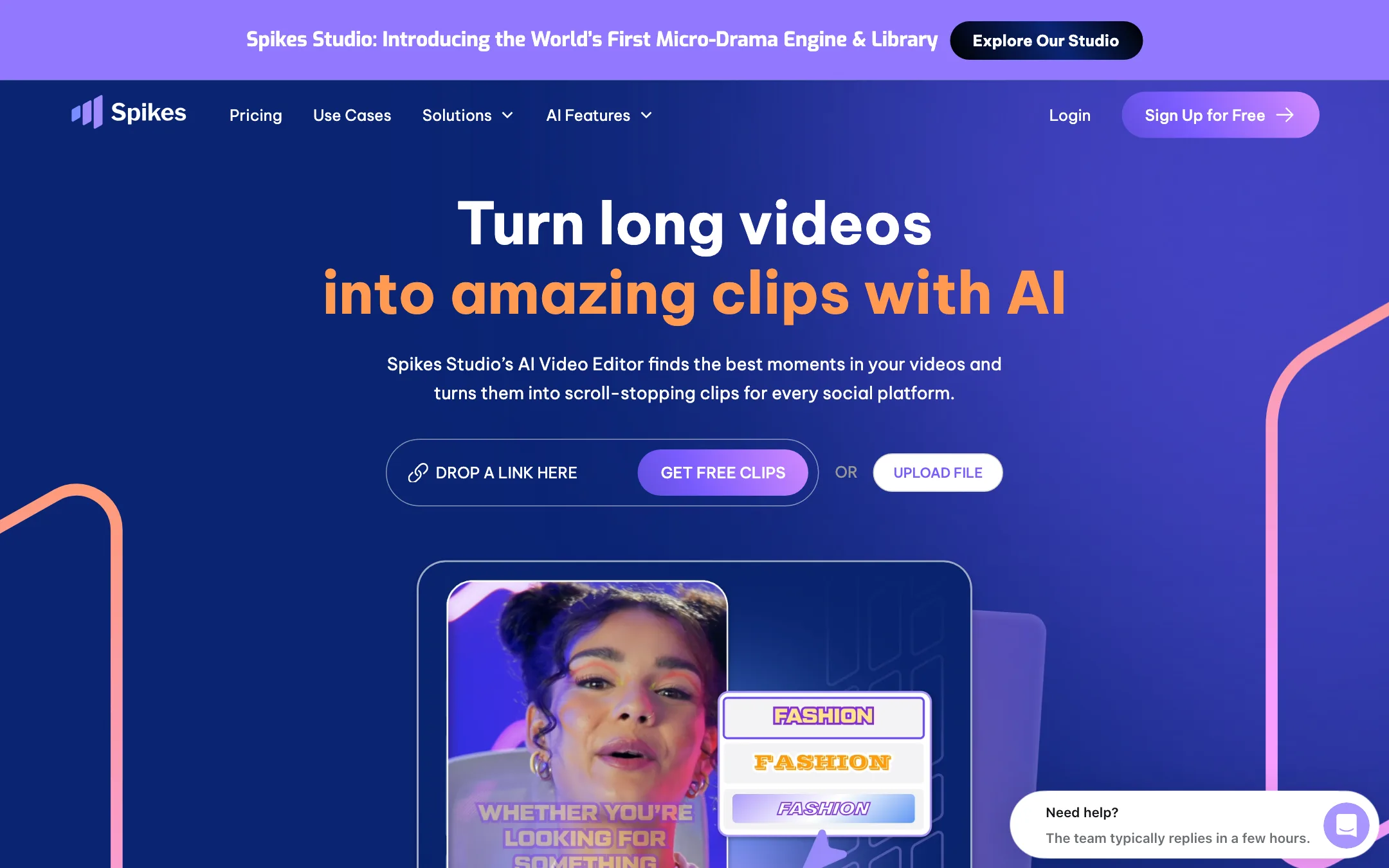
Spikes Studio is an AI clip generator. You give it a long video, podcast or stream, and it finds the moments most likely to work as short clips. It then reframes them to vertical, adds captions, B-roll and sound effects, and lets you schedule them to your social accounts.
It started with streamers and gaming creators and still leans that way. Its page title calls it an “AI clip generator for YouTube, Twitch, TikTok and Reels.” Spikes says it has more than 1 million users and was a Product Hunt product of the week.
The product has grown into a small social studio. Editing, captioning, publishing, analytics and account management all sit in one dashboard. The homepage also now promotes a “Micro-Drama Engine and Library” for turning existing IP into short dramas. That is a separate business line and has little to do with the clipper most creators will use.
Who it is for
Spikes Studio fits you if:
- You stream on Twitch or YouTube and want highlight clips without scrubbing hours of footage.
- You run a podcast or long-form show and need a steady supply of Shorts, Reels and TikToks.
- You want clipping, captions and scheduling in one tool instead of three.
- You publish in languages other than English.
- You can commit to a year. The annual plan is far cheaper than monthly.
Skip it if:
- You mainly need captions on short videos you already cut. A dedicated captioning tool is simpler.
- You want to make videos from scratch with AI generation. Spikes Studio works on footage you already have.
- You need fine-grained, timeline-level editing. Spikes Studio is built for speed, not detailed control.
How it works
The workflow is short. Spikes Studio’s site describes it in a few steps.
- Add your video. Paste a link, such as a YouTube video or Twitch stream, or upload a file.
- Let the AI find clips. Spikes Studio scans the video and pulls out highlights. Each clip gets an AI virality score, which estimates how well it might perform.
- Review and edit. The clips come reframed to vertical with face tracking. You can adjust captions, swap caption styles, add B-roll, emojis, transitions, music and sound effects.
- Publish. Download the clips, or connect your accounts and schedule them to TikTok, YouTube, Facebook or LinkedIn.
- Track results. Clip analytics show what worked, so you can make more of it.
Captions
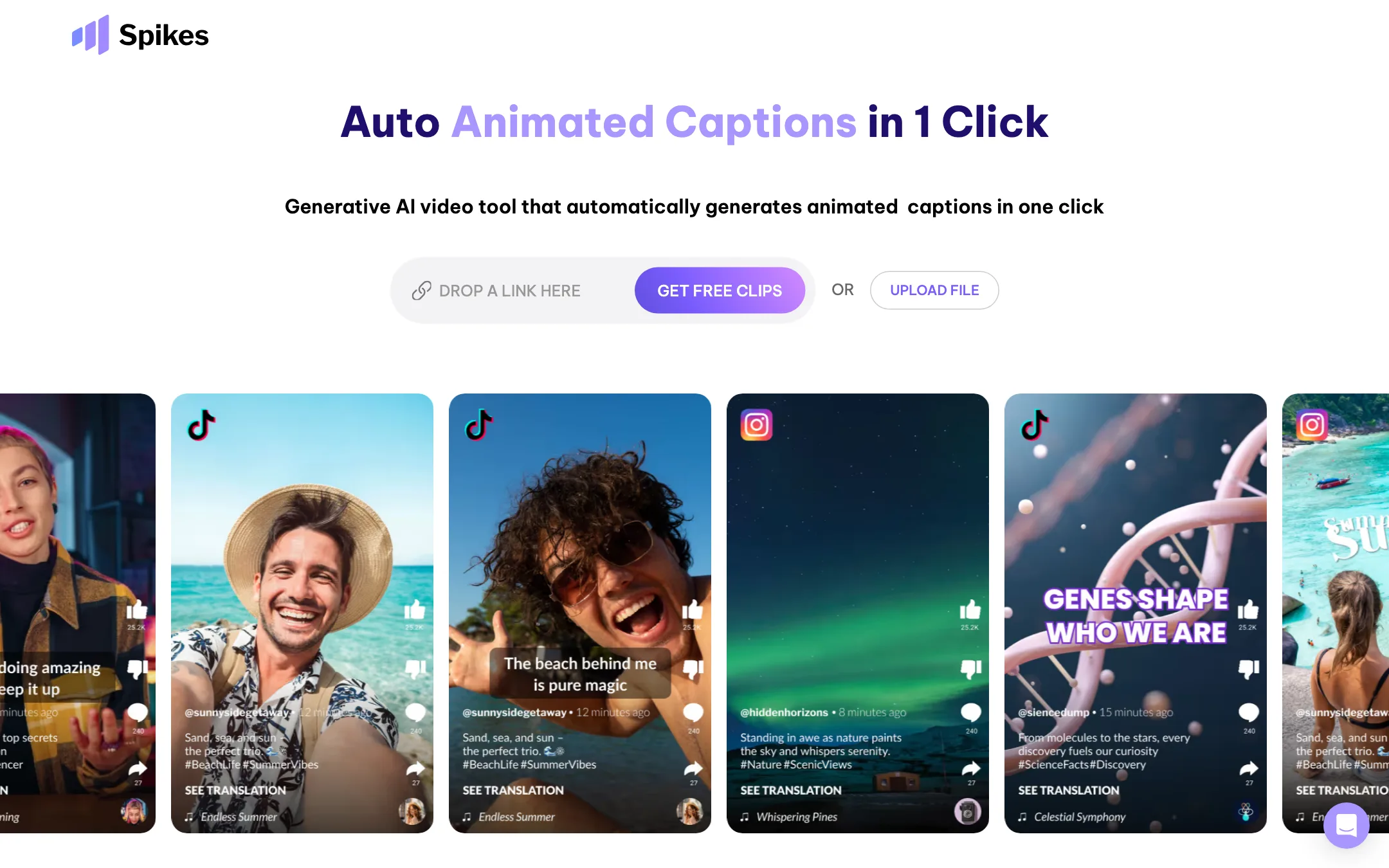
Captions are one of Spikes Studio’s main selling points. It offers plain auto-captions on every plan and animated captions on PRO+. Spikes says it supports over 99 languages and transcribes in the video’s original language.
There is also an “Add Captions” tab for videos you already cut. It handles files up to 5 minutes long. Besides captions, it can reframe to vertical, add auto-effects and suggest a title, description and hashtags.
AI editing features
The pricing page lists what each plan unlocks. PRO+ adds:
- AI face tracking and auto reframe, so the speaker stays in frame in vertical crops.
- AI-generated B-roll, transitions and effects.
- AI-generated emojis placed over the clip.
- Custom clip length and topic search, so you can steer what the AI pulls out.
- Music and sound effects insertion.
The free plan gets the virality score, plain auto-captions and limited B-roll.
Publishing and analytics
The scheduler is what sets Spikes Studio apart from many clippers. You connect your social accounts and post or schedule from the same place you edit. Spikes says you can “manage and analyze them all from one dashboard.” Direct posting, the scheduler and clip analytics are paid features.
Output quality
We have not run Spikes Studio ourselves, so we cannot judge how well it picks clips. What its pages show:
- Clip picking is the core. Like every AI clipper, Spikes Studio is only as good as its highlight detection. Gaming streams, podcasts and talking-head videos all have different “good moments.” Test it on your own content before you commit.
- Resolution. Free clips export at 720p. Paid plans export at 1080p. There is no 4K.
- Face tracking. Spikes lists AI face tracking on paid plans. That matters most for podcasts and interviews where speakers move or switch.
- Vendor claims. Spikes Studio says its automation cuts editing time by 90%. That is a marketing figure, not a measured result.
Pricing
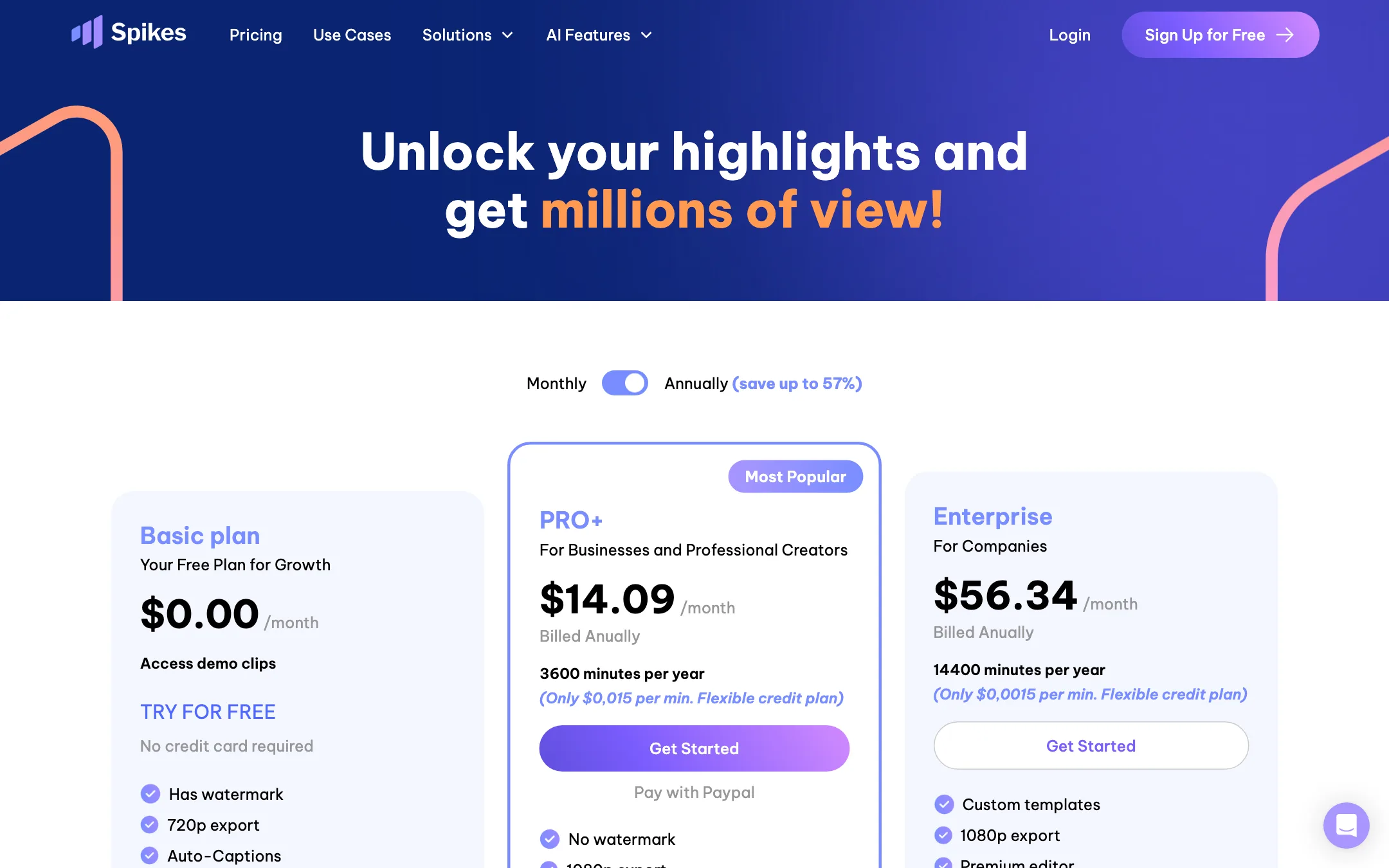
Spikes Studio prices plans in minutes of processed video. Annual billing is much cheaper.
| Plan | Price | What you get |
|---|---|---|
| Basic | Free | Demo clips or up to 30 minutes a month, watermark, 720p |
| PRO+ | $14.09/mo yearly, $32.99 monthly | 3,600 minutes a year or 300 a month, 1080p, scheduler, B-roll |
| Enterprise | $56.34/mo yearly, $115.99 monthly | 14,400 minutes a year or 1,200 a month, custom templates, account manager |
A few things to know:
- Annual billing cuts the price by 57%. Monthly PRO+ costs $32.99. Yearly, it works out to $14.09 a month, paid up front. Spikes advertises it as “only $0.015 per min.”
- The minutes are the same either way. 300 minutes a month on monthly billing and 3,600 a year on annual. Annual just costs far less.
- Storage is short on lower plans. Free projects are kept for 7 days and PRO+ for 90 days. Only Enterprise has unlimited storage. Download what you want to keep.
- PayPal is accepted on PRO+.
- An API is available by application for teams that want to automate clipping.
Where the pricing pages disagree
- What the free plan includes. The homepage FAQ says “Free users can explore and try out our demo videos.” The pricing FAQ says the free plan “includes up to 30 minutes of video content” each month. You may get either.
- The free plan’s price. The plan cards show Basic at $0.00 a month. The compare table further down lists “Basic plan $12.99/monthly.” Treat the $12.99 as a page error, but check at checkout.
- Enterprise savings. The toggle says “save up to 57%.” That holds for PRO+. Enterprise saves about 51%.
Getting more from Spikes Studio
AI clippers reward good inputs. These habits apply to Spikes Studio and to most tools like it.
- Feed it clean audio. Highlight detection and captions both depend on the transcript. A podcast with clear mics will give better clips and fewer caption fixes than a noisy stream.
- Steer with topic search. On PRO+ you can search for a topic and set a custom clip length. Use that when you know what you want, such as every moment a guest talks about pricing, rather than trusting the virality score alone.
- Treat the virality score as a sort order. It is a prediction, not a promise. Post a few lower-scored clips too and compare the results in clip analytics.
- Check face tracking on multi-person shots. Interviews and panels are where auto reframe can pick the wrong speaker. Watch each clip before you schedule it.
- Fix captions before animating them. Names, brands and slang are where transcription slips. Correct the words, then pick the animated style.
- Batch your scheduling. Spikes Studio’s value is in posting from the same place you edit. Cut a week of clips in one session and queue them.
- Download what you want to keep. Free projects last 7 days and PRO+ projects 90 days. Only Enterprise keeps them indefinitely.
Before you buy
Run through this list before you pay:
- Test the free plan on your real content. Use a typical long video or stream, not a short sample. Check whether you get demo clips only or real minutes. The site describes the free plan both ways.
- Estimate your monthly minutes. PRO+ gives 300 minutes a month. Two 2-hour streams a week already use about 960 minutes a month, which would need Enterprise. A weekly one-hour podcast fits PRO+ easily.
- Decide on annual billing early. The gap between $32.99 monthly and $14.09 a month on annual is large. If the free test works, a year of PRO+ costs less than five months of monthly billing.
- Confirm the platforms you post to. Spikes Studio names TikTok, YouTube, Facebook and LinkedIn for scheduling. If you rely on another network, check it is supported in the app before you count on the scheduler.
- Check the price at checkout. The compare table lists a stray $12.99 price for the free plan. Make sure the plan and amount you see at checkout match the plan card.
Verdict
Spikes Studio is a sensible pick if you produce long videos or streams and want clips, captions and posting handled in one place. The annual PRO+ plan is cheap for what it includes, and the built-in scheduler saves you a separate tool.
The weak spots are on the pricing side. The free plan is described two ways, the compare table has a stray price, and monthly billing costs more than double the annual rate. Try the free plan on one of your own long videos first. If the clips it picks are ones you would post, the annual plan is good value.