What Keyframes Studio is
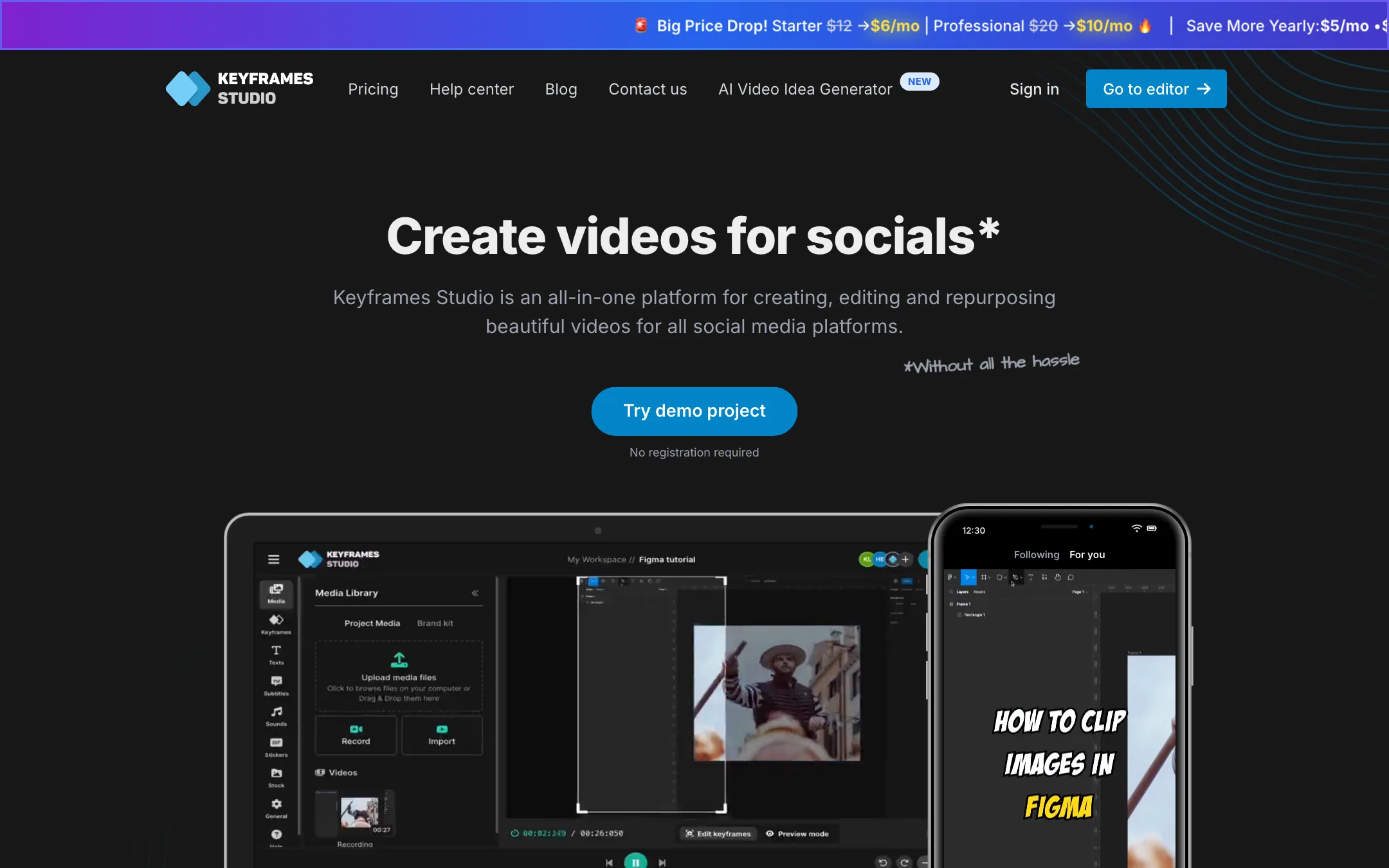
Keyframes Studio is a browser video editor built for social media. Its main idea is in the name. You set keyframes for a virtual camera, and the editor moves and zooms across your footage so a horizontal video plays well on a vertical phone screen.
Around that it adds the usual social video tools. Auto subtitles with word-by-word highlights. AI detection of the most important parts of a video. Stock images, GIFs and trending sounds. Screen and camera recording. Team workspaces and a brand kit.
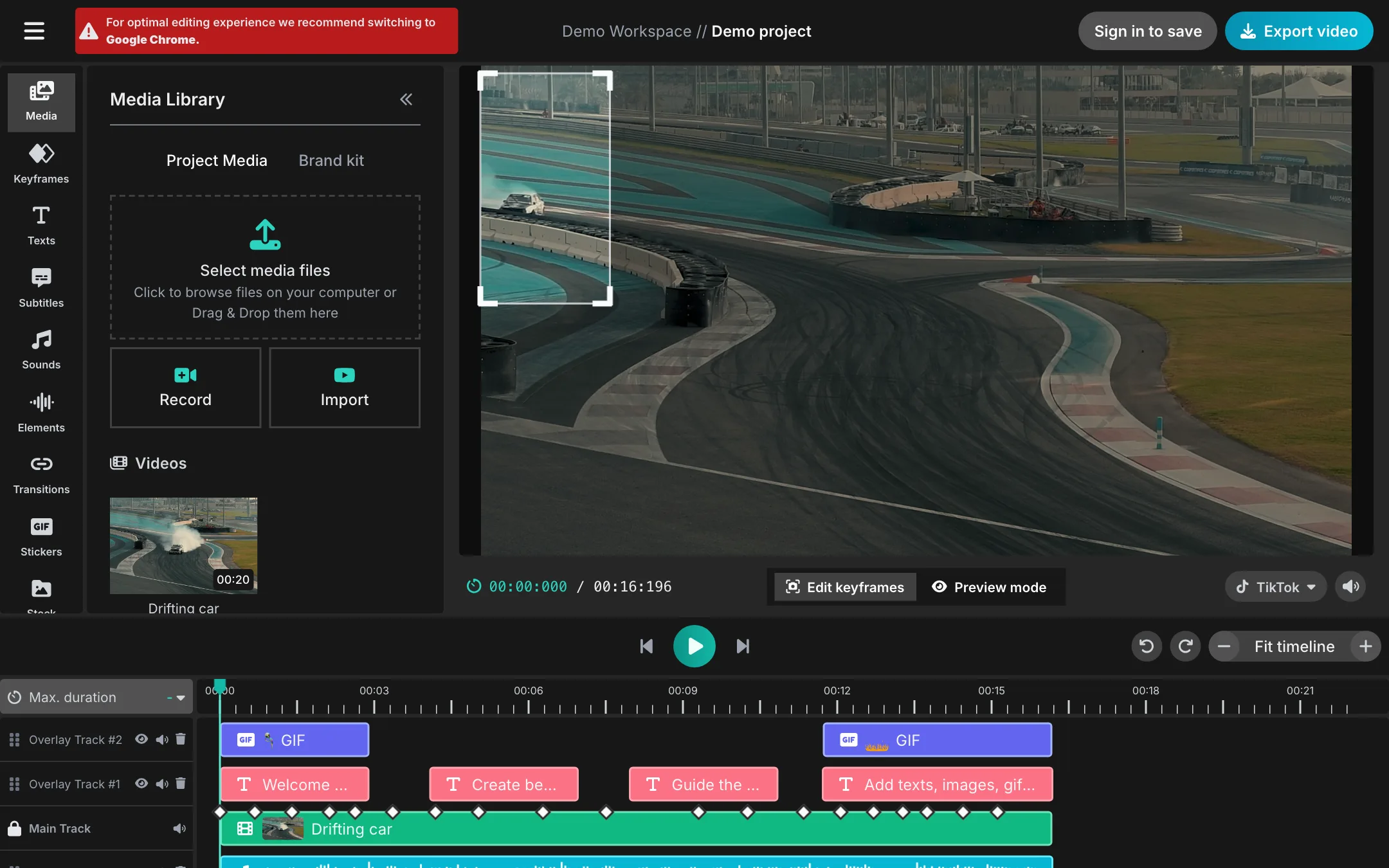
The pitch is simplicity. Keyframes Studio says you do not need any editing experience and promises social videos in five minutes. You can open a demo project in the editor without an account, which few editors allow.
Who it is for
Keyframes Studio fits you if:
- You repurpose horizontal content such as tutorials, podcasts, gameplay or sports into vertical clips.
- You want a camera that follows the action under your control, not an automatic crop that guesses.
- You record screen tutorials and want to edit them in the same place.
- You are a small team or agency that needs shared projects and a brand kit for very little money.
Skip it if:
- You need subtitles in Japanese, Korean, Chinese, Arabic or Hindi. They are not on the supported list.
- You want one click to turn a long video into many finished shorts. Keyframes Studio helps, but you still edit each clip.
- You need a tool with frequent, visible updates. Its help pages, terms and blog all date from 2023.
- You want deep editing features like multi-track compositing or color grading. Use a full editor.
How it works
Keyframes Studio describes the workflow in three steps. The details below come from its homepage, pricing and help pages. We did not edit projects in it ourselves.
1. Bring in media
Upload your own video, or record your screen and camera right in the browser. The recording option is aimed at how-to and tutorial content. One customer quote on the homepage says it replaced filming the screen with a phone.
2. Set keyframes
This is the core feature. You place the video on a vertical canvas, then set keyframes that tell the camera where to look at each moment. Between keyframes the camera pans and zooms smoothly. Keyframes Studio’s own blog post on the subject explains it as controlling the “camera” in a virtual editing space.
Why this matters: when you crop a wide video to 9:16, you lose most of the frame. A fixed crop cuts off whoever is not in the middle. Keyframed reframing lets you follow the speaker in a podcast, the ball in a sports clip or the cursor in a tutorial.
The AI features help here. Keyframes Studio says it can process your video and highlight the most important parts, and that it “will automatically create keyframes and catchy subtitles” in two clicks. Treat the automatic pass as a starting point and adjust the keyframes by hand.
3. Add subtitles and extras
Subtitles are one click, according to the homepage. They generate in minutes and can highlight each word karaoke-style as it is spoken. The help center lists 14 supported languages: English, German, Spanish, French, Italian, Portuguese, Dutch, Norwegian, Danish, Finnish, Russian, Hungarian, Filipino and Slovak. The homepage says 12, so the help page is likely the newer number.
For extra polish there are:
- Stock images and videos with keyword search.
- GIFs.
- A curated list of trending sounds.
- Templates for sports, tutorials, gaming, concerts, chess, TV, memes and podcasts.
The basic edit tools are the ones you expect: resize, trim, crop, cut, zoom and move, with a live preview.
4. Export
You download the video or post it straight to social media from the editor. Free exports carry a watermark. Paid plans remove it.
Teams and brand kit
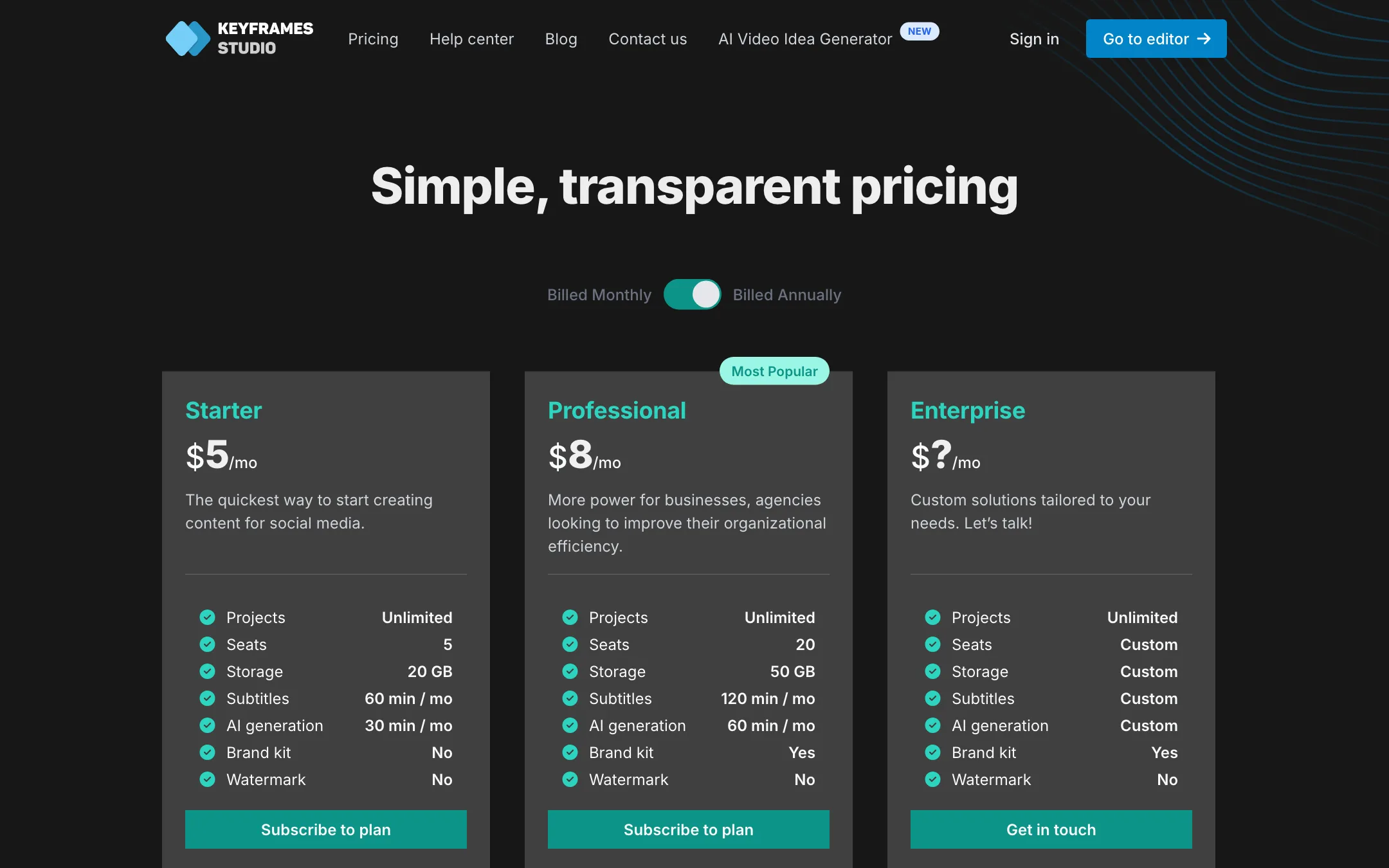
Every paid plan includes multiple seats: 5 on Starter and 20 on Professional. You invite your team into a shared workspace, and projects are unlimited. Professional adds a brand kit, where you store fonts, colors, images, video and audio you reuse across videos. For a small agency, 20 seats for $8 a month is a striking number.
AI video idea generator
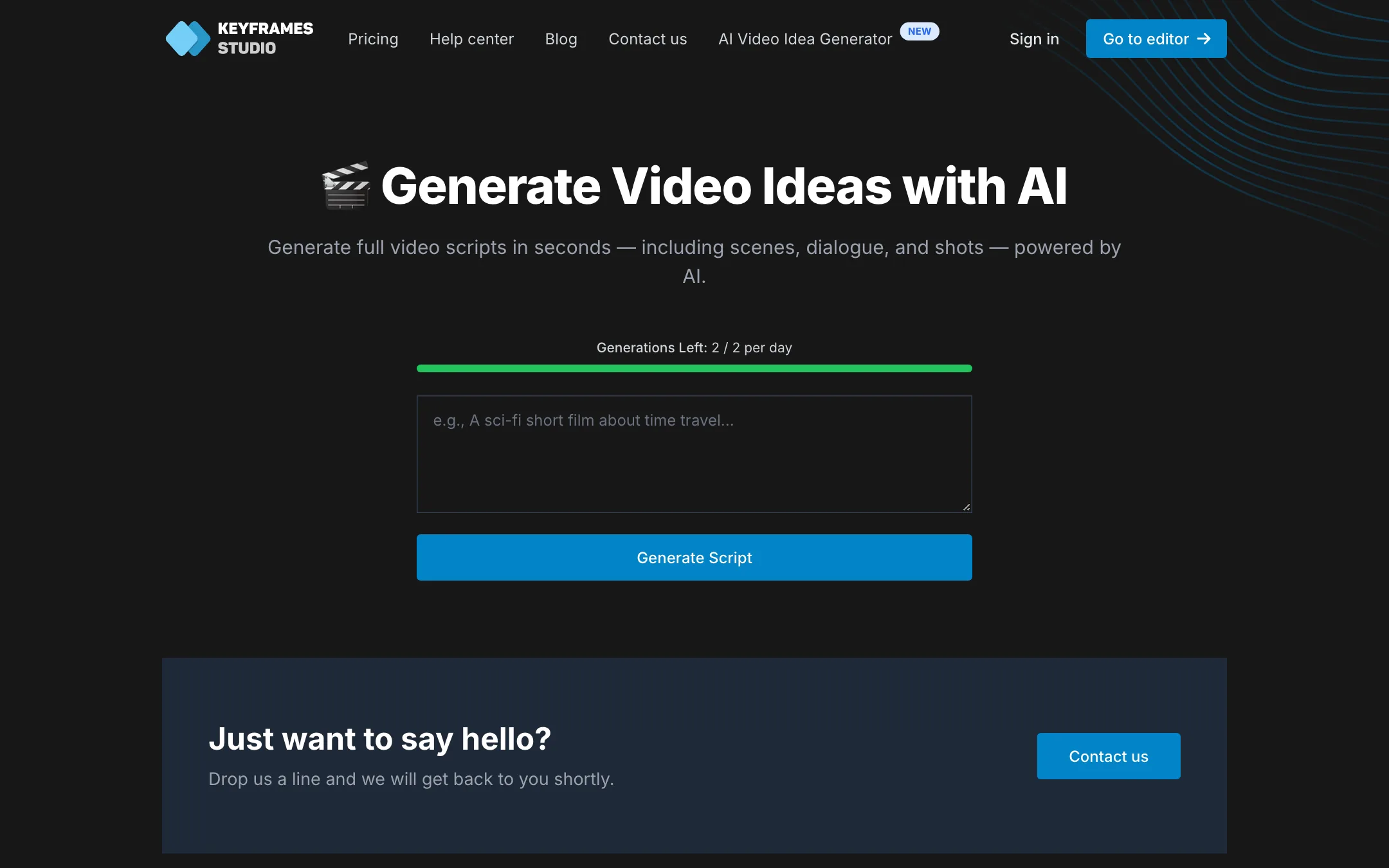
A newer side tool generates video ideas and full scripts with scenes, dialogue and shots. It gives 2 generations a day for free. It is a handy prompt for content ideas, not part of the editor itself.
Output quality
We have not tested Keyframes Studio hands-on, so this is based on what the vendor shows and the limits it publishes.
The reframing approach is sound. Manual keyframes give you more control than the fully automatic reframing in many AI clip tools, at the cost of more work per clip. If your source has one clear subject, the AI pass may be enough. If it has two speakers or fast action, plan to set keyframes yourself.
Subtitle quality depends on your audio and language. The 14 supported languages are mostly European. If your audience speaks something else, this is not your tool.
The trending sounds come with a caveat from the vendor itself. Keyframes Studio says some are scraped from TikTok. It says they are fine to use on TikTok but advises caution elsewhere. If you post the same clip to YouTube or Instagram, swap in a copyright-free track.
Pricing
Keyframes Studio is one of the cheapest editors we list, but its prices are not consistent across the site.
| Plan | Price | What you get |
|---|---|---|
| Free | Free | Editor use, watermarked exports |
| Starter | $5/mo | 5 seats, 20 GB, 60 subtitle min and 30 AI min a month, no watermark |
| Professional | $8/mo | 20 seats, 50 GB, 120 subtitle min and 60 AI min a month, brand kit |
| Enterprise | Contact sales | Custom limits |
The contradiction:
- The pricing page shows $5 and $8, and the numbers did not change when we flipped its billing toggle between monthly and yearly.
- The site banner announces a “big price drop”: Starter from $12 to $6 a month and Professional from $20 to $10, or $5 and $8 billed yearly.
So the real monthly price is probably $6 and $10, with $5 and $8 for yearly billing. Either way it is cheap. Confirm the amount at checkout.
Other things to know:
- Minutes reset monthly. Subtitle and AI minutes reset on the first of each month. Leftovers do not carry over.
- The free tier is loose but vague. You can use the editor without limits on time. You pay when you want no watermark or hit a limit, and those limits are not listed.
- Refunds. The terms say you can get a refund for any reason within 7 days of payment. Cancelling takes one click.
A typical repurposing workflow
Here is how a weekly podcast or tutorial channel might use Keyframes Studio, based on the features it lists:
- Upload the horizontal recording, or record your screen and camera in the browser.
- Let the AI pass highlight the strongest moments, then trim down to a 30 to 60 second segment.
- Switch the canvas to 9:16 and set camera keyframes. Follow the speaker who is talking, or the cursor in a tutorial.
- Generate subtitles, turn on karaoke word highlights and fix any wrong words.
- Add a sound, a GIF or a stock clip if the segment needs a lift.
- Export or post directly, then duplicate the project for the next clip.
On Starter, 60 subtitle minutes a month covers around 60 one-minute clips. That is plenty for a solo creator posting daily. A busy agency would want Professional for the extra minutes and the brand kit.
Keyframes Studio versus AI clip tools
Tools like Opus Clip, Klap and Submagic aim to do the whole job automatically. You give them a long video and they return finished shorts with captions. Keyframes Studio sits closer to a traditional editor. It helps with highlights and subtitles, but you make the framing decisions.
That is a trade-off, not a flaw. Automatic tools are faster when the AI guesses right and frustrating when it does not. Manual keyframes take a few more minutes per clip but give you exactly the shot you want. They are also far cheaper. If you publish a handful of clips a week and care how they look, Keyframes Studio is good value. If you need dozens of clips a day, an automatic clipper will save more time.
Things to watch
- Signs of slow maintenance. The help center and terms say “last updated March 21, 2023”. The blog’s latest posts are from May 2023. The price banner and the new script generator suggest someone still runs the product, but plan for fewer updates than bigger editors get.
- The roadmap lives on Trello. The footer links a public Trello board rather than a changelog.
- Support is by email. The contact address is [email protected], and feature requests go there too.
Verdict
Keyframes Studio is a good fit for small teams that turn horizontal content into vertical clips and want control over framing. The keyframe camera is a real strength, seats are generous and the price is hard to beat. You can open the demo and judge the editor before you give it an email.
The weak spots are age and scope. Help pages and terms are from 2023, subtitles cover only European languages and Filipino, and prices disagree across the site. Use it for reframing and simple captioned clips. For broader language support or a faster-moving product, look at Kapwing, VEED or CapCut.