What Clipchamp is
Clipchamp is Microsoft’s video editor. It started as an Australian startup in Brisbane and Microsoft bought it in 2021. Today it runs in your browser and comes built into Windows 11 as the default video editor.
At its core it is a simple timeline editor. You drag clips, images, music and text onto tracks, trim them and export. Around that core, Microsoft has added a set of AI tools: autocaptions, text to speech voiceovers, audio cleanup and an “auto compose” feature that builds a first draft from your media.
The big draw is the free plan. Microsoft says free users get unlimited exports in up to 1080p with no watermark. Most free editors either watermark your video or cap you at 720p. Clipchamp does neither.
It is not an AI video generator, and it is not an AI clip maker. It will not turn a prompt into footage, and it will not scan a two-hour podcast for viral moments. Think of it as a friendly, free editor with some useful AI helpers.
Who it is for
Clipchamp fits you if:
- You want a free editor that does not stamp a watermark on your work.
- You make tutorials, product demos or school projects and need a screen and webcam recorder in the same tool.
- You want subtitles or a voiceover without paying for a separate captions or text to speech app.
- You use Windows 11 and want something that is already installed.
- You already pay for Microsoft 365 Personal or Family. Premium is then included at no extra cost.
Skip it if:
- You want AI to cut long videos into short clips for you. A dedicated clipper like Klap, OpusClip or QuickReel does that job.
- You need a pro editor with multicam, advanced color grading or deep keyframing. DaVinci Resolve or Premiere Pro go further.
- You edit on a phone. Clipchamp has no mobile app listed on its site. CapCut or InShot fit mobile workflows better.
- You want 4K but do not want a Microsoft 365 subscription. There is no way to buy Clipchamp Premium on its own.
How it works
You sign in with a personal Microsoft account at clipchamp.com or open the app from the Windows Start menu. From the home screen you can start a blank video, pick a template or choose “Create a video with AI.”
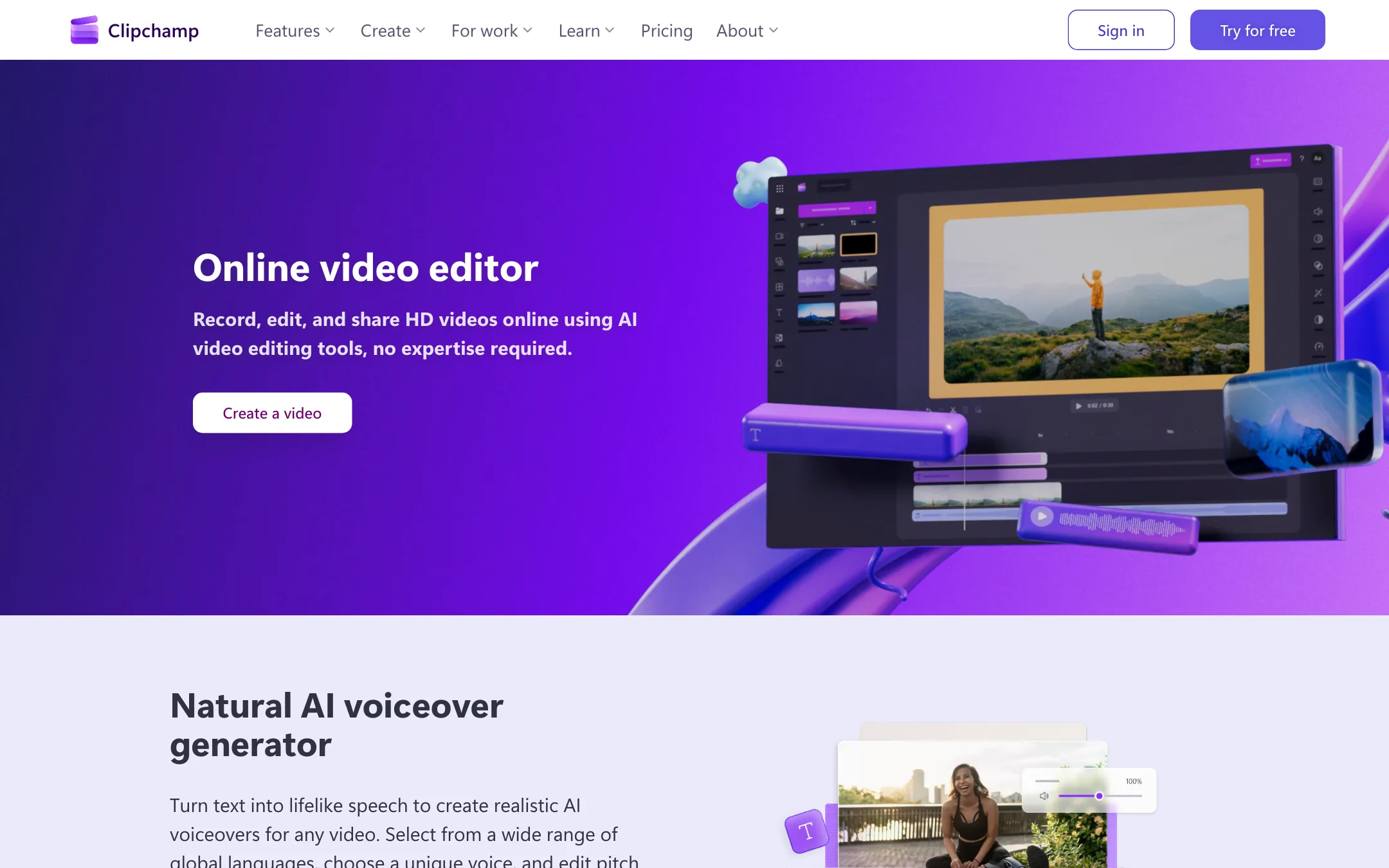
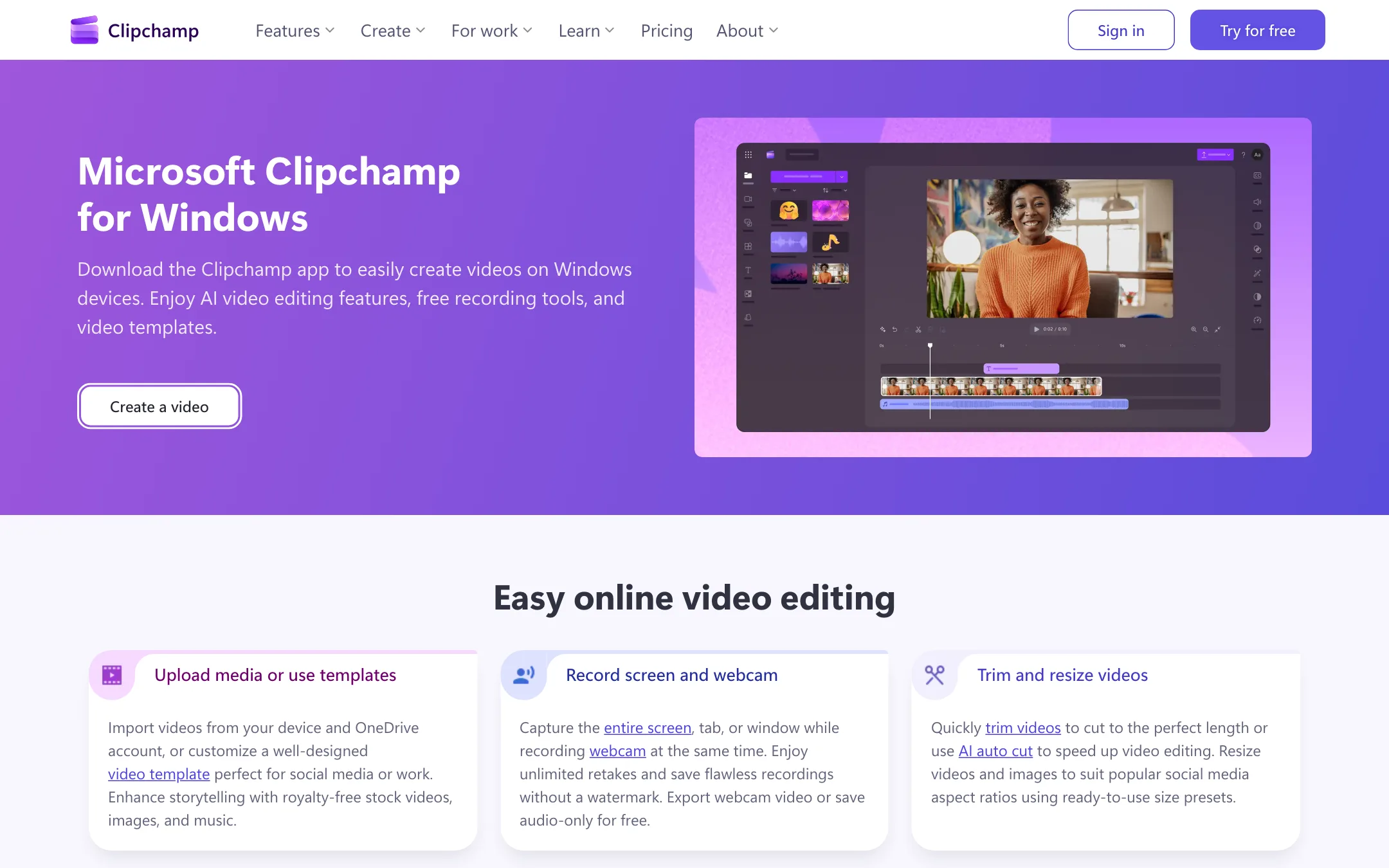
The editor follows a familiar layout. A toolbar on the left holds your media, the content library, record and create tools, text, transitions and templates. The preview sits in the middle. The timeline runs along the bottom. A property panel on the right changes depending on what you select: captions, audio, filters, color, speed, fades and so on.
A typical edit
- Import your footage from your device, OneDrive or another cloud storage service.
- Drag it onto the timeline and trim or split the parts you do not need.
- Add music or sound effects from the royalty-free library.
- Turn on autocaptions from the captions tab and fix any misheard words in the transcript.
- Add titles, stickers or a text to speech voiceover.
- Change the aspect ratio if you need 9:16 for Shorts or Reels.
- Export at 480p, 720p or 1080p, or 4K on Premium, then save to your computer or share straight to YouTube, TikTok, OneDrive, Google Drive, Dropbox or LinkedIn.
Microsoft’s help center says that 1080p is the highest free resolution and 4K is the top premium option. You can also export a GIF or audio only.
Autocaptions
This is the AI feature most creators will use. Microsoft says autocaptions work in over 80 languages. You pick the transcription language, choose whether to filter offensive language, and Clipchamp generates captions plus an editable transcript with timestamps.
You can restyle captions with your own fonts, colors, outlines and shadows, and pick a preset position. You can also download the transcript as an SRT file, which is handy if you upload captions to YouTube separately.
A few limits from Microsoft’s own help pages are worth knowing:
- One transcription language per video.
- Captions only work on clips that contain speech.
- Audio is processed by Azure speech services. Microsoft says no human listens to it.
- Microsoft “reserves the right to restrict transcription and translation services” to limit excessive use.
The caption styles are simpler than the animated, word-by-word captions in clip makers like Submagic or Klap. If you want bouncing, highlighted TikTok captions, you will need to build them by hand or use another tool.
Text to speech
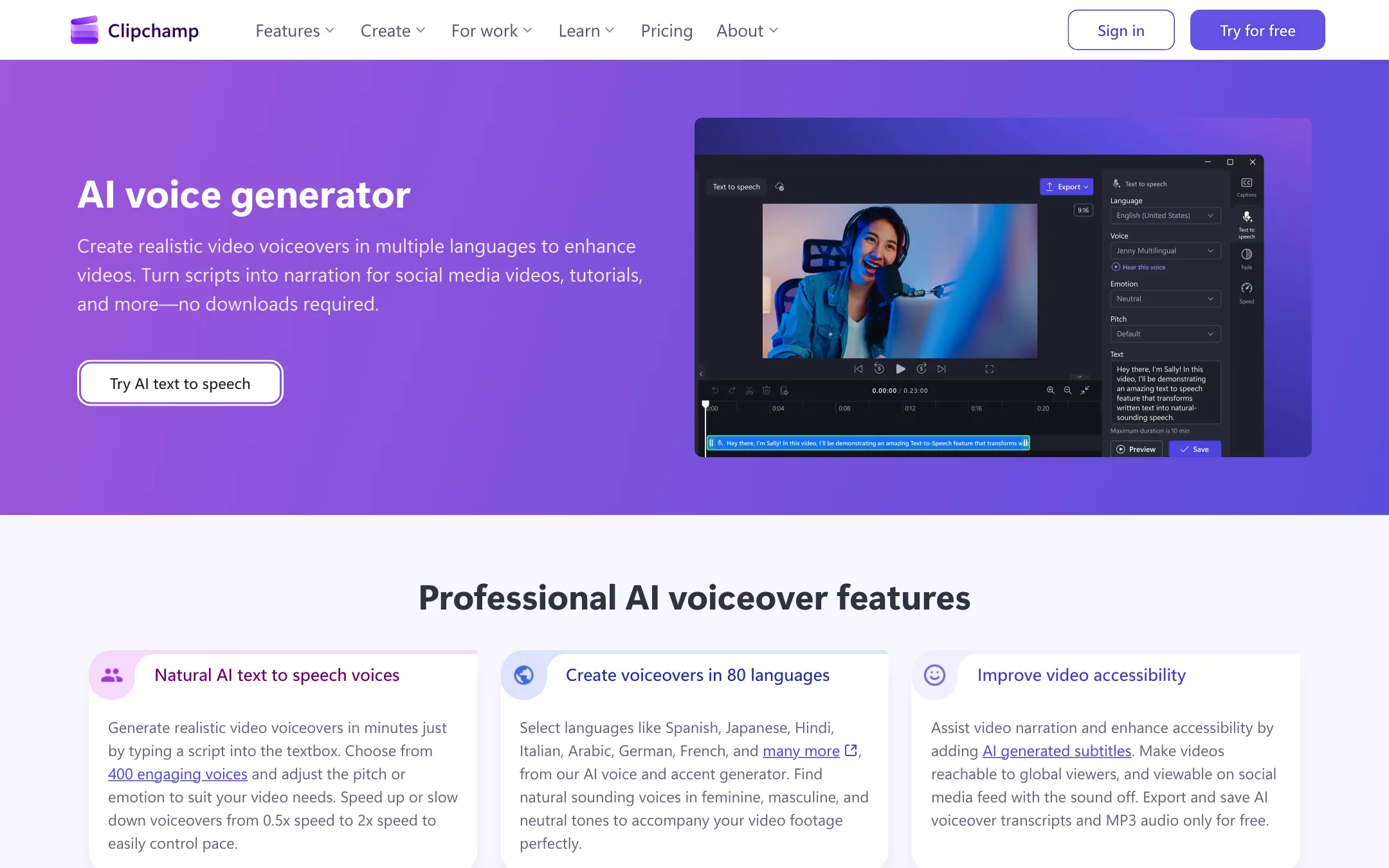
The voiceover tool lives under “record & create.” Microsoft says it offers 400 voices across 80 languages, with pitch settings from extra low to extra high and a speed slider from 0.5x to 2x. You type or paste a script, preview it and save it to the timeline as an audio track.
Microsoft says the voices run on Azure AI Speech. Punctuation controls pauses: a full stop gives a moderate pause and a comma a short one. Microsoft notes that exclamation marks and all caps are unlikely to change the delivery. There is a character limit per voiceover that varies by language, so long scripts need to be split.
Audio cleanup
Clipchamp markets AI tools to remove background noise, cut silences and pauses, and remove filler words. The pricing FAQ says silence removal is part of the free plan. These tools suit meeting recordings, talking-head vlogs and screen tutorials where you ramble or pause a lot.
Auto compose
Auto compose is Clipchamp’s “make a video for me” tool for personal accounts. You add photos and clips, give a few style preferences with thumbs up or thumbs down, pick landscape or portrait and a length, and Clipchamp produces a draft with music, transitions and layouts.
Microsoft is upfront about its limits. Its help page says auto compose may not follow every literal instruction, exact clip order, timing, or precise text and names. It suggests you fix those on the timeline. Microsoft also says processing happens in the browser, your media stays on your computer, and it is not used to train its models. Auto compose is free and exports at 1080p.
Copilot video creation (work accounts)
Work and school users with a Microsoft 365 plan and Copilot Chat can type a prompt, or attach a PowerPoint deck, and get a video built from a script, an AI voiceover and stock footage. Microsoft states plainly that this does not generate any new pixels or video. It only arranges stock content. Personal accounts do not get this feature, and an admin must switch Clipchamp on for the organization.
Recording
The built-in recorder captures your screen, webcam or both, plus your voice. Microsoft says it works on Windows and Mac, allows unlimited retakes, and drops the recording straight into your project. For course creators and SaaS demo makers, this saves a separate screen recording app.
Output quality
Clipchamp does not generate video, so “output quality” here means export quality and how good the AI helpers are.
Exports top out at 1080p on the free plan. That is enough for YouTube, TikTok, Reels and most client work. You only need Premium if you shoot in 4K and want to keep it.
Microsoft describes its captions as “accurate,” and they run on the same Azure speech recognition Microsoft sells to businesses. Like any automatic captions, expect to fix names, brand terms and mumbled lines in the transcript. The voiceover voices are Microsoft’s Azure neural voices. They are clear and serviceable for tutorials and explainers. They are not the most expressive AI voices on the market, and there is no voice cloning.
The stock library is large on the free plan, but Microsoft holds back a set of “premium stock assets,” filters and effects for paying users. You will see these in the library and need Microsoft 365 to use them without restriction.
Where Clipchamp falls short:
- No highlight detection. It will not find the best moments in a long video for you.
- Basic caption styling. No built-in word-by-word animated presets like the dedicated caption apps.
- Simple timeline. Fine for most social videos, thin for complex edits with many layers.
- Browser performance. Long or high-resolution projects depend on your computer and browser. Microsoft’s help center has a whole troubleshooting section for exports.
Pricing
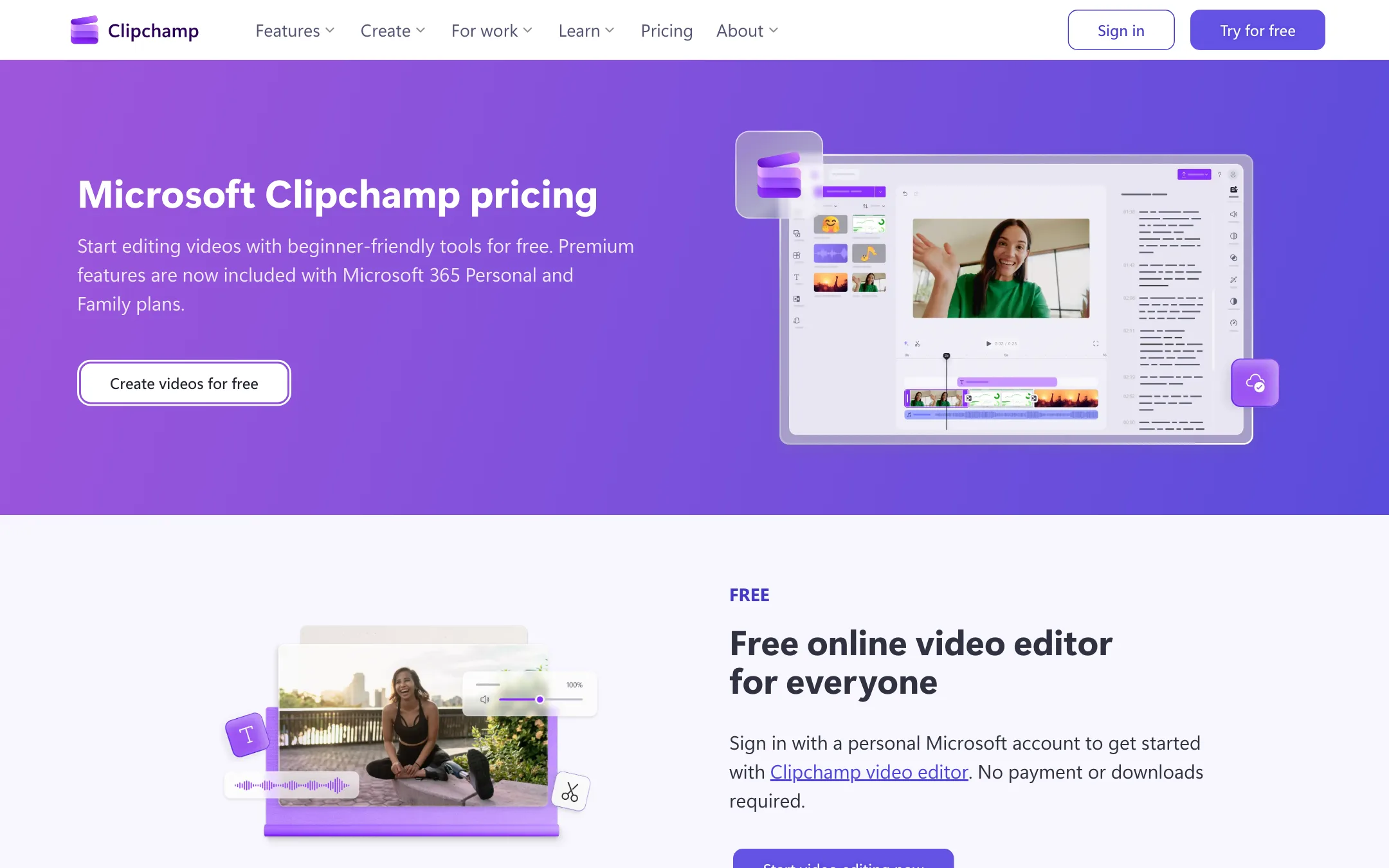
Clipchamp no longer sells its own subscription. The free plan covers almost everything. Premium comes as part of Microsoft 365.
| Plan | Price | What you get |
|---|---|---|
| Free | $0 | Unlimited exports up to 1080p, no watermark, AI captions, AI voiceover, silence removal, auto compose, free stock |
| Microsoft 365 Personal | $99.99/yr or $9.99/mo | 4K exports, premium stock, premium filters and effects, brand kit, plus Office apps and 1 TB OneDrive for 1 person |
| Microsoft 365 Family | $129.99/yr or $12.99/mo | Same Clipchamp premium for up to 6 people, 2 TB shared storage |
| Work and school | Varies | Included in some Microsoft 365 business and education licenses |
Prices are from Microsoft’s US store at the time of writing. Microsoft also sells a Microsoft 365 Premium plan at $199.99 a year, but the Clipchamp pricing page only names Personal and Family.
What the pricing page does not make obvious:
- The free plan is the real product for most people. The compare table lists AI video editing, AI audio editing, recording, animated text, watermark-free exports and OneDrive backup as included on both plans.
- Premium only makes sense in two cases. You need 4K, or you already pay for Microsoft 365 anyway.
- The brand kit holds a single brand. Agencies juggling several clients will find that limiting.
- Work accounts are different. Business and education licenses include a “standard” Clipchamp for work. Microsoft says full premium and AI video creation there need a Copilot license.
There is no affiliate program listed on clipchamp.com, and Microsoft 365 billing follows Microsoft’s store terms rather than a Clipchamp policy.
Verdict
Clipchamp is the easiest free editor to recommend to someone who just needs to put a video together. No watermark, 1080p exports, AI captions and AI voiceovers at no cost is a hard combination to beat, and Windows 11 users already have it.
It is not built for volume short-form work. If your job is turning long podcasts or streams into dozens of clips a week, a dedicated clip maker will save you far more time. And if you want 4K, you have to buy into Microsoft 365. For simple social videos, tutorials and school or small-business projects, though, the free plan is enough.
