What EbSynth is
EbSynth is VFX software that changes a whole video by editing one frame. You pick a frame from your footage, paint over it, and EbSynth carries your painting through the rest of the shot. It follows the motion in the original video, so the paint moves with the actor.
That simple idea covers a lot of jobs:
- Paint over video, turning a live performance into something that looks hand-drawn.
- Retouch and colorize, such as skin fixes, digital makeup or adding color, without tracking every frame by hand.
- Style animation, adding painterly texture to line art by painting one keyframe well instead of many in a rush.
- Rotoscoping, which EbSynth lists among its core uses.
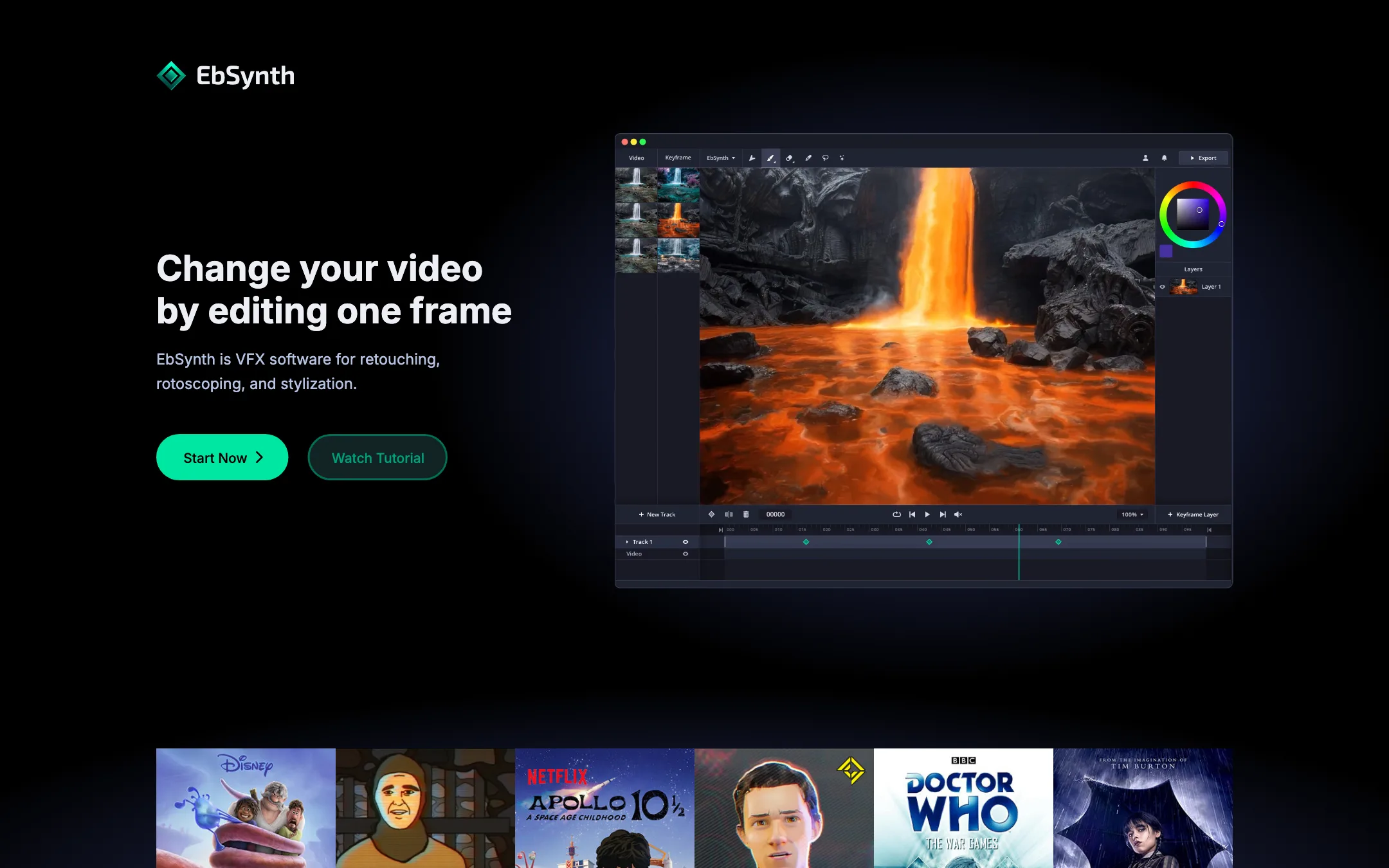
EbSynth is made by Šárka Sochorová and Ondřej Jamriška at Secret Weapons. Its homepage strip of work “Made with EbSynth” shows posters for Disney, Netflix, BBC Doctor Who and Tim Burton titles. It runs in a desktop web browser, with a Windows desktop app on the Studio plan. Long-time users may know it from earlier desktop releases. The current product is the browser app at ebsynth.com.
It sits in our video editors category, but it is not an editor in the usual sense. There is no timeline for cutting a story together. It is a specialist effect tool you use on one shot at a time, then bring back into your editor.
Who it is for
EbSynth fits you if:
- You can paint or draw, and you want your art to move with live footage.
- You make music videos, short films or stylized social content and want a look no template gives you.
- You do beauty, skin or color fixes and hate frame-by-frame tracking.
- You work under NDA and need a tool that can run fully offline.
Skip it if:
- You want a prompt box that turns text into a finished clip. EbSynth needs your keyframes.
- Your footage is fast, blurry or lit with hard moving shadows. EbSynth’s own tips say those cause artifacts.
- You only work on a phone or tablet. EbSynth shows a desktop-only notice on mobile.
- You need captions, cuts or social exports. Use a regular editor for that part.
How it works
EbSynth’s homepage links a 10-minute official tutorial that it says covers everything you need to start. The workflow below comes from that page and EbSynth’s FAQ. We did not run our own projects through it.
The basic loop
- Load your video, called the guiding video, into the web app.
- Pick a frame that shows the subject clearly. EbSynth advises choosing frames with clear poses, not the middle of a movement.
- Export that frame, paint over it in any image app, and bring it back as a keyframe.
- Let EbSynth propagate the keyframe across the shot.
- Find the frames where it breaks, fix them, and add those fixes as new keyframes.
- Render. Free gives you a 720p MP4. Pro gives you up to 4K or a PNG sequence with alpha.
EbSynth’s advice is to start with a single keyframe and only add more where the result goes wrong. That keeps the look consistent and the work small.
Tracks and transparent keyframes
Real shots have parts that move differently. A face turns while the eyes dart and the background stays still. EbSynth lets you split a shot into separate video tracks, each with its own keyframe timing.
You can also paint keyframes on a transparent background. Only the parts you paint get synthesized. EbSynth’s example is fixing eye movement on its own track with alpha keyframes, leaving the rest of the frame alone. This is how you get from a rough first pass to something clean.
Generate Image
There is one optional AI feature. Generate Image creates a keyframe for you from a prompt, using the SDXL 1.0 model. It is useful if you cannot paint, or want a fast first look.
EbSynth’s tips for AI keyframes admit the limits. If the AI frame has artifacts, it suggests painting rough corrections by hand, then running another AI pass at lower strength. Note the licensing too: EbSynth’s terms say that if you use AI keyframes, your entire output video is subject to the SDXL license.
Output quality
We have not tested EbSynth hands-on. What follows is what EbSynth says drives quality, and it is unusually specific.
EbSynth is not a generative model. Its FAQ says the propagation is a texture-synthesis algorithm that uses only your video and keyframes. That means the output is only as good as two things: your keyframe and the motion data in your footage.
Your keyframes. EbSynth’s tips:
- Align the shapes in your painting to the shapes in the video frame. If they do not line up, you get stretchy, ripple-like artifacts.
- Pick keyframes that show the most content and clear poses.
- Fix broken areas by adding new keyframes from already synthesized frames.
Your footage. EbSynth calculates optical flow from the guiding video. To make that tracking easier when you shoot:
- Use soft, diffuse light so shadows do not jump around.
- Wear clothes with visible texture. Shiny or flat materials are hard to track.
- Raise the frame rate for fast movement to cut motion blur.
The practical takeaway: EbSynth works best when you plan for it before you shoot. A slow, well-lit performance against a textured background will propagate far better than handheld action footage. The examples on its homepage show the kind of painterly, hand-drawn results artists get when it goes right.
The upside of this design is control. A prompt generator gives you its interpretation. EbSynth gives you your own painting, moving. If you are an artist, that is the whole point.
Pricing
EbSynth’s pricing is short and clear.
| Plan | Price | What you get |
|---|---|---|
| Free | Free | All core functions, 720p, MP4 |
| Pro | $20/mo | 1080p and 4K, PNG with alpha, priority processing |
| Studio | $200/mo per seat | Local Windows app, fully offline |
What to know:
- The free plan is the real product. EbSynth’s FAQ says there are no time or functional limits. You get the whole tool. You just export at 720p MP4.
- Pro is about delivery. You pay for resolution, PNG sequences with alpha for compositing, and a faster queue. If you only post to social at 720p, you may never need it.
- Studio is for productions. At $200 per seat per month it targets studios with NDA footage that cannot be uploaded. You request it through a contact form.
- No yearly plan is shown. The pricing section lists monthly prices only, with custom deals on request.
Uploads and privacy
On Free and Pro, rendering happens on EbSynth’s servers. EbSynth says it uploads your video and keyframes temporarily, then deletes them once results are sent back. It says it never shares your files or uses them internally. Your projects themselves stay on your computer. If that is not enough for a client, Studio runs locally on Windows with no uploads.
Ownership and refunds
EbSynth’s terms say you keep full copyright to your output if you own the guiding video and keyframes. Because the core engine is not AI, it says it does not affect ownership. The exception is the Generate Image feature, which puts the whole video under the SDXL license.
There are no refunds for fees already paid. If you cancel Pro, it stays active until the end of your billing period, then drops back to Free. The terms also let Secret Weapons change prices with at least 30 days’ notice for existing subscribers.
Things to watch
- It takes skill. EbSynth does the tedious frames, not the creative ones. Budget time for painting and fixing keyframes.
- Browser and hardware matter. EbSynth recommends Chrome for long or high-resolution projects, and asks laptop users to make sure Chrome uses the dedicated graphics card.
- Desktop only. The site blocks mobile devices with a notice.
EbSynth versus video-to-video AI
Many AI video tools now offer a “restyle” or video-to-video mode. You upload footage, type a style prompt, and a model redraws every frame. It is worth knowing how EbSynth differs before you pick one.
- Who decides the look. With video-to-video AI, the model interprets your prompt. With EbSynth, the look is whatever you painted. If you have a specific art style, EbSynth keeps it.
- Flicker and drift. Generative restyles can change details from frame to frame. EbSynth copies texture from your keyframe along the motion, so the style stays tied to the painting. Where it fails, it fails as stretching or ripples, which you fix with another keyframe.
- Effort. A prompt takes seconds. A good keyframe can take an hour. EbSynth saves time compared with painting every frame, not compared with typing a prompt.
- Rights. EbSynth’s core engine uses no outside training data, per its FAQ, so ownership follows your inputs. Generative tools carry their own model terms.
A sensible way to start: shoot a short, slow, well-lit test clip of three to five seconds. Paint one keyframe on the clearest frame. Run it on the free plan, note where it breaks, and add a single correction keyframe. That one test will tell you more about whether EbSynth suits your style than any demo reel.
Verdict
EbSynth is one of the few tools in AI video that hands creative control back to the artist. You paint the look, and it does the frame-by-frame labor. The free plan includes everything, so there is no reason not to try it on a test shot.
It is not a shortcut for people who want a finished clip from a prompt. Results depend on your keyframes and on footage shot with tracking in mind. If you can paint and are willing to plan your shots, nothing else on this list does quite the same job. If you cannot, look at a generator with a video-to-video style mode instead.