What InShot is
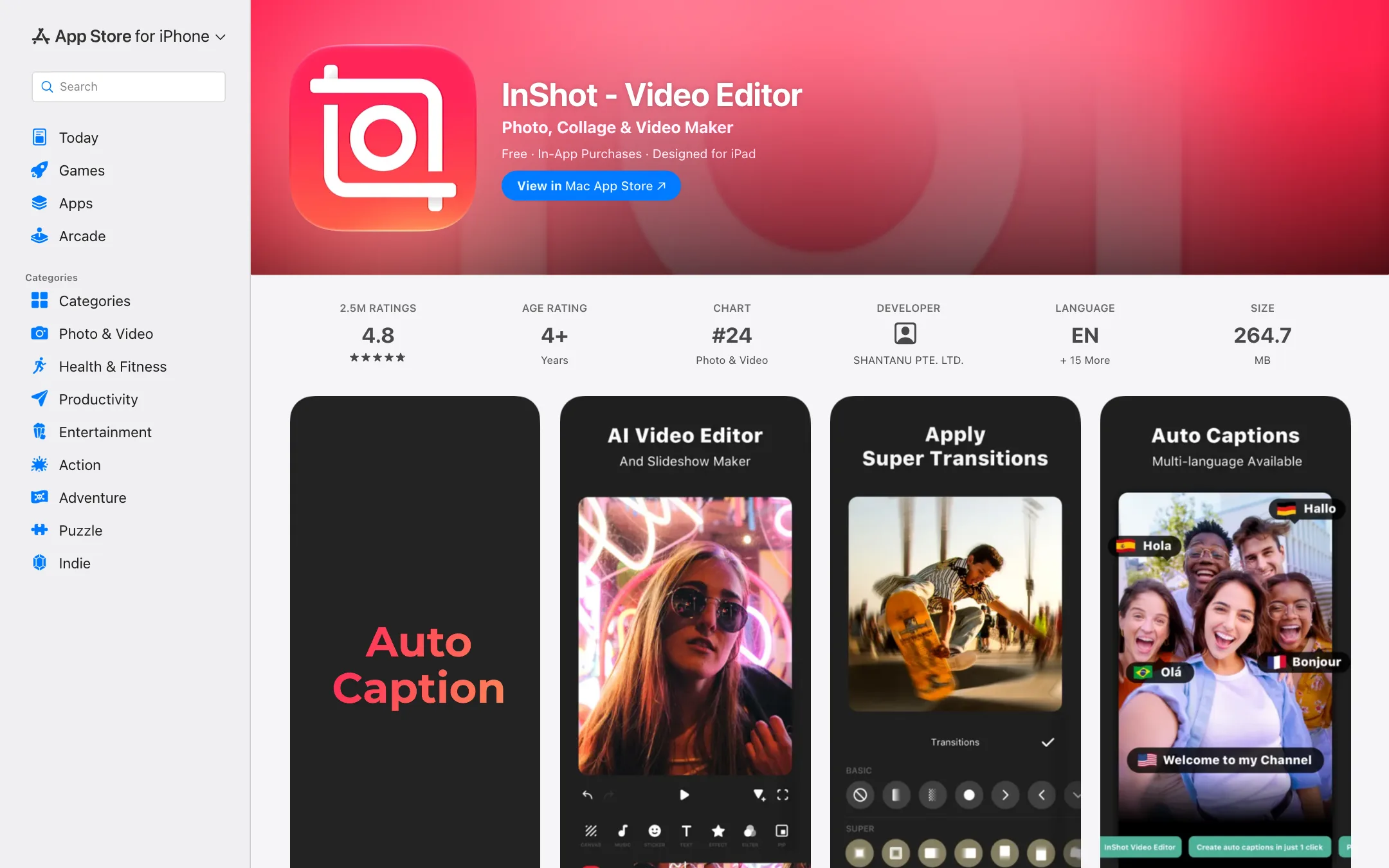
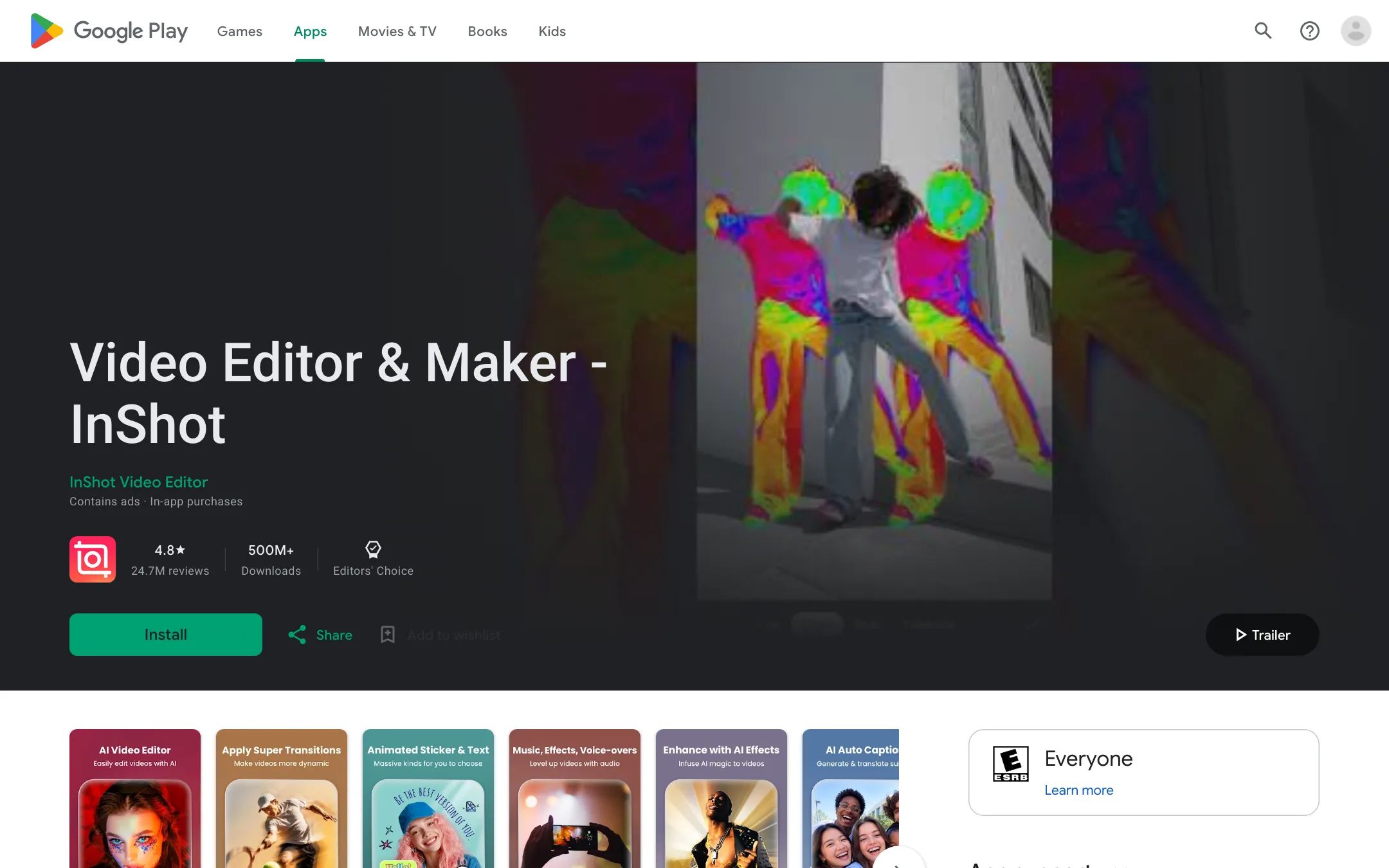
InShot is a mobile video editor, and it is one of the most downloaded editing apps there is. Google Play shows more than 500 million downloads and an Editors’ Choice badge. The US App Store shows 4.8 stars from about 2.5 million ratings.
It is not an “AI video” app in the generator sense. You do not type a prompt and get a clip. You shoot on your phone, bring the footage in, and edit on a timeline. What has changed in recent versions is the layer of AI helpers on top: auto captions, text to speech, silence and filler removal, background removal, enhancement and AI effects.
The same app also edits photos and makes collages. That is part of why so many casual users have it installed.
Who it is for
InShot fits you if:
- You shoot and edit on your phone and post to Reels, TikTok, Shorts or Stories.
- You want an editor you can learn in an afternoon.
- You need captions and quick cleanup on talking clips.
- You want to pay very little, or once, rather than a monthly subscription.
Skip it if:
- You edit on a computer. InShot has no web or Windows editor.
- You want the deepest templates and trend tools for TikTok. CapCut goes further there.
- You want AI to write and generate the video for you. InShot edits footage you already have.
How it works
You open the app, tap Video, pick clips from your camera roll and land in the editor. The toolbar runs along the bottom: canvas, music, stickers, text, effects, filters, speed, volume, crop and more. The timeline sits above it. Tap a clip and you get clip tools like split, keyframes, speed and chroma key.
A typical short-form edit
- Import your clips and set the canvas to 9:16.
- Trim and split so every shot earns its place.
- Run AI Cut on talking parts to remove silences, filler words and breaths.
- Add Auto Captions, check the text, then style it.
- Add music from the built-in library or your own files. Auto Beat can help you sync cuts to the music.
- Add a transition or effect where it helps, not everywhere.
- Export at the resolution you need, up to 4K 60fps.
The AI tools
InShot’s app store listing names these AI features:
- Auto Captions: speech-to-text subtitles, plus bilingual subtitles that show two languages.
- AI Speech: text to speech with several natural voices and accents. Useful for narration if you do not want to record your voice.
- AI Cut: removes silences, filler words and breath sounds automatically.
- Voice Enhance: clearer voice with less background noise.
- Video and photo Enhance: sharper, clearer footage and images.
- Auto background removal: cut out the subject without a green screen.
- AI Effects and AI Portrait: one-tap stylized effects, retouching and portrait lighting.
InShot’s site also lists a video stabilizer, smooth slow-mo, tracking, HSL colour control and speed curves.
The classic editing tools
Under the AI layer is a full mobile editor:
- Keyframes for custom motion and settings over time, now including filters and effects per the latest update notes.
- Chroma key for green screen work.
- Picture-in-picture and blend modes for layered edits.
- Smart tracking to pin text, stickers or an emoji to a moving subject.
- Volume balancing, a recent addition that evens out loudness across clips.
- A music library with tracks from independent artists, plus sound effects and voice-over recording.
App store reviewers point to the materials library, the tracking tool and auto captions as favourites. Those are user opinions, not our tests.
Output quality
InShot does not generate video, so output quality comes down to your footage and your edit. The app supports export up to 4K at 60fps.
On the AI tools, we have not tested them hands-on. Treat these points as guidance, not results:
- Captions from any speech-to-text tool need a proofread, especially with accents, music under speech or names.
- Silence and filler removal is fast but can cut too tightly. Watch the result before you post.
- Background removal on phones works best with a clear subject and simple background.
The bigger limit is the screen. Precise edits with many layers are slower on a phone than on a laptop. For multi-camera or long YouTube videos, a desktop editor will save time.
Pricing
InShot’s website shows no prices. They live in the App Store, Google Play and the in-app paywall. On the US App Store, the in-app purchase list shows:
| Option | Price | What you get |
|---|---|---|
| Free | $0 | Full editor, watermark on exports, ads on Android, some content locked |
| Pro Monthly | $4.99/mo | All Pro content and tools, no watermark, no ads |
| Pro Yearly | $19.99/yr | Same as monthly, with a free trial |
| Pro Lifetime | $49.99 once | Same as Pro, paid once |
| Remove ads | $3.99 | Ads removed, no other Pro content |
| Packs | $1.99 to $3.99 | Single filter, effect or transition packs |
A few things to know:
- Yearly is the value pick for most people. It works out to about $1.67 a month.
- Lifetime pays for itself in under three years compared with yearly. If you know you will keep using InShot, it is the cheapest option long term.
- Prices vary by country. The Swedish App Store, for example, lists the plans in kronor at different levels. Your paywall will show your local price.
- Watch the trial. The yearly plan comes with a free trial. Cancel in your store settings before it ends if you do not want to pay.
- Android ads. Google Play marks the app as containing ads. Pro removes them.
InShot has no affiliate program that we could find. Its only partner offer is for musicians who want their tracks in the app’s library.
InShot compared with the alternatives
InShot competes with a crowded field of phone editors. The App Store itself suggests VN, KineMaster, Splice and Videoshop as similar apps. Here is how to think about the main choices:
- CapCut has more trend templates, deeper AI tools and a desktop and web version. It is the natural step up if you outgrow InShot, though some users find it busier.
- Videoleap from Lightricks leans into layers, masks and AI effects. It is strongest on iPhone and costs more per month.
- Wondershare Filmora is a desktop editor with a mobile companion. It suits you if you want to move to a laptop for longer videos.
- YouCut, from the same developer as InShot, is a simpler editor if you want even fewer options.
InShot’s advantage is the combination of simplicity and price. The lifetime Pro option is rare among popular editing apps, and most rivals charge more per year.
Tips for faster edits in InShot
A few habits make InShot quicker on a phone:
- Shoot vertical from the start if the video is for Reels, TikTok or Shorts. Reframing later wastes time and resolution.
- Trim before you add anything. Cut clips down first, then add text, music and effects to the final length.
- Run AI Cut before captions. Removing silences first means captions only need to be checked once.
- Save your caption style. Reuse the same font, size and position so every video looks consistent.
- Keep the phone charged and storage free. Long 4K exports are heavy, and users report faster editing with free space.
- Export at the platform’s resolution. 1080p is enough for most social apps. Save 4K for YouTube or archive copies.
Before you buy
InShot Pro is cheap, but a few checks are still worth doing:
- Edit one full video on the free version. Note which locked features you actually reached for.
- Check your local price on the paywall, since prices vary by country and store.
- Pick the billing length deliberately. Monthly suits a single project, yearly suits regular posting and lifetime suits long-term users.
- Note the trial end date if you start the yearly trial, and cancel in your store settings if you change your mind.
- Check device support. The iOS app needs iOS 15 or later.
Verdict
InShot is still one of the easiest ways to edit video on a phone. It is quick to learn, the AI helpers cover the jobs short-form creators repeat every day, and Pro is cheap enough that the watermark is not worth putting up with.
It is not a powerhouse. There is no desktop version, the AI tools are helpers rather than a full automated workflow, and you only find prices once you are in the store. If you live on your phone and want simple, reliable editing with captions, InShot is an easy recommendation. If you want trend templates or desktop editing, look at CapCut.