

What Captions is
Captions is an AI video editor made by Mirage, a New York company (legally NOCAP, Inc.). It started as an app for adding captions to talking videos. It is now a full editor that cuts, styles, captions, translates and even generates footage for you.
The name confuses people. The app is Captions, at captions.ai. Mirage is the company, at mirage.app. Mirage also builds Tesseract, a set of creative tools that AI agents can drive, and video APIs for developers. If you landed here from a “Mirage” listing, this is the product you want.
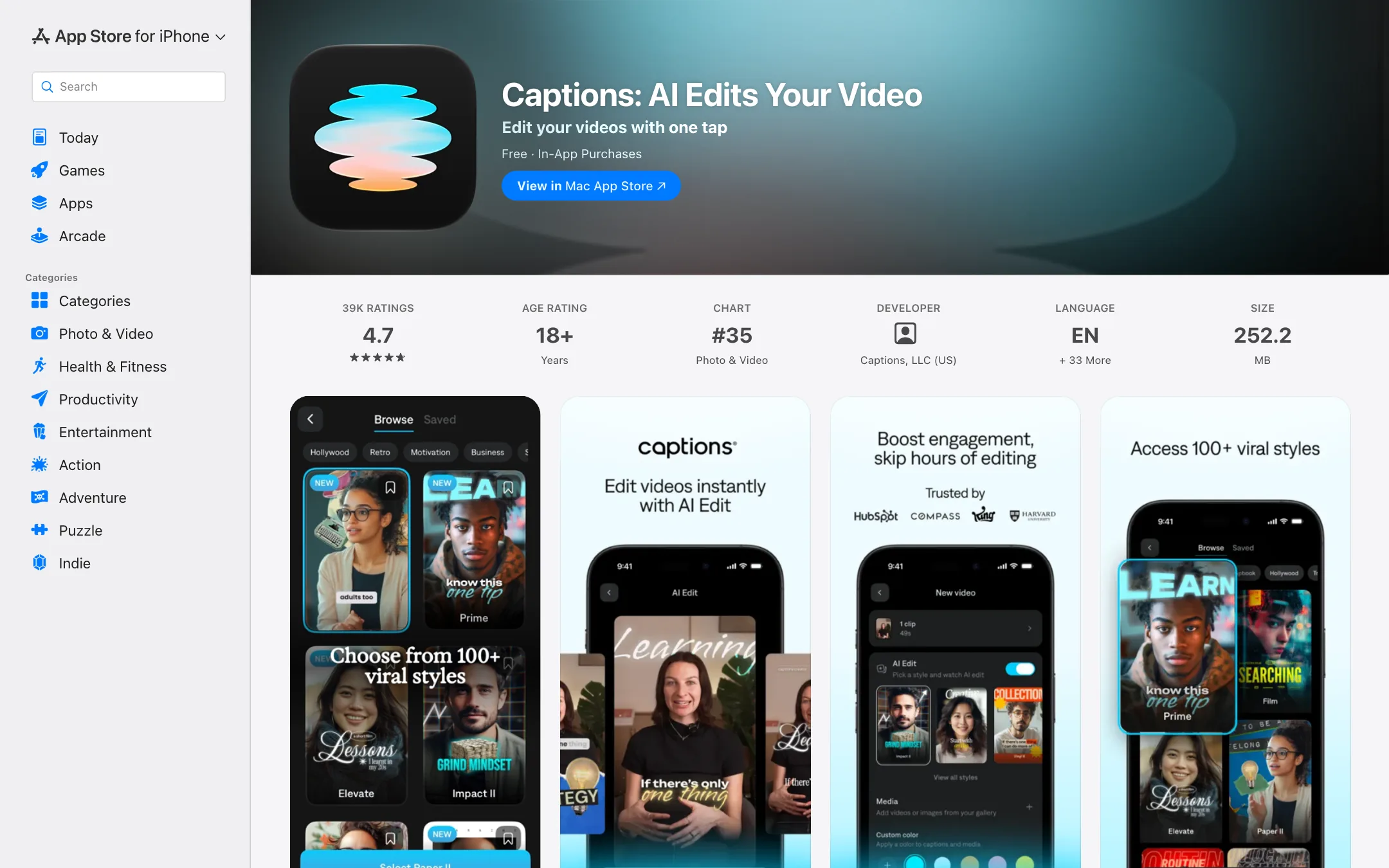
Mirage says 250 million videos have been made in Captions. The Captions site claims 20 million users. On the App Store it holds a 4.7 rating from about 39,000 reviews.
Who it is for
Captions fits you if:
- You talk to camera for TikTok, Reels, Shorts or LinkedIn and want a finished, captioned video without learning an editor.
- You record on your phone. The iOS app is the main product, with a teleprompter built in.
- You want avatars or an AI twin of yourself for days you cannot film.
- You turn podcasts or webinars into a stream of short clips.
Skip it if:
- You want full control on a traditional timeline. Captions has manual tools, but its strength is automation.
- You want a free AI editor. The free version is a basic editor with no AI credits.
- You need cinematic generated footage. Captions offers generative B-roll, but a dedicated text-to-video tool gives you more control.
How it works
You can start on the web or in the app. Both use the same account.
AI Edit
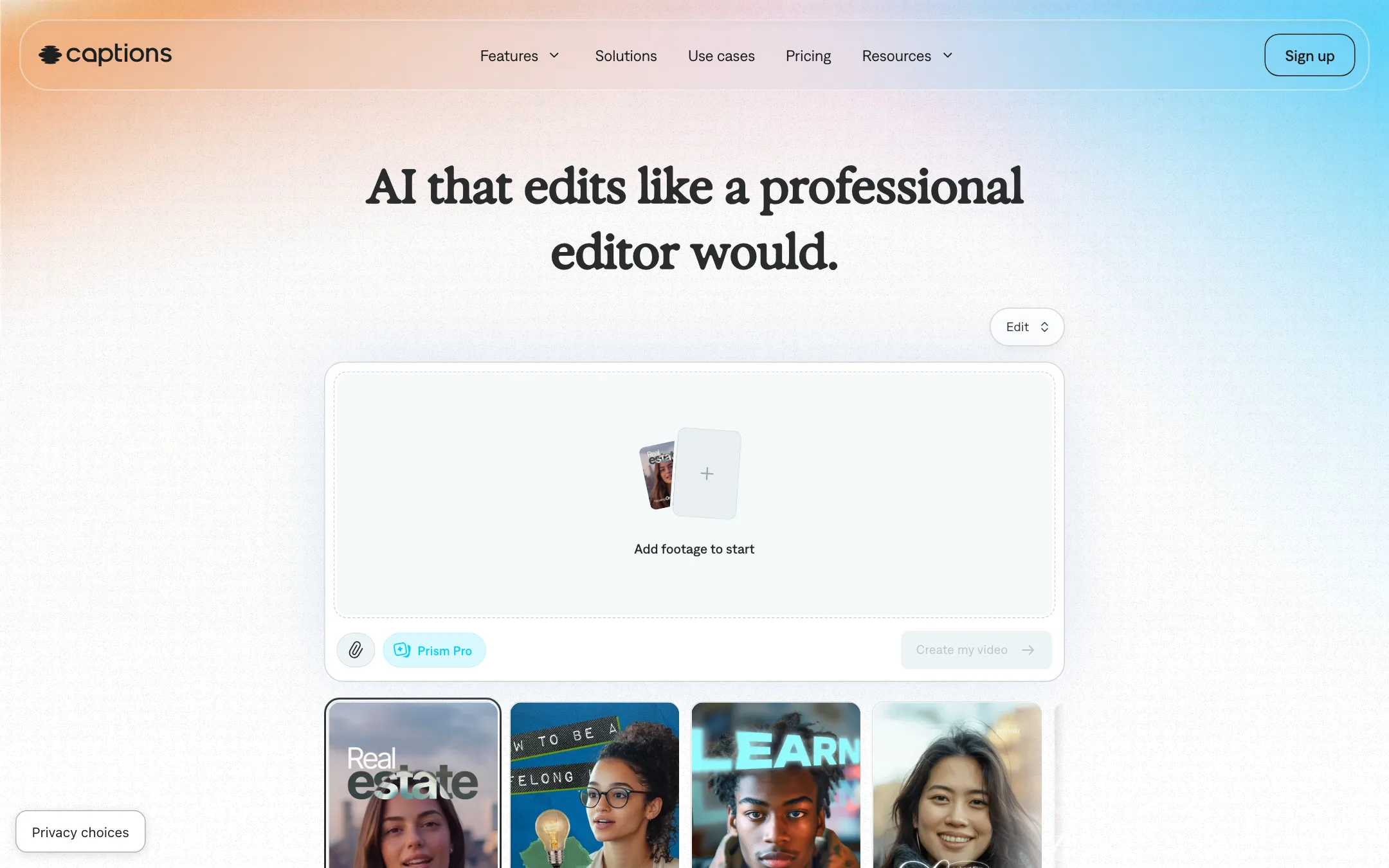
Upload footage, pick a style, and Captions edits the whole video at once. Captions says AI Edit cuts scenes, overlays B-roll, adds music, zooms and transitions, and captions the result. Styles have names like Prism Pro, Paper II, Elevate, Y2K and Chalk. Captions describes “Paper II” as a handcrafted look and “Vinyl II” as retro animation. You can switch styles on the same video with one click and compare.
Chat-based editing
After AI Edit, you can give notes in plain language. Mirage’s own example is “Bring the title in earlier and make the color warmer.” The editor applies effects, transitions, B-roll and pacing from your prompt. You can still adjust by hand if the result is close but not right.
Captions and translation
This is where the app started. Captions transcribes your video, syncs the words and lets you pick from 100+ caption styles: word-by-word animation, highlights, bold stacks or your own fonts and colors. Captions says it handles accents, fast speech, technical terms and several speakers. You can download the transcript.
For other languages there are three tools:
- Translated subtitles in 100+ languages, per the website.
- AI Translate and AI Dubbing, which voice your video in another language. The App Store listing says 29 languages.
- AI Lipdub, which re-syncs your mouth to the new audio.
Clips
Clips takes a long video and returns a batch of short ones. Paste a link or upload a file up to 3 hours or 10 GB. Pick a style and format, and Captions says you get up to 30+ clips, each framed for vertical or horizontal and scored for how likely it is to perform. If you do not like the picks, ask the chat editor for funnier or different moments.
Captions makes one unusual claim here. It says Clips can detect and erase hardcoded elements in the source, such as old captions, so the new clips look clean. It calls this something “no other clipping tool can do.” We have not tested that claim.
Avatars and AI twin
Captions has a library of stock AI actors. The feature page says “200+” in one place and “225” in another. You can also make an AI twin of yourself from a selfie, or generate a new avatar from a text prompt. Prompts can change the outfit, background or add a product to the scene.
Unlike many avatar tools, these run on Mirage’s own model, Mirage Avatar X. Mirage publishes research on it, along with voice models it calls Finding Voices and Casting Voices. That matters if you want a vendor that builds its own tech instead of reselling someone else’s.
Cleanup tools
A set of single-tap fixes covers the usual problems with phone footage:
- Eye contact correction for when you read from notes.
- Denoise for background noise.
- Trim pauses for filler words and dead air.
- AI Zoom and AI Scale for punch-ins and resizing.
- AI Censor for bleeping words.
Generative extras
Paid plans can generate music, sound effects, voiceovers, images and video clips. The App Store listing says you choose from 20+ models. Captions does not name all of them on the pages we read. Frontier gets “our most sophisticated tier of generative AI models.”
Output quality
We have not edited videos in Captions, so this is drawn from Captions’ own pages and public App Store reviews.
- Captions and transcripts. This is the most mature part of the product. The 4.7 App Store rating across 39,000 reviews suggests most people are happy with the core editing.
- AI Edit. Captions shows the same video edited in three styles on its homepage. The styles are designed for social video. Expect bold, busy edits rather than subtle ones.
- Prompt accuracy. One App Store reviewer on a paid plan wrote that chat edits often came out different from what they asked, and that fixing them used more credits. Captions replied that the feedback was valid. Start with small, specific prompts.
- Wait times. Another reviewer reported sudden three-hour processing waits. Captions replied that after six AI projects in a month, users on its “Pro” plan may wait up to 360 minutes for uploads. The current pricing page shows Max and Frontier, not Pro, so it is unclear how that rule maps to today’s plans. Ask support before you commit to a heavy posting schedule.
Pricing
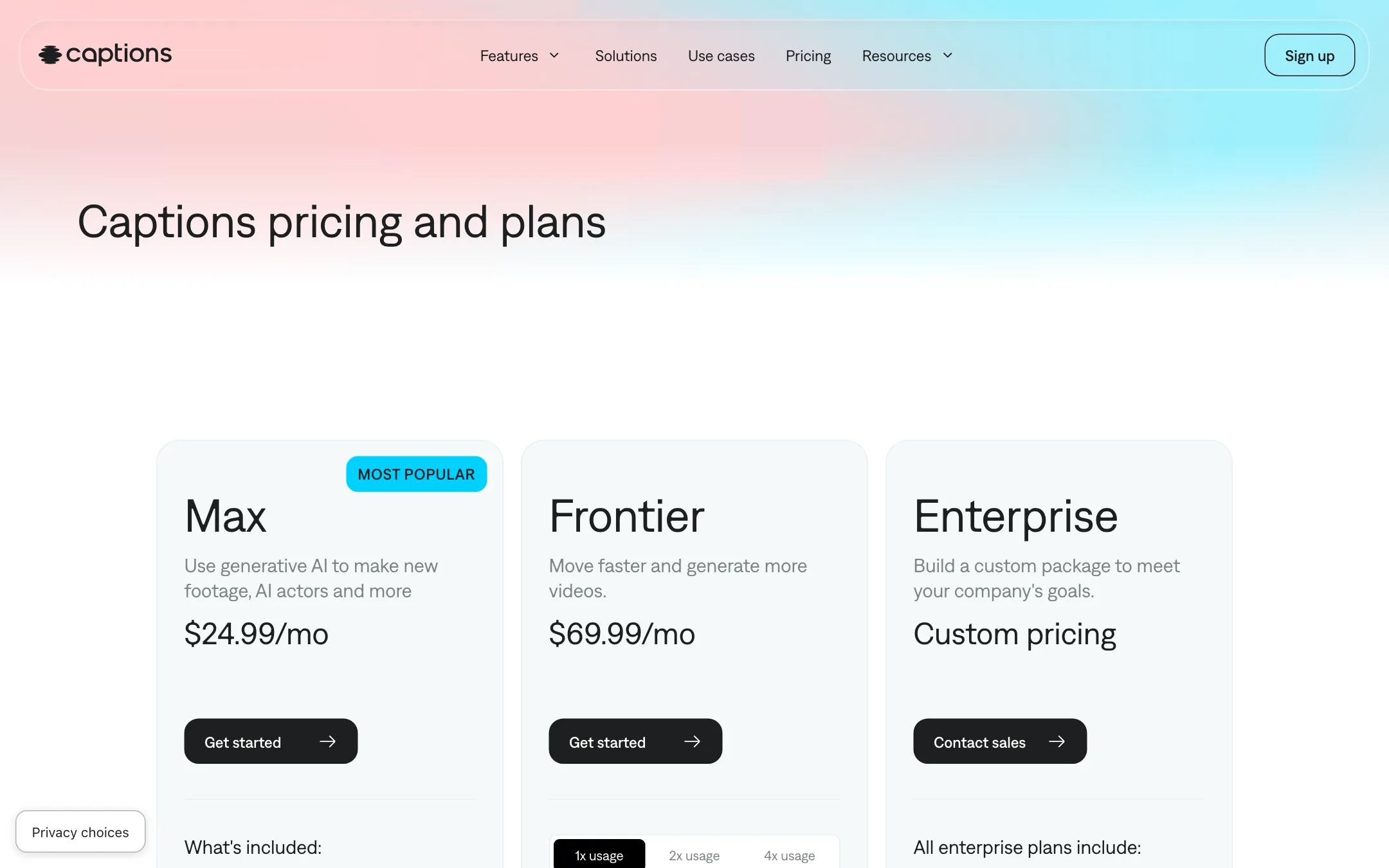
| Plan | Price | What you get |
|---|---|---|
| Free | $0 | Basic editing, teleprompter, 1 caption template, no AI credits |
| Max | $24.99/mo | 500 credits a month, AI Edit, chat editor, Clips, AI twin, generative B-roll |
| Frontier | From $69.99/mo | 1,400 credits a month, 2x and 4x usage tiers, top generative models |
| Enterprise | Custom | Bulk credits, custom seats, account team, training data exclusion |
What to know before you pay:
- These are iOS prices. Captions says so in small print. Web and Android prices may differ.
- Yearly is cheaper but unlisted. The FAQ says yearly plans bill 12 months upfront at a discount. The pricing page does not show the yearly figure.
- Credits roll over. Unused credits carry forward, up to three times your monthly allowance. That is more generous than most credit-based tools.
- Credit costs per feature are not on the pricing page. Captions links to a help article on how credits work. Read it before choosing between Max and Frontier.
- Frontier tiers. The page shows 1x, 2x and 4x usage options for Frontier. Only the 1x price is listed.
You can switch plans at any time. Upgrades are prorated and apply at once. Downgrades take effect at the end of the billing cycle. If you subscribe through the App Store or Google Play, you manage the plan there.
How to make your credits go further
Every AI feature on Max and Frontier draws from the same credit balance. A few habits help:
- Record cleanly first. Denoise and eye contact correction fix problems, but a quiet room and a script on the teleprompter mean fewer AI passes.
- Pick a style before you prompt. Switching AI Edit styles is one click. Rewriting a whole edit through chat costs more and is less predictable.
- Keep chat prompts small. Ask for one change at a time, such as “remove the B-roll at 0:12.” Broad prompts like “make it better” are where reviewers report wasted credits.
- Batch your clipping. Run Clips on a full episode once, then ask for more moments from the same run instead of uploading again.
- Let credits roll over. If you post in bursts, a quiet month builds a buffer of up to three months’ allowance.
Things to watch
- Age rating. The App Store rates Captions 18+. Keep that in mind if you plan to use it with students.
- Your likeness. An AI twin is built from your face. Read Mirage’s Safety & Security page and the terms before you upload, and do not make a twin of anyone else.
- Enterprise data. Only Enterprise mentions “training data exclusion.” If you work with client footage, check how your plan’s uploads may be used.
Verdict
Captions is one of the best tools for creators who talk to camera. It handles the boring parts of editing in one pass, its captions are the reason millions use it, and its own avatar model sets it apart from tools that resell someone else’s.
The catch is the paywall. The free version is a basic editor, so plan on Max at $24.99 a month to see what the app can do. Credits roll over, which softens the cost, but App Store reviews about credits spent on bad edits and long queues are worth reading first.