
What Movavi Video Editor is
Movavi Video Editor is a desktop video editor for Windows and Mac. It has been around for years and is aimed at people who want to edit without learning Premiere or DaVinci Resolve. You drag clips onto a timeline, trim them, add titles and transitions, and export.
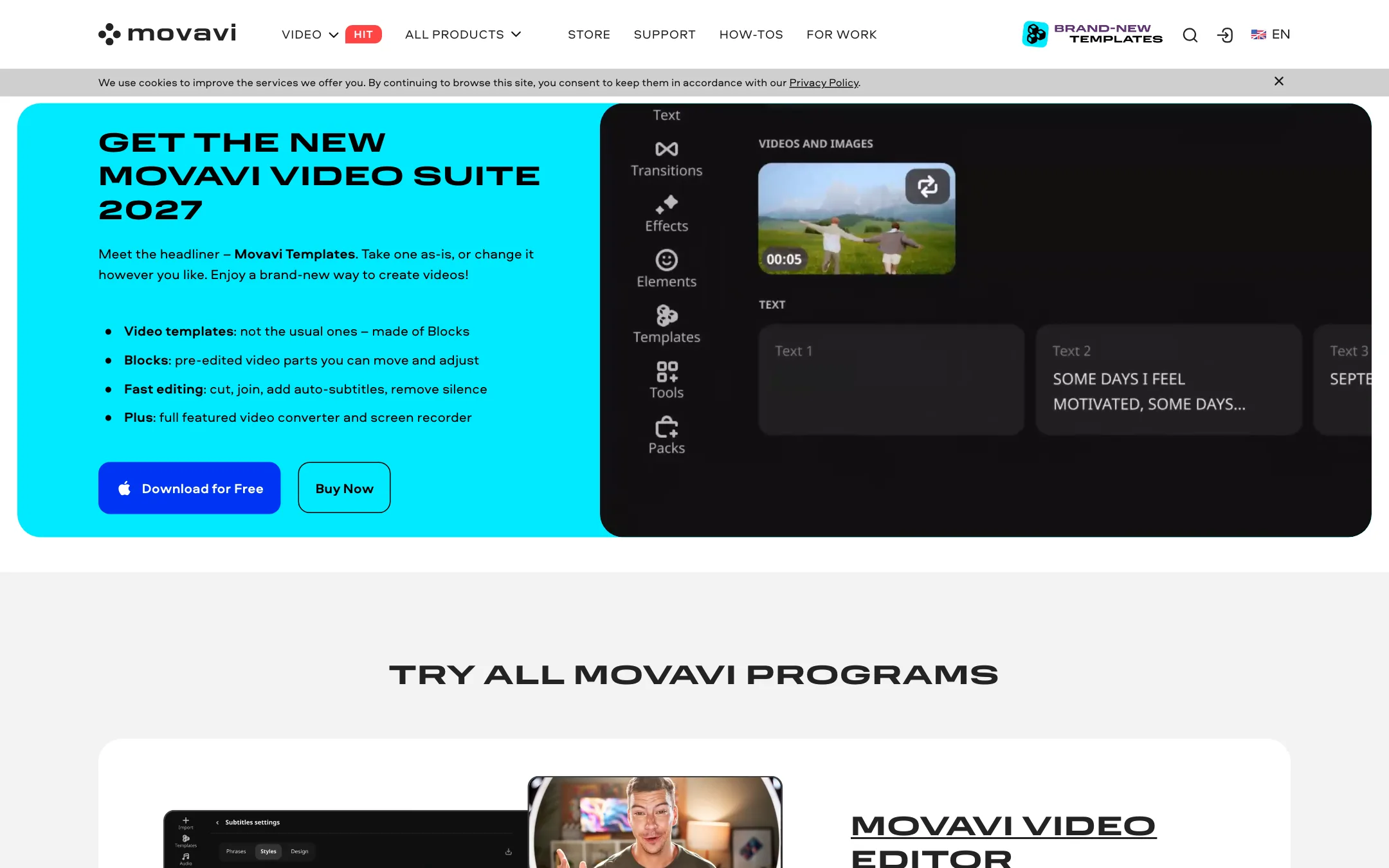
Over the last few releases Movavi has added a set of one-click AI tools. Auto subtitles, noise removal, silence removal, motion tracking and background removal all live inside the editor. The newest release, branded 2027, adds Templates built from pre-edited “Blocks” that you can swap, reorder and retitle.
Movavi is a company with many products, not just one editor. You will also see Video Suite, Movavi Unlimited, Video Converter, Screen Recorder, Photo Editor and the Movavi Effects library. This review covers the Video Editor and the bundles you are most likely to buy it in.
One thing to set straight: Movavi is an editor, not a generator. It does not have a text-to-video model. It makes your own footage faster to cut and clean up.
Who it is for
Movavi fits you if:
- You are new to editing and want a timeline that does not feel intimidating.
- You edit vlogs, family videos, school projects or simple YouTube content.
- You want captions, noise cleanup and silence removal without paying for separate tools.
- You prefer a desktop app that runs offline over a browser editor.
Skip it if:
- You need pro features like multicam, node-based color grading or shared team projects.
- You want AI to generate footage for you. Look at our text-to-video picks instead.
- You hate subscriptions and add-ons. Movavi splits its catalog across many products and extras.
- You want to finish a full project on a free plan. The trial caps exports at 60 seconds.
How it works
You download the installer, open the editor and start a project. The layout is a classic three-part editor: a media bin and effects panel at the top left, a preview player at the top right and a multitrack timeline along the bottom.
A typical edit
- Import your clips, photos and music into the media bin.
- Drag them onto the timeline in order.
- Trim with the cut tool. Movavi’s newer releases add frame-precise cuts and let you trim clips before they hit the timeline.
- Run the AI cleanup tools you need: silence removal for talking-head footage, noise removal for outdoor audio, auto subtitles for captions.
- Add titles, transitions and overlays. Movavi says you can hover over any effect to preview it before dropping it in.
- Export to a file or a preset for a device or platform.
Movavi says a complete beginner can learn the editor “in less than 20 minutes.” Independent YouTube tutorials quoted on its site describe the same thing: an editor built for people who want to get a video finished, not one that tries to compete with high-end tools.
Templates and Blocks
The headline of the 2027 release is Movavi Templates. A template is made of Blocks, which are pre-edited chunks of video like an intro, a section or an outro. You swap your clips into the Blocks, change the text and move sections around.
This is aimed squarely at people who stare at an empty timeline and do not know where to start. Movavi groups templates by vibe: vlogs and social, family and holidays, business and education. Templates are also sold on their own as a subscription product, so check which plan includes them before you rely on them.
The online editor
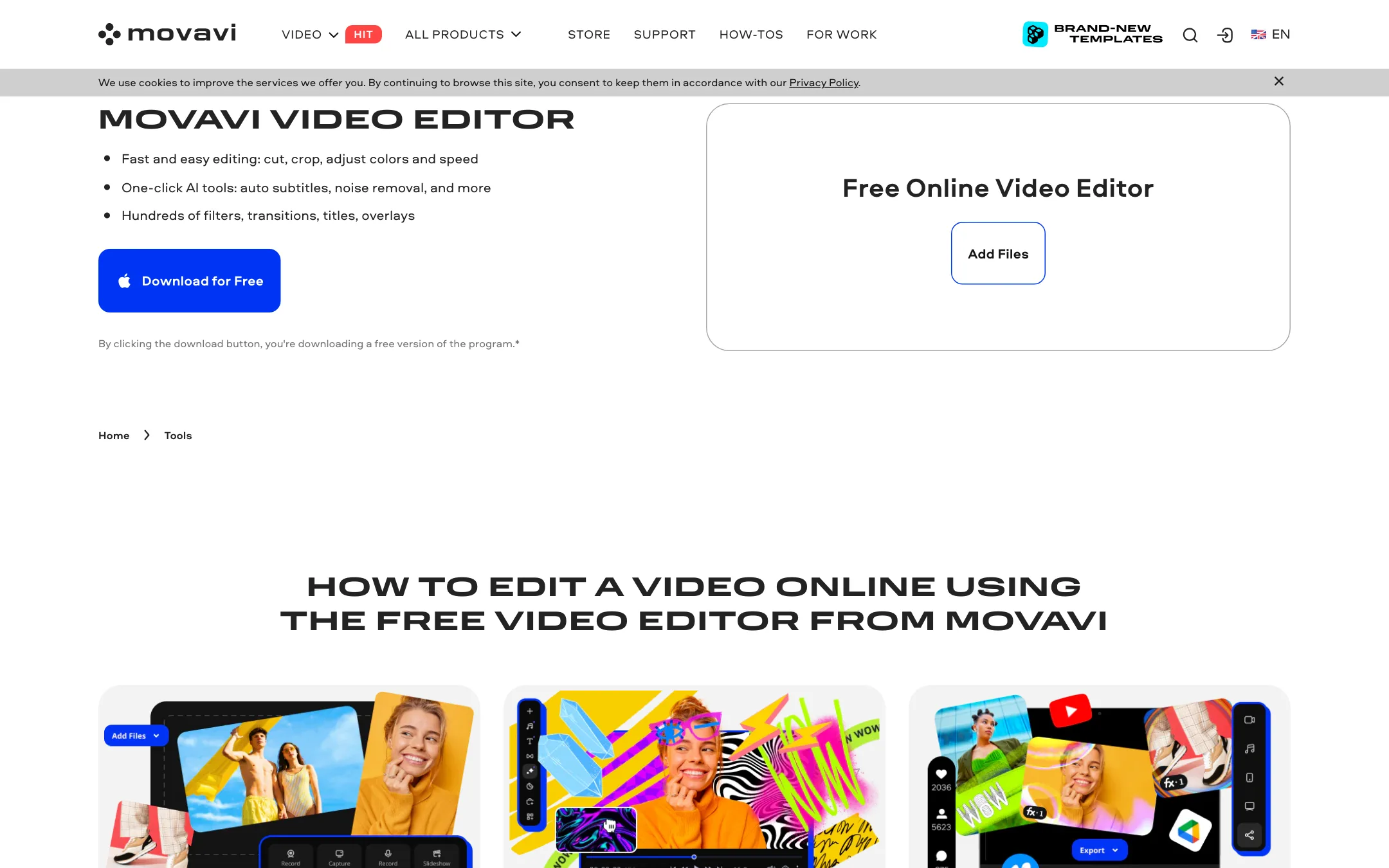
Movavi also runs a free Online Video Editor in the browser. It is very basic. You add MP4, JPEG, PNG or GIF files up to 500 MB, pick a transition style, add music and export. Movavi itself says the online tool is “perfect for quick edits” and points you to the desktop app for anything more.
Do not confuse the two. The free online editor is a slideshow and clip-joiner. The desktop editor is the product you would pay for.
AI tools
Movavi lists these AI and automation tools in the desktop editor. We have not tested them hands-on, so the descriptions are Movavi’s.
- Auto subtitles. Movavi says the AI turns speech into captions “in almost any language.” You choose font, color and position. The 2027 release adds word-by-word subtitles, the style popular on Shorts and Reels.
- Noise removal. An AI denoiser that Movavi says removes car, wind and other background sound.
- Silence removal. Cuts pauses automatically, or lets you tune the pause length and volume threshold. Useful for talking-head videos and tutorials.
- Motion tracking. Click an object and the AI attaches a photo, video, emoji or title to it as it moves.
- Background removal. Removes the background from a video without a green screen, so you can replace it with a color or image.
- Auto-crop. New in 2027. Reframes clips for vertical or horizontal formats.
- Smoothing grainy footage. Also new in 2027, according to Movavi’s release notes.
- Beat detection. Finds the beats in your music track so cuts can land on them.
The Video Converter, sold separately or in Video Suite, adds AI upscaling of up to 8X.
How good are they?
Movavi’s own site quotes several YouTube reviewers who used the 2026 version. They praise how easy it is and call out silence removal, beat detection and auto captions as time savers. One reviewer says it is “not trying to pretend to be a high-end cinematic editor.” That is a fair summary of the product’s pitch.
Keep two things in mind. These quotes are curated by Movavi, so they are the positive ones. And one-click tools like silence removal and auto captions always need a manual pass. Expect to fix names, jargon and the odd cut that lands mid-word.
Effects and assets
Movavi says it offers 10,000+ effects and 1,500+ music tracks. These include titles, transitions, overlays, LUTs, stickers, intros and outros, backgrounds and frames. The 2027 release adds adjustable effects like dust, light leaks, retro and VHS looks.
Here is the important part. The big effects library is Movavi Effects, a separate subscription. The editor lets you preview those effects, but to use them in an export you need Movavi Effects or a bundle that includes it, like Movavi Unlimited. The base editor ships with “hundreds” of filters, transitions and titles, which is plenty for most simple projects.
System requirements
The Mac page lists macOS 12 or higher, a 64-bit Intel processor or Apple M1 or newer, 4 GB of RAM and a 1280 × 800 display. That is a low bar. Movavi uses the codecs your operating system provides, so some formats may need extra codecs installed.
Movavi’s pages were slightly out of step when we checked. The Mac page showed version 27.1.0 from October 12, 2026, branded 2027. The Windows Video Editor page we fetched still referenced the 2026 suite and version 26.24. Check which version you are downloading if you want the new Templates.
Pricing
Movavi’s pricing is the most confusing part of the product. The store showed Malaysian ringgit to our crawler. When loaded for a US visitor, it listed these USD prices, VAT included:
| Plan | Price | What you get |
|---|---|---|
| Free trial | Free | Watermark, 60-second exports, some features locked |
| Video Editor | $19.95/mo | The editor alone |
| Video Suite | $29.95/mo | Editor, converter and screen recorder |
| Video Editor + Effects | $49.95/mo | Editor plus the Movavi Effects library |
| Video Editor + Photo Editor | $69.95/yr | Both editors, yearly |
| Unlimited | $149.95/yr | Every Movavi program, Templates and all effects |
A few things the store does not make obvious:
- Yearly is far cheaper than monthly. The yearly bundles cost about the same as three or four months of the single monthly editor. If you plan to keep editing, look at a yearly bundle or Unlimited first.
- The store shows two prices for many products. The second, higher number next to many bundles is not labeled. It looks like a list price before a discount. Movavi runs promotions constantly, so the price you see today may not be the one you see next month.
- Lifetime licenses are hard to find. Movavi’s FAQ says you can buy a lifetime license or an annual subscription. The US store page we checked only showed subscriptions for the editor.
- Effects are extra. If the effects in the preview are why you want Movavi, budget for Movavi Effects or Unlimited.
The trial
The trial is the weak spot. Movavi’s trial limitations page says the Video Editor trial adds a “Trial” watermark, caps exports at 60 seconds of video or half the audio length, and locks some advanced export features. The homepage FAQ also says you must buy the full version after 7 days, while the limitations page lists no time limit for the editor itself. Either way, you can learn the interface on the trial, but you cannot finish a real project.
Use the trial to test the features that matter to you. Run auto subtitles on your own voice, try silence removal on a real recording and check the export formats you need.
Verdict
Movavi Video Editor is a solid pick if you want a simple desktop editor with useful AI cleanup built in. Auto subtitles, silence removal and noise removal save real time on everyday videos. The new Blocks-based templates lower the bar further for people who never know where to start.
The downsides are commercial, not technical. The trial is too limited to finish a project, the store is a maze of bundles and add-ons, and the best effects cost extra. If you are a beginner on Windows or Mac and expect to edit regularly, a yearly bundle or Movavi Unlimited is the version worth buying. If you mostly make short social clips, a free editor like CapCut may get you there for less.