What AI Video Cut is
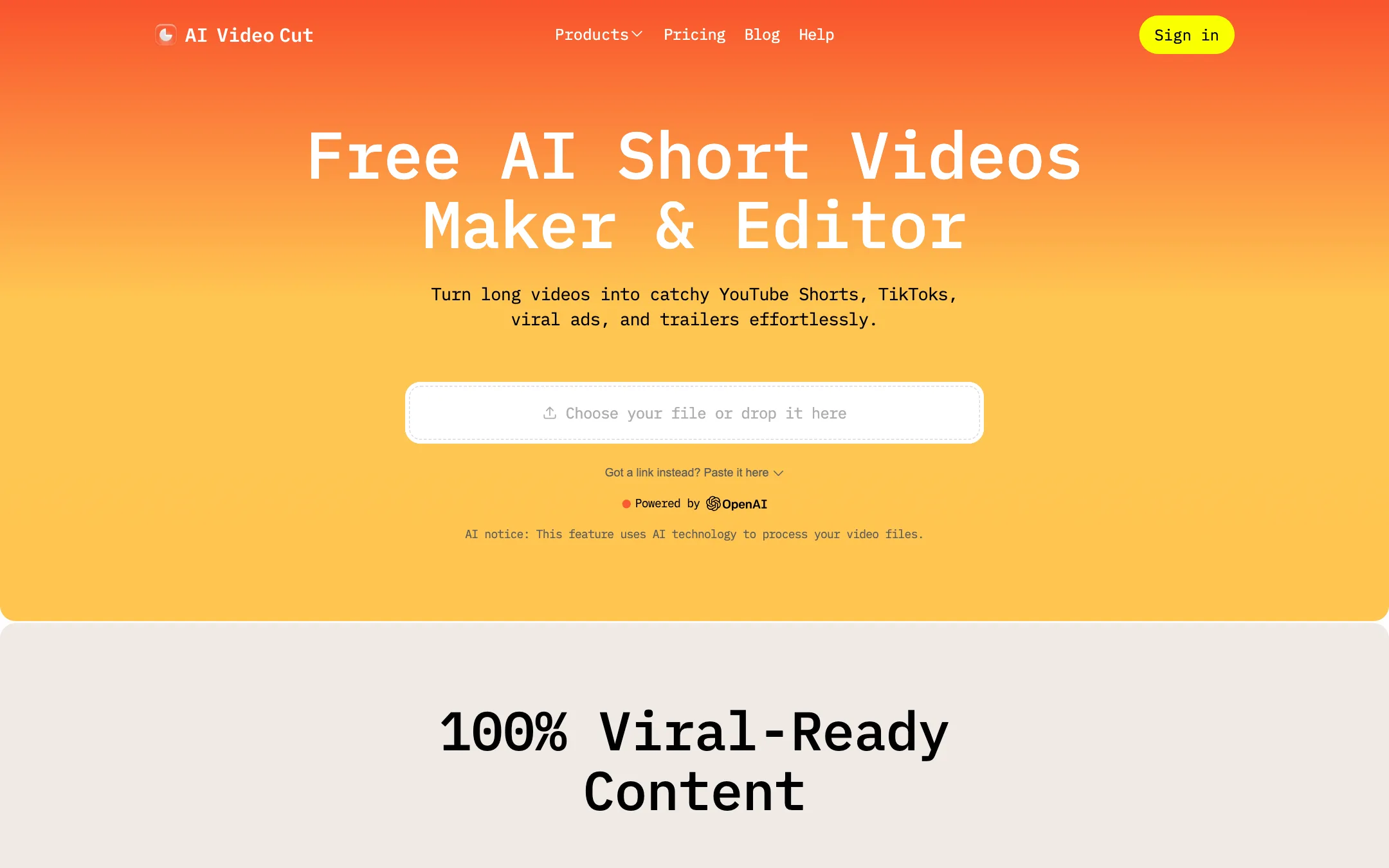
AI Video Cut is a web tool that turns long videos into short ones. You upload a file or paste a link, pick a prompt such as “Trailer” or “Funny Moments,” and it cuts a short video for TikTok, Reels, YouTube Shorts or an ad.
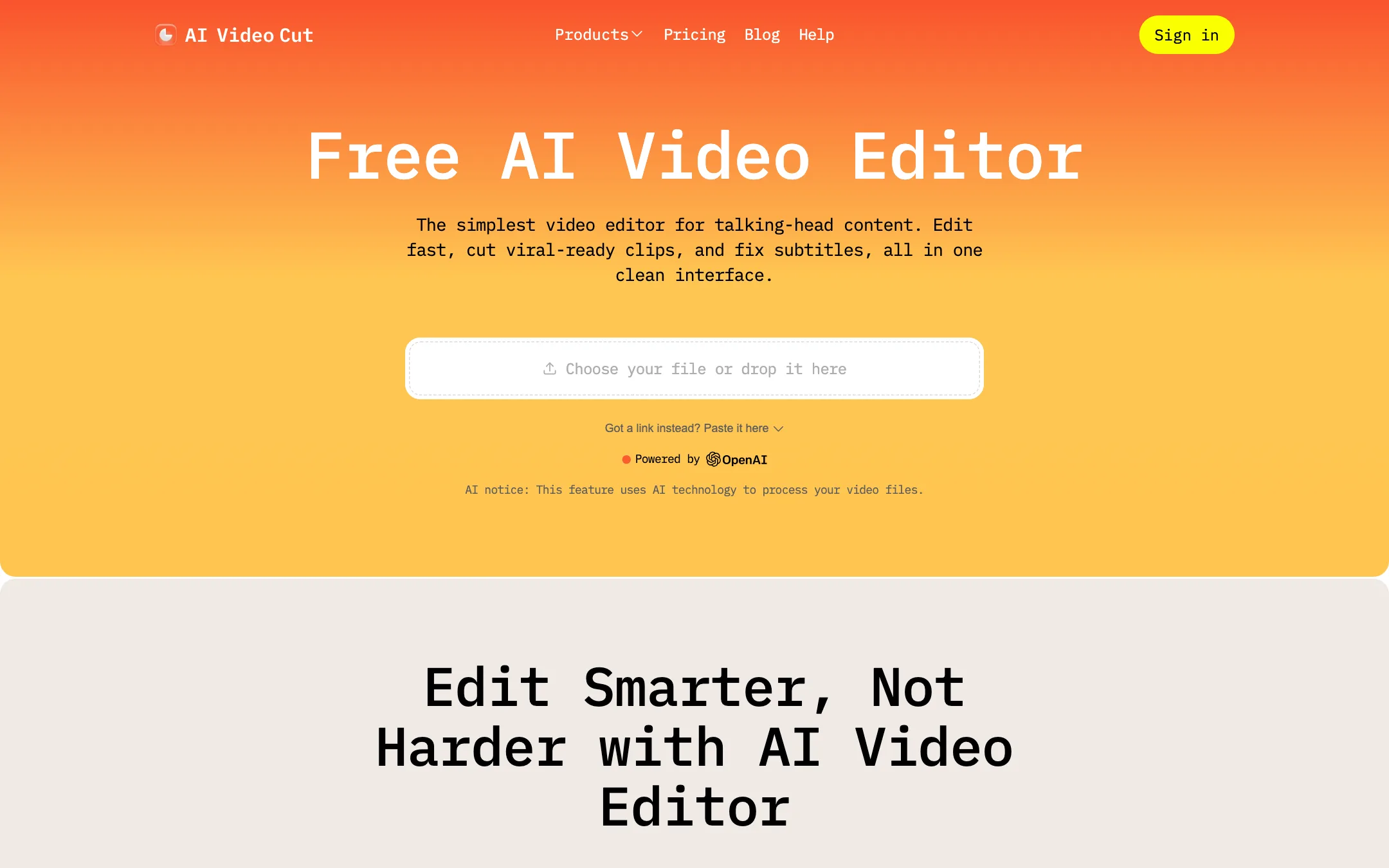
It is run by Omnisale GmbH, named in the site footer. The product sits next to two sibling tools on the same account: an AI Video Editor, which is a transcript-first editor for talking-head content, and an AI Caption Generator.
The way AI Video Cut builds clips is different from most clip makers. Most tools look for one strong continuous segment and cut it out. AI Video Cut, by its own description, picks specific phrases from across your video and “cuts them together into a cohesive collage.” You set the length by phrase count: 7, 15 or 25 phrases. That makes it closer to a supercut or trailer generator than a pure clipper.
Who it is for
AI Video Cut fits you if:
- You record podcasts, interviews, webinars or product talks and want teasers fast.
- You want trailers or highlight reels that pull the best lines from a whole episode.
- You like steering the AI with a short text instruction instead of scrubbing a timeline.
- You want a low monthly price and a free allowance big enough to test properly.
Skip it if:
- Your footage is mostly visual, such as gameplay, sports or music performance without commentary. AI Video Cut says it does not do image recognition.
- You want clips that play as one natural, continuous moment. Phrase stitching can feel jumpy.
- You need to schedule and publish to social accounts from the same tool. AI Video Cut stops at download.
- You need your logo burned into every clip today. Branded videos are still listed as “soon.”
How it works
AI Video Cut’s homepage lays out four steps: import, tailor, customize and publish.
1. Import
Upload a file from your computer or paste a link. The pricing table lists YouTube, Reddit, Instagram, Zoom, Twitch, Dailymotion, Facebook and Google Drive as sources. Free accounts can upload files up to 30 minutes and 2 GB. Starter raises that to two hours and Pro to three hours, both up to 4 GB.
AI Video Cut transcribes the audio, with timestamps and speaker changes. It says transcription works in 100 languages, and you can set the language by hand if it guesses wrong.
2. Tailor with a prompt
This is the core of the product. You choose a ready-made prompt, which AI Video Cut also calls a video type:
- Auto: the AI picks the best moments without a set style.
- Viral Clips: the most attention-grabbing lines.
- Trailer: a summary with an intro, a hook and a finale.
- Funny Moments: the lightest, most shareable parts.
- Product Review: opinions and feedback about a product or service.
- Show Highlights: standout moments from an episode.
- Music, Sports and Gaming Highlights: presets for those kinds of footage.
Or you write a custom prompt. AI Video Cut’s help center gives a simple recipe: “Extract 7 quotes about the key moments,” “Extract 10 quotes which contain the word ‘Hello,’” or “Extract 5 quotes about nature.” It suggests adding conditions like “Don’t repeat the quotes” and trying role prompts such as “Act as a storyteller.”
The help center is candid about the limits. It says the AI “interprets your video as a large block of text” and that the tool “primarily focuses on speech and doesn’t perform image recognition or object detection.” That sits awkwardly next to the Sports, Music and Gaming Highlights presets. Those only make sense when someone is talking over the action, such as a commentator or a streamer.
3. Customize
Next you set:
- Length in phrases: 7, 15 or 25.
- Aspect ratio. The pricing table lists 9:16, 16:9, 1:1 and original. The homepage lists 9:16, 4:3, 1:1 and original. One of them is out of date.
- Caption style. Pick a preset, then adjust font size, color, position, width and line length, or turn captions off.
Face detection and smart crop keep the speaker centered when you reframe a landscape video to vertical. AI Video Cut also writes a title and description for each clip.
4. Edit and export
Every clip opens in a transcript-based editor. AI Video Cut’s guide describes three actions on any selected words:
- Edit text to fix a wrong caption.
- Remove text to hide a caption without cutting the video.
- Remove text and video to cut a sentence or an awkward moment entirely.
You can also drag the ends of the clip to trim it, and restore anything you removed. When you are done, you download an MP4 and post it yourself. The free plan allows five transcript edits in total. Paid plans are unlimited.
If you do not like the result, regeneration makes new clips from the same upload with a different prompt or caption style, without charging new upload minutes. The free plan allows three regenerations per video and paid plans ten.
The AI Video Editor
The separate AI Video Editor is for when you want to choose the cuts yourself. It shows the whole transcript as a timeline, split into segments. Above it, AI suggestions on an orange background highlight moments worth clipping. Click one to select its range, adjust the edges, split it out and save it as a clip. AI Video Cut says video reframing in this editor is coming soon.
Output quality
These are vendor claims, not results we tested.
- Export quality. Every plan, including Free, lists FHD output.
- Transcript accuracy. AI Video Cut claims “top-notch transcription accuracy,” but its own editor guide warns that background noise, filler sounds and fast speech can cause errors. Plan to proofread captions.
- Clip flow. Because clips are built from phrases chosen across the video, a 7-phrase trailer can jump between topics. That suits teasers and trailers. It suits a single insight clip less well.
- Visual content. By AI Video Cut’s own account, the AI does not look at the picture. A great visual moment with no speech will not be found.
Pricing
AI Video Cut charges by upload minutes: the length of the source video you process, not the number of clips you get back.
| Plan | Price | What you get |
|---|---|---|
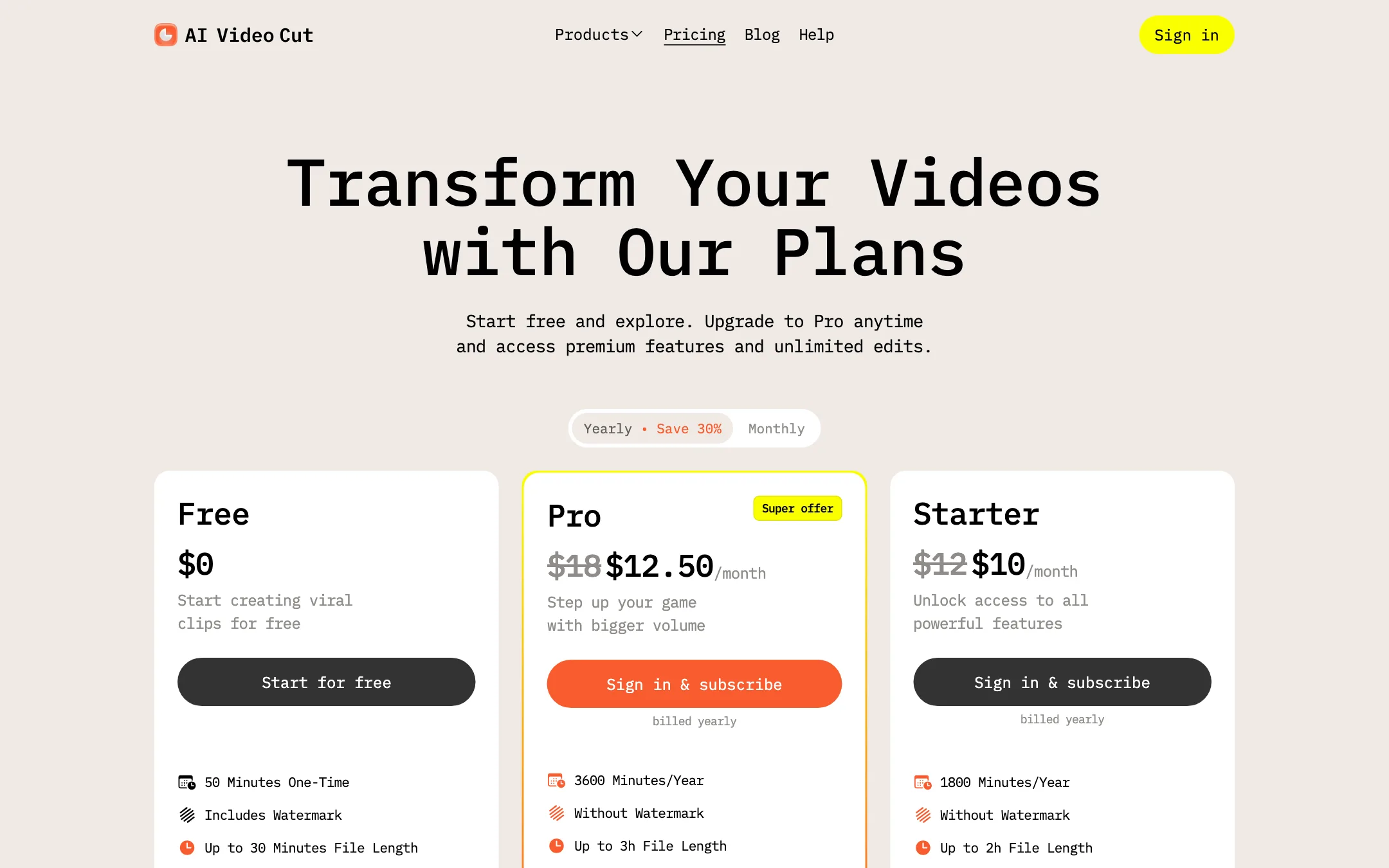
| Free | Free | 50 minutes one time, watermark, 30-min files, 14-day storage |
| Starter | $10/mo yearly, $12 monthly | 1,800 minutes a year, 2-hour files, no watermark |
| Pro | $12.50/mo yearly, $18 monthly | 3,600 minutes a year, 3-hour files, no watermark |
A few things the pricing page does not make obvious:
- The yearly discount is uneven. The toggle says “Save 30%.” That is roughly true for Pro, at about 31%. Starter saves about 17%.
- Monthly or yearly minutes? The plan cards list minutes per year. The FAQ talks about “monthly upload minutes” that refresh each billing cycle. On a yearly plan, 1,800 minutes works out to 150 a month, but the pages do not say whether you get the full year up front.
- Pro is the better deal. It doubles the minutes for a few dollars more and raises the file length to three hours.
- Storage is limited. Free projects are kept for 14 days and paid projects for six months. Download what you want to keep.
How to make your minutes go further
- Test on the free 50 minutes first. Upload one typical episode and try two or three prompts before you pay. The free plan exists for exactly this, and the refund policy assumes you used it.
- Regenerate instead of re-uploading. A new prompt on the same upload costs no extra minutes, up to ten regenerations on paid plans.
- Trim the source before upload. Minutes are charged on the full file. Cut long intros, breaks and dead air in any editor first.
- Write narrow custom prompts. “Extract 7 quotes about pricing” gives the AI a clear target and wastes fewer regenerations than “make it viral.”
- Proofread captions in the transcript. Fixing a word there updates the caption without touching the cut.
Refunds
AI Video Cut asks you to test on the free plan before paying. Its refund policy covers only two cases: an error it fails to fix within 30 days, and an accidental second subscription with unused minutes. Requests must come within 14 days of purchase. Yearly cancellations stop the renewal but do not refund the rest of the term.
Verdict
AI Video Cut is a cheap, focused tool for pulling the best spoken lines out of long talking videos. The prompt presets for trailers, reviews and funny moments are useful, the transcript editor is simple, and the free 50 minutes is enough to see if it suits your content.
It is a speech-only tool, and its phrase-stitching approach makes teasers rather than seamless clips. It also lacks scheduling and branding, and its pages disagree on minutes, aspect ratios and affiliate terms. If you mostly record podcasts and interviews and want inexpensive teasers, try it. If you need visual highlight detection or one-click publishing, compare it with Klap or SendShort first.